
Offers: general settings
In Settings > Offers, you define automatic workflows for the entire edoobox account. These settings apply account-wide to new and partially also existing offers. You maintain individual rules per offer additionally in the respective offer settings.
Change global offer settings only deliberately. They influence sorting, archiving, booking confirmations, internal visibility, reservations, promotions, and the public booking process.
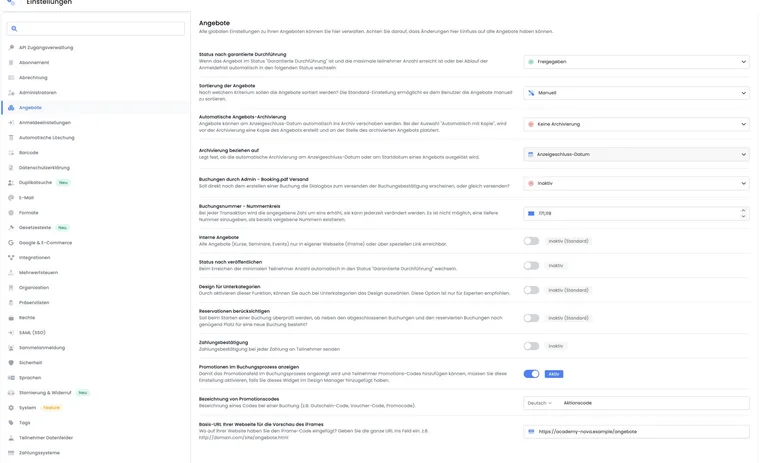
Overview of global rules
| Setting | Effect |
|---|---|
| Status after Guaranteed to take place | Determines whether an offer guaranteed to take place is closed or released when it reaches full capacity or the registration deadline expires. |
| Sorting of offers | Sorts offers manually as in the offer tree or automatically by start date. |
| Automatic offer archiving | Does not archive offers, or archives them after a short time, after one day or with a copy. |
| Archive relative to | Uses display deadline or start date as the reference point. |
| Bookings by admin | Controls whether no email, a dialog, or automatic booking confirmation with Booking.pdf is used for manual backend bookings. |
| Booking number | Sets the number range and must not be smaller than already assigned numbers. |
| Internal offers | Switches offers to internal or back to external and requires an additional confirmation. |
| Consider reservations | Considers ongoing booking reservations when checking free spots. |
| Payment confirmation | Sends a payment confirmation after payment receipts if the function is active. |
| Display promotions | Displays promotion code fields in the booking process when the design also supports them. |
| Base URL of the website | Saves the URL for the iFrame preview. |
Status and guaranteed course delivery
Once an offer has reached Guaranteed to take place status, edoobox can automatically set its next status when the maximum number of participants is reached or the registration deadline expires. Depending on the setting, it becomes Closed or Released.
edoobox can also automatically set the status to guaranteed to take place once the minimum number of participants is reached. This is particularly useful when the booking process shows a progress bar or information about whether the offer will run. Details are provided under Offer status.
Sorting and automatic archiving
Sorting controls whether offers appear in the booking process by start date or in the order of the offer tree. Automatic sorting is helpful for many dates; manual sorting is suitable for curated programs or special sequences.
Automatic archiving can archive offers after the public display ends or after the start date. Options are no archiving, automatic archiving after a short time, after one day, or archiving with a copy. Archive relative to matters only when automatic archiving is active.
Application example: Archiving after start date
An event should no longer appear in the overview after the start. Activate automatic archiving and select the start date as the reference. For courses that should remain visible after the registration deadline, the display deadline is usually more appropriate.
The complete process for manual and automatic archiving, multi-offers, and restoring to an active category is explained in Archiving and restoring offers. Archiving does not replace cancellation or refund.
The automatic mode with copy is intended for a single offer. Multi-offers and offers with sub-offers are not automatically copied and archived in this mode. For such families, check the completion status of all offers and use a suitable common archiving process.
Bookings by Admin and Booking.pdf
For manual backend bookings, you can control whether edoobox performs no action, opens a dialog box, or automatically sends the booking confirmation including Booking.pdf. The dialog is useful if admins should decide on a per-booking basis whether the person immediately receives a confirmation.
If an invoice is also to be sent when manually adding a booking, it must first be created and then the appropriate email triggered. Read Send booking confirmation manually and Invoice and cancellation invoice for details.
Booking number and number range
The booking number or number range is incremented with each new transaction. The value can be adjusted but must not be lower than already assigned numbers. This protects existing bookings, invoices, and exports from duplicate numbers.
Document changes to the number range, especially if accounting, external exports, or manual number ranges are in use.
Safely switch internal offers
With Internal offers, offers can be made accessible exclusively via special links. As a result, they do not appear regularly in the public booking process and are suitable for internal company events or closed target groups.
Globally switching all offers is delicate. edoobox therefore requires an additional confirmation: When switching to internal, INTERNAL must be entered; when switching back to external, EXTERNAL. If the required subscription feature is missing, an upgrade notice appears. More about the effect is found under Internal feature.
Design for subcategories
If Design for subcategories is active, subcategories can also have their own designs. This allows for very precise design but increases complexity. Without a clear structure, it may later be difficult to determine which design applies in the booking process.
Consider reservations
If reservations are considered, edoobox counts not only completed bookings but also started bookings in the booking process. Seats may therefore remain reserved for approximately 10 to 20 minutes so that two people do not book the same last seat.
As a rule of thumb, booking is possible only if the maximum number of participants minus existing bookings minus reserved places leaves at least one place. Waiting list bookings and bookings with a free choice of dates are not treated like regular confirmed bookings. Admins can view reserved places in locations including the relevant price category.
Payment confirmation and promotions
With Payment confirmation, you control whether participants automatically receive a payment confirmation after payments are received. This setting complements the payment methods and email templates. When making changes, check the page Compilation of all email templates.
The setting Display promotions in the booking process activates the input field for promotion codes. Additionally, the visible label for the promotion code can be maintained. The text should be short and understandable and may be a maximum of 100 characters long. You manage the campaigns themselves under Promotion campaigns and vouchers.
Application example: Making promotion codes visible
Enable the promotion display globally, then check in the Design Manager whether the promotion widget is integrated into the booking process, and test with a valid and an invalid code.
Base URL for iFrame preview
The base URL of your website is used for the iFrame preview. Enter a complete URL with protocol and domain, for example https://www.example.ch. The actual integration is explained in Integration into the website and preview share.
Attendance status in the same settings area
Separate in function but nearby in the settings: under Attendance lists, maintain statuses such as present, excused or unexcused, their order, colour and attendance percentages. Details are provided under Attendance list settings; manage layouts under Layout settings.
Checklist before saving
Does the change apply account-wide or only to an individual offer?
Are ongoing offers, open bookings, or reservations affected?
Are email templates, Booking.pdf, invoices, or payment confirmations configured appropriately?
Has a test offer with booking, payment, cancellation, and preview been checked?
Is it documented who made the global change and why?