
Participant dashboard
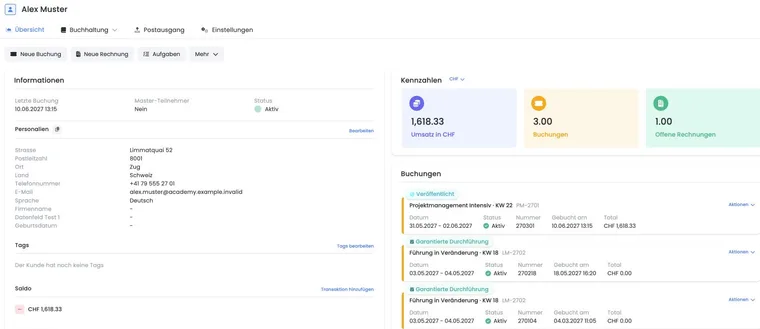
The participant dashboard is the overview in the user profile. Open the person from the user overview and select Overview. Review this person’s bookings, invoices and other details here; to change an individual booking, open its booking details.
Quick actions with the correct scope
Depending on permissions, the following actions are available at the top:
New booking: record a booking for the person already selected.
New invoice: select an appropriate booking and create an invoice.
Tasks: link a pending item or scheduled action to the person.
Email customer: manual email, provided an address exists.
Participant data fields: administer the structure of available fields.
Find duplicates: compare possible duplicate profiles and ignore them with a reason or merge them after review.
Delete: only after checking all dependencies.
A new invoice in the participant profile may concern several bookings. Before creation, check which booking and billing address are selected.
Maintain personal details, status and tags
The information column shows last booking, master participant, profile status and all visible person data. Use Edit to change personal details; email addresses can be copied directly.
Tags can be edited in the profile and, together with offer tags and SAML mappings, may be relevant to booking conditions or UserTags in templates. Document substantively who assigns a tag and when it is removed.
Review duplicates in the assistant
When a duplicate notice appears, open the assistant or go to Duplicate search → Open duplicates in global settings. The assistant guides you through Candidates, Field comparison and Confirmation. Check names, email, company, bookings, invoices and notes, select the profile to retain and choose the valid value for conflicting fields.
A shared email address does not prove a duplicate. Ignore the candidate if the profiles represent different people. For now, keep profiles with memberships or passes separate until full transfer of assignments, periods and uses is clarified with support. The complete process is explained under Duplicate search and merging.
Manage the person’s subscriptions and passes
In the profile’s Memberships section, you can see the time-based subscriptions and passes assigned to this person. Check status, validity period, remaining uses, origin, billing periods and history. Displayed actions depend on permissions and current state.
Authorised admins can assign a suitable subscription, adjust validity, credit uses or perform a cancellation. Use the respective dialogue and enter the required reason. Read the consequences of immediate cancellation and cancellation at period end carefully. A membership number data field and a tag are not a subscription assignment.
Step-by-step guides: Manage subscriptions and Renewal and cancellation.
Read metrics, bookings and invoices
The metrics show revenue, number of bookings and outstanding invoices. The latest bookings follow below; each card may offer actions such as confirmation, invoice, rebooking or cancellation. The invoice box shows status, date, due date, amount and, when needed, an update notice.
A profile value is not a transaction value: Metrics and balance may cover several bookings and currencies for this person. For a specific query, always open the relevant booking and invoice.
Check balance and transactions by currency
The balance is displayed per currency. Zero, credit and outstanding amounts have different symbols. If invoicing is active, Add transaction leads to accounting depending on context; manual corrections should have a traceable reason.
A payment belonging to an invoice should preferably be recorded against that invoice. Do not use a free transaction as a substitute for a missing invoice or refund process. See Check participant transactions.
Manage personal barcodes securely
If barcode ticketing is globally enabled, the profile can show a personal barcode. Depending on its state, you can create, reset or disable a barcode, or show archived barcodes.
Resetting invalidates an existing code, and the new code applies to this person’s bookings. A disabled barcode cannot be reactivated. Coordinate this action with ticket and admission processes.
Use notes and outbox for support cases
Notes document internal agreements. System notes cannot be freely edited and record important processes. In the separate Outbox section, you see messages assigned to this person; the participant dashboard itself does not replace delivery checking.
For a missing email, check address, affected booking, template, active email provider and the outbox.
Prepare data changes and deletion
Check whether there is a duplicate rather than a new profile.
Check bookings, outstanding invoices, credit balances and statutory retention obligations.
For an address change, clarify whether only future processes or also an outstanding invoice’s address should be adjusted.
Document important internal agreements as a note.
Only then delete or anonymise through the intended data protection process.
Example: An invoice is reportedly still outstanding
A person reports an invoice already paid. The administration opens the profile, identifies the correct booking and invoice, compares balance and transactions in the same currency and checks the outbox. Only then is a missing payment allocated or a correction recorded.
Example: Two profiles with the same email address
The search shows two profiles with the same email address. The administration compares bookings, invoices, tags and master data without creating a third person. In the duplicate assistant, it reviews the candidate and field conflicts. Only when both profiles demonstrably represent the same person does it select the profile to retain and confirm merging.
Example: Lost personal admission code
A participant loses her card. The administration first checks her identity and then resets the personal barcode. The old code is immediately invalid; the new one is tested and transmitted securely. The affected bookings do not need new codes individually.
Maintain a participant image
Open participant profile settings and Participant avatar. Upload the desired image and check its display in the profile and participation. A new image replaces the previous profile image. Use the bin icon to remove the existing image.
The profile setting and a photo request in the public booking form serve different purposes. If participants should upload an image themselves, additionally configure the corresponding widget in Design Manager.
Manage files on an existing profile
Open profile settings and the active file data field. There you can open or remove the assigned file, or upload one if none exists. To replace it, remove the previous file first and then upload the new one. A profile image change is separate.
Full setup and troubleshooting are provided under Set up file uploads for participants.