
Countries, currencies, and address data
Countries, currencies and address data are used throughout edoobox: in organisations, venues, participants, billing addresses, imports, table filters, price categories and VAT rules.
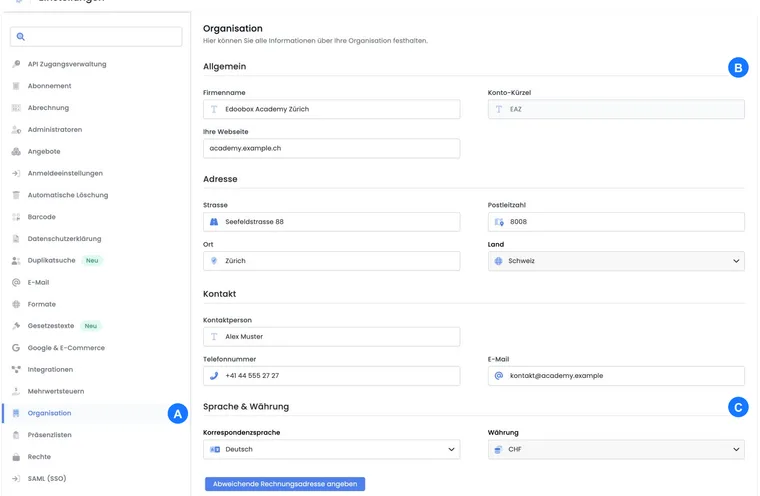
The country list is a shared reference. You select countries but do not create or edit this list yourself. The organisation’s country and the account currency are read-only under Settings → Organisation. If these details are no longer suitable, discuss the change with support before editing other master data.
Where countries appear
Account settings: Organisation country, address, correspondence language and currency.
Venues: Address, country and map reference.
Participant data: Residential address, billing address and import fields.
Invoices: Tax logic, address and currency.
VAT: Country-dependent rules such as GeoDynamic or Reverse Charge.
Currencies and prices
Currencies affect prices, invoices, payments, exports and accounting. For new offers, check that the price category, VAT and payment system suit the intended currency.
For international offers, also clarify whether participants book from multiple countries and country-dependent tax rules are required.
Address data and imports
Imports require clear mapping of countries and address fields. Different spellings can complicate later filters, invoices or tax rules.
Before larger imports, check a small test file. Afterwards, check the user profile, invoice and export.
Do not maintain countries yourself
The country reference is provided centrally. If a country is unavailable as expected or a mapping seems incorrect, first check the form, import file and language setting.
Address quality directly affects invoices, exports, delivery and reports. Define whether participants maintain their own addresses, admins correct them or imports update them regularly.
If several countries or currencies are involved, coordinate changes with accounting and administration beforehand. Invoices, VAT, payment methods and exports should then be checked with a test booking in particular.
For support cases, identify the address source: does it come from the account, venue, user profile or an individual booking?
Example: online offer for multiple countries
A provider sells an online seminar in Switzerland, Germany and Austria. They check currency, VAT, the Country participant field and billing addresses before publishing the offer.
Change a country in the correct record
- For a location, open Locations; for a person, open their Profile → Settings. The following steps apply to editable country fields in these records.
- Choose the country from the provided selector. Do not enter a country name in Town or Street as a substitute.
- Check postcode, town and any alternative billing address, then save according to the open view.
- Reopen the record. For a location, also check map positioning; for invoice data, check the associated invoice or preview.
For imports, use the country values mapped in the import dialog. Free text in the import file does not replace verified mapping to the shared country list.