
The booking process for participants
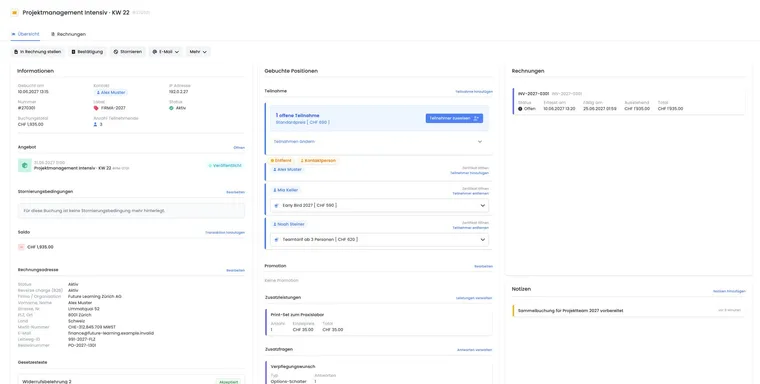
The booking process is the sequence participants follow on your website: find an offer, read details, register, enter data, accept terms, pay and receive a booking confirmation.
Which steps are visible depends on your offer, settings, price categories, additional questions, additional services, dates, payment methods, and the chosen design. You control the design structure in the Design Manager.
Tip: Always test new workflows with a test booking on a demo or preview page. This way, you can see which steps participants actually see and which emails, PDFs, and payment pages are triggered.
Video tutorials
These videos complement this guide. The spoken language is indicated for each video.
Preview images are loaded directly from this website. Playing a video connects to YouTube, only for the video you select.
Your first booking in edoobox
Follow a first test booking from a participant’s perspective and then check it in the admin area. The video follows the journey from public registration to the saved booking.
The 2023 example shows one possible standard process. Current steps, payment methods, forms and views depend on the offer, design and enabled features.
Standard booking sequence
Overview of categories and offers
Detail view of the offer
Registration with the necessary booking steps
Payment or completion page
Booking confirmation by email with the enabled attachments
Optional later access to MyShop, tickets, invoices, calendar files, or certificates
The order may vary depending on the type of offer. Request lists, waitlists, group registrations, free date selection, multi-offers, login requirement, MustPay, and payment methods change the visible flow.
Step 1: Find categories and offers
Participants often start on an offer overview. There they see categories, tiles, lists, or filters. Which display appears depends on your integration and the Design Manager.
If offers are hard to find, check categories, tags, filters, language, offer status, and the integration on the website. The design of the overview is described in Template Body: Offers Overview.
Step 2: Check the offer
In the detail view, participants read the description, dates, location, instructor, price and other information. From there, they start registration or return to the overview if needed.
Good offer data is crucial: Maintain clear description texts, correct dates, appropriate price categories, and understandable additional information. The detail page itself is controlled via Template Body: Offer Details.
Step 3: Registration from the participants' perspective
The registration steps depend on the type of offer, configuration, and design used. Check the specific flow in the preview; a fixed number of steps does not apply to all variants.
| Step | When visible? | Important setting |
|---|---|---|
| Price category | With multiple active prices or participation types | Price categories |
| Additional services | If services or service-related questions are bookable | Additional questions and additional services |
| Date selection | With free date selection or lesson booking | Registration types |
| Registration form | Always, depending on the design with standard form or Design Manager form | Body template: registration participant form |
| Summary | Always before completion | Terms and conditions, withdrawal, promo code, completion button |
| Payment | With active payment methods, outstanding amount, or MustPay | Payment systems |
If a form widget requires login or OAuth, the person is directed to login before the form or before completion. This also applies to special participant logins or SAML-SSO in appropriate accounts.
Practical example: Price, additional service and login requirement
An offer has two active price categories, a paid additional service, and a form widget with a login requirement. The booking starts with the price category, then shows the additional service, directs to login before the form, and only after successful login leads back to the form and summary.
Summary, completion, and payment
In the summary, participants check their details, accept the necessary texts, and complete the booking. This is followed either directly by the completion page or a payment page.
Which payment methods are visible depends on your payment systems, offer rules, and the outstanding amount. MustPay and Countdown can additionally control the completion.
Before displaying payment methods, edoobox checks whether the booking can still be paid, whether seats have been taken in the meantime, and whether a MustPay or countdown timer is still valid. If a timer expires, the booking should not be blindly continued; check the booking, waitlist, and balance afterwards.
Practical example: MustPay booking with an expiring timer
The person making the booking completes the summary and reaches the Payment page. Before displaying payment methods, edoobox checks whether the booking can still be paid and whether the timer is valid. If the timer expires, the booking must be checked again or restarted.
Booking confirmation and attachments
The confirmation depends on the booking type: Regular bookings use the booking confirmation, waitlists use their waitlist confirmation, and requests use the intended request list context. A waitlist message does not contain a regular ticket or Termine.ics. An unconfirmed MustPay reservation does not become a confirmed participation by displaying a payment page. Check booking status and payment separately.
After completing the booking, a user profile or record with the entered information exists. There, admins can check bookings, balance, invoices, emails, notes, and attachments. Manually send booking confirmation explains the manual resending. Basics on tickets and barcodes can be found in Barcode: Ticket and barcode settings.
| Attachment or access | What is it used for? |
|---|---|
| Booking.pdf | Summary of the booking |
| Rechnung.pdf | Invoice or payment information, if active |
| Ticket.pdf | Admission control and barcode scan |
| Termine.ics | Calendar entry for the booked dates |
| Mobile Wallet Ticket | Optional mobile ticket access; see Set up wallet tickets. |
| Certificate or attendance confirmation | Available later after attendance or completion |
MyShop, login, withdrawal, and downloads
Depending on the setup, participants can open their bookings, outstanding payments, invoices, booking PDFs, tickets, calendar files, certificates, and mobile wallet tickets in MyShop. Use MyShop especially when people should access documents again later.
Login routes may include login, forgotten password, new password, logout, OAuth or SAML-SSO for participant logins. For withdrawal or deregistration, edoobox may check additional information such as first name, last name, email and booking number before executing the action.
Document links are generally protected by time or context. External offer files are only delivered if they match the account and booking. Sensitive files should therefore not be treated as regular public offer files.
Practical example: Retrieve booking documents later
A participant signs in to MyShop and opens an older booking. They find the booking confirmation, ticket, calendar file and, if payment is outstanding, the appropriate payment or invoice link.
Variants and special cases
Request lists, waitlists, group registrations, free date selection, multi-offers, Magic Login, Double-Opt-In, promo codes, and file uploads change the visible flow. Always plan such features in connection with the offer, design, email templates, and payment rules.
- Request lists: Interested parties must be accepted or rejected.
- Waitlist: People can move up or receive request emails.
- Group registration with participant data: Multiple people or seats are booked together.
- Multi-offer / conference module: Several offer components are combined in one workflow.
- Automatic profile recognition (Magic Login): Known people are recognized faster.
- Bookings with Double-Opt-In: Confirmation steps change the completion.
Do not use self-built internal booking routes. Booking links should come from preview share, iFrame, email templates, or system-generated URLs, because they contain language, style, session context, and flow state.
Check before publishing
Perform a test booking for each important price category.
Test additional services, additional questions, required fields, and login requirement.
Check terms and conditions, withdrawal, privacy texts, and completion button.
Test all active payment methods, including return after successful or aborted payment.
Check the booking confirmation, outbox and PDF attachments.
Then open the booking and user profile in the admin area and check status, balance, and documents.
Book with subscription, pass, or redemption code
If the plugin for participant subscriptions is activated and the offer is set up accordingly, the booking flow can take a membership or pass into account. A price category can be linked to specific subscriptions. Therefore, also check the login and the recognizable selection of the eligible price category in the design.
A discount subscription reduces the price intended for it. An access pass with 0 percent discount can enable the selection of an eligible price category, while the regular price remains due. For limited passes, the remaining usage is also crucial. A redemption code must be used according to the rules of the relevant pass.
Before publishing, check one eligible and one ineligible case, as well as an expired or exhausted allocation. Then open the booking and participant profile and compare the used pass, subscription benefit, usages, invoice, and payment. See Book and use subscriptions and Price categories and subscription limits.
Contact person without their own participation and unassigned places
In a group registration, the booking contact may only be organizing the booking without participating. Check whether the form uses I am not participating and how many additional named or unassigned participations are actually booked as a result. Receiving the invoice and participating are separate roles.
For bookings by number, unassigned places are assigned to people later. Fields displayed only for group participants may therefore appear separately from the contact details. Before completion, check the number of active participations and the price category per place. Next: Group registration without participant data.