
Account: payment, GDPR and EU VAT
The account section manages payments to edoobox, saved credit cards, billing email recipients, data protection agreements and EU VAT information. These functions concern the relationship between your edoobox account and edoobox.
Participant payments such as Stripe, PayPal, Worldline/Saferpay, invoice or QR invoice are configured separately under Payment systems for participant payments.
Access and usage contexts
Account, payment and privacy information is in the account section or settings. Typical uses include subscription changes, settling a negative balance, saving a credit card, checking the billing address and signing the data processing agreement. Depending on the account, currency, balance and permissions, individual blocks may be hidden or appear only when action is required.
Always distinguish two payment contexts: these settings govern payments to edoobox for your account. Participant payment methods for bookings are maintained under Payment systems and in offer or invoice settings.
Privacy policy and signatures
A data processing agreement or privacy agreement for working with edoobox can be signed digitally. Have the responsible person, company details and applicable region ready.
Depending on the situation, a distinction is made between your customer area relating to the EU/EEA or being outside it. Check this carefully because it matters for data protection documents and internal evidence.
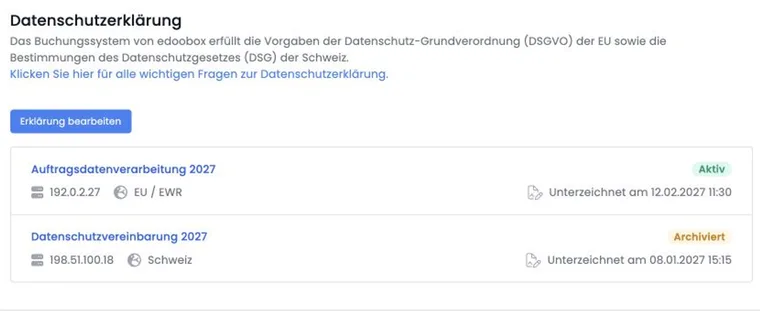
The signature overview shows the responsible admin's name, status, saved IP address, contract type and, after signing, signature date. Name and IP address are already saved when requesting the contract. The displayed IP address therefore does not reliably prove the actual location or device used for later signing. Statuses such as active, pending or archived help distinguish an old contract version from a current agreement. If no declaration has been signed, edoobox shows an empty state; Edit declaration opens the signing dialog.
Export or document signed agreements internally where your organisation manages data protection and supplier documents. Further basics are in Data protection with edoobox: FADP and GDPR.
Record a payment to edoobox
Use the payment section to record an amount to edoobox, for example to settle the balance or build credit for future fees. Check amount, currency, transaction description and payment method before confirming.
The suggested transaction description is typically “edoobox subscription”. The default amount is 50.00 in the account currency; the minimum is 5.00. For a negative balance, edoobox may automatically suggest the outstanding amount.
For credit card or online payments, edoobox shows a confirmation dialog and then a result. For bank transfers, edoobox generates a PDF invoice or payment basis; use the specified payment details and note the transaction description or reference so the payment can be correctly assigned.
Before planning annual amounts or larger prepayments, check whether a subscription change is pending. The account balance may update after a change; create subscription invoices only afterwards.
Confirmation dialog and result
The confirmation dialog shows payment method, amount, transaction description and, for saved cards, the masked card. Close the popup only after success, an error or the generated invoice is visible.
Bank transfer generates a PDF invoice in edoobox. This invoice is the basis for your transfer and does not charge a card. Credit card payment charges the selected or newly entered card; if declined, payment remains outstanding and edoobox displays an error. After successful payment, check that the balance and account journal updated.
Sofort/Klarna has not normally been offered in this subscription payment section since 10 January 2024. For participant payments, see Sofort transfer / Klarna and current payment providers.
Payment methods and saved credit cards
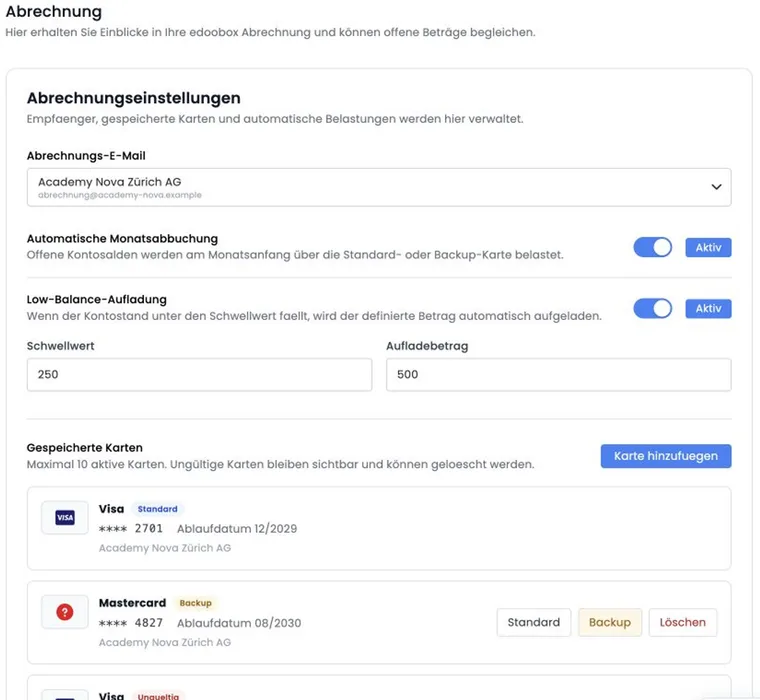
Depending on the account, credit cards or other payment methods can be saved. Saved cards are masked, typically showing brand, last digits, expiry date and status. Full card details are not displayed in edoobox.
When using a new credit card, deliberately decide whether to save it. In the signed-in account, non-default cards can be removed after confirmation; first choose another usable default card before removing the current one. This deletion function may be restricted in payment dialogs without full admin access.
Remove expired or unwanted cards and check that automatic debits or top-up processes still work after adding a new one. Use only trusted admin accounts with appropriate permissions for card changes.
Saved card display
The compact card list shows brand, masked number, expiry date, optional cardholder and status markers such as Default, Backup or Invalid. If no brand is available, edoobox uses a neutral credit card label.
If a card is marked invalid or no expiry date is displayed, save a new card and then check the default and backup roles.
Amount, transaction description and annual amount
The amount must be positive and meet a minimum. The transaction description is limited to 35 characters and should briefly suit internal accounting. Reviewing payment becomes meaningfully available only when method, amount and description are complete. For certain subscriptions, edoobox can calculate an annual amount by multiplying the monthly price by twelve. This helps prepay a fixed-price subscription for a year.
Before confirming, check that amount and description suit internal accounting. For balances, monthly groups, documents and CSV/Excel export, use Account: billing and account journal.
The annual suggestion covers the monthly plan price multiplied by twelve. Usage-based costs are not automatically included; prepayment does not itself change the contract term or plan. For Business and additional services, check actual journal items.
Check the billing address before payment
If an alternative billing address is active in the account, it appears directly in the payment form when bank transfer is selected. However, validation on continuing applies to all payment methods in this form: an invalid active billing address can also block payment with a saved or new card.
- Open account settings and check the active billing address, including mandatory details and email address.
- Correct and save the address.
- Reopen the payment form and check the amount, recipient and payment method before confirming.
EU VAT rules for subscription fees
For EUR accounts, edoobox may require a VAT relationship before payments. Choose whether the account is used as a business (B2B) or privately (B2C). The notice appears only while the relationship for edoobox subscription fees has not been saved; after saving, the block normally disappears.
For B2B, enter and validate a VAT number before saving the relationship. Once saved successfully, edoobox remembers this arrangement for future subscription fees. Offer VAT rates are managed elsewhere, under Global VAT settings.
Automatic debit, top-up and billing emails
Automatic debit or top-up lets edoobox settle the account balance when needed. This is particularly important if your plan generates usage-based charges or the balance should not become negative.
Check saved cards, limits, notification recipients and internal responsibilities. Up to ten actively usable cards can be saved. A default card cannot be deleted directly; with at least two usable cards, default and backup roles can be switched before removing a card. If payment fails or the balance becomes negative, responsible people should be informed promptly.
Billing emails should go to a monitored address, such as accounting or administration. Avoid private individual addresses if several people handle invoices, reminders or statements.
Distinction from other payment and tax functions
This page concerns subscription fees, account balance and mandatory information for your edoobox account. Participant payments, payment systems and refunds belong elsewhere.
Payment systems explains payment methods for participants.
GeoDynamic VAT covers country-dependent VAT in the booking process.
Alternative billing address concerns invoice information in bookings.
Settings: subscription and edoobox subscriptions explain subscription features.
Use cases
Example: pay subscription fees by bank transfer
Accounting selects bank transfer, checks the billing address and generates the PDF invoice for the edoobox subscription fee. After transferring, it checks the balance, transaction description and account journal. This payment is separate from participant invoices and payments.
Example: organise default and backup cards
An organisation saves two valid company cards. The main card serves as default and the second as backup. Before removing the previous default card, the administrator switches the roles and checks both cards remain usable.
Example: prepare EU B2B billing
A company based in the EU saves its complete billing address and valid VAT identification number. It checks the B2B setting and billing email recipient before the next subscription invoice is generated. Tax logic for participant bookings is configured separately.
Distinguish account subscriptions from participant subscriptions
Your edoobox account subscription defines your organization's software package. Configure subscriptions sold to your customers in the Subscription Manager for participant subscriptions. A company card for edoobox account costs does not thereby become your participants' payment source.
The separate tasks are described under Company card, monthly debit and Business top-up and Pause or delete an account.