
Security settings in the account
Under Settings → Security, superadmins manage the Content-Security-Policy header and permission to use custom admin permission groups. Open this area first when changing your account’s global security options.
Admins configure personal second factors in their own profiles. SAML providers, API access and file sharing have separate workspaces. This guide covers global options and the related checks for joining, role changes and leaving.
Use global security settings
- Open Settings → Security as a superadmin.
- Check Enable Content-Security-Policy header. This setting affects the security header of the public offer display. After activation, check your embedded booking page and required external content.
- Check Admin permission settings. This enables work with custom admin permission groups. Actual assignment then takes place through admins’ permission profiles.
- Enabling either of these options requires confirmation with
EXPERTin edoobox. Enter the displayed confirmation value and then check the saved state.
These two account settings do not configure a second factor for individuals. For that, open your own admin profile and follow Configure two-factor authentication and passkeys. Manage providers separately under Settings → SAML (SSO).
Personal admin logins instead of shared logins
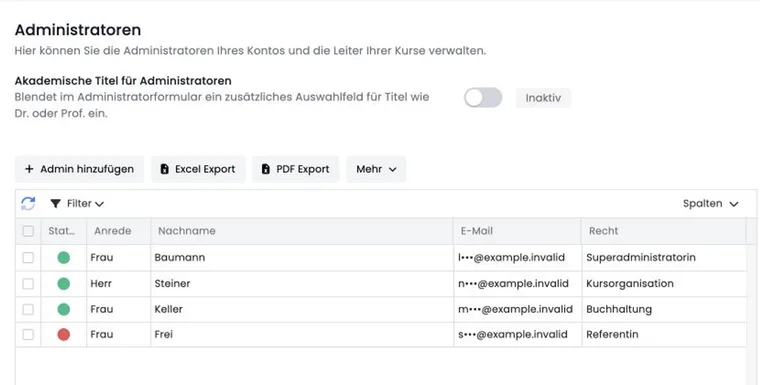
Every person working in the system receives their own admin login.
Check the status and role or permission group in the admin list. Compare the permissions with the person’s current responsibilities.
Deactivate admins no longer needed rather than passing on login details.
Never use a participant login as a substitute for admin access, or vice versa.
Personal logins make permissions, two-factor entries and later deactivation manageable. A shared login prevents clean separation and complicates investigating causes.
Limit permissions according to the task
Permission groups determine which resources an admin may read, edit or manage. Create roles by task area, such as course organisation, support and accounting. Do not grant administration permissions just because an individual menu item is missing.
Write down the task and required resources.
Assign the appropriate permission group.
Use a test admin to check which menu items and actions are actually available.
Actively remove old permissions after a role change.
Details on assignments and permission groups are under Admins and their user permissions.
Secure two-factor authentication, SSO and sessions
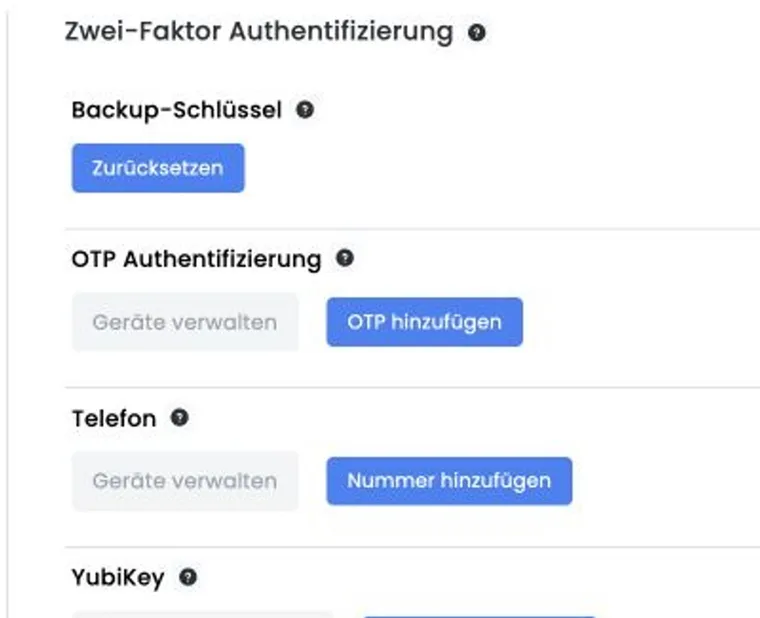
For admins with sensitive access, configure available second factors such as a passkey, authenticator app, backup key, phone or YubiKey. Store backup keys separately and securely. With SSO, login and policies are additionally controlled by the Identity Provider.
SSO does not replace permission checks in edoobox. When someone leaves, check both their identity with the provider and their edoobox admin status. On shared devices, fully sign out of saved admin sessions.
Specific login routes are described under Admin authentication.
Manage API keys separately
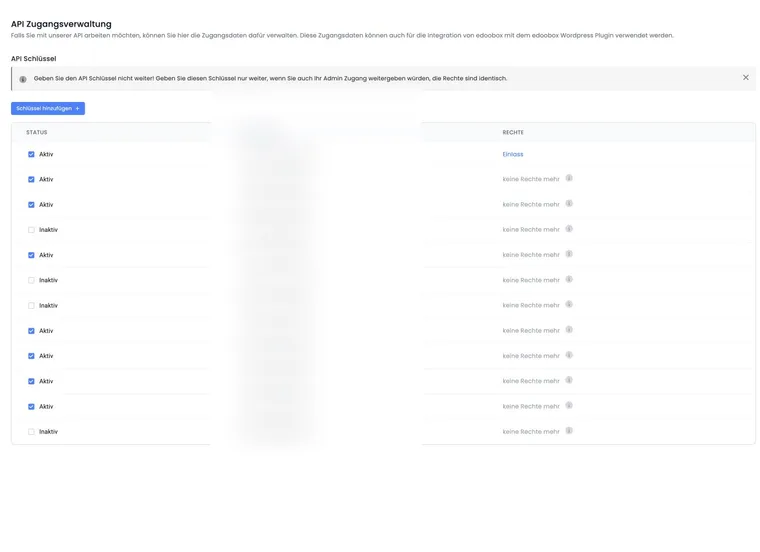
Give each integration its own API key with the minimum necessary permissions. edoobox offers predefined permissions for typical purposes and custom permissions. The Secret Key is displayed in full only when created.
Internally document the integration’s purpose and responsible people using its Public Key.
Store the secret only in the integration’s designated secret store.
Deactivate the status as soon as the integration is no longer used.
When rotating, test the new key first and then deactivate the old one.
Do not include keys in screenshots, tickets, emails or documentation examples.
See Manage API keys and access rights.
Monitor files and exports
Exports can contain personal, financial or organisational data. Regularly check the Secure File Manager and local storage. Download files only for the intended purpose and remove copies no longer needed according to your internal retention rules.
Secure use does not end at the edoobox login: shared network drives, browser downloads and export files sent by email must also be included in checks.
Recurring security review
| When | Check |
|---|---|
| On joining | Create a personal admin, assign a minimal permission group, and test login and the second factor. |
| On a role change | Add new permissions and remove those no longer needed. |
| On leaving | Deactivate the admin, revoke SSO access, check sessions and personal integration access, and transfer tasks. |
| Monthly or quarterly | Check active admins, permission groups, API keys, SSO providers and sensitive exports. |
| After an incident | Block affected access, rotate keys, document the scope and only then restore access in a controlled way. |
Example: A new employee in course support
The employee receives a personal admin account and permissions only for bookings, participants and viewing offers. A test shows she cannot change payment or account settings. After successfully logging in, she configures a second factor.
Example: An SSO admin leaves
On the leaving date, the user is blocked at the Identity Provider and the edoobox admin is deactivated. The team additionally checks saved sessions, pending tasks and API keys that may have been personally managed. Responsibilities are transferred to a remaining admin.
Example: Rotate an accounting integration’s API key
The organisation creates a new key with the same minimal read permissions and stores it in the accounting integration’s secret store. After a successful test run, it deactivates the old key and records the purpose, responsible people and rotation date. The secret remains exclusively in the designated secret store and is not copied into the change log.
Check participant SSO
For every SAML provider, check whether it should appear for admins, participants or both login types. For participant access, also check data field mapping, indirect provider tags and offer filtering. Successful login alone does not prove correctly configured offer access. Participant SSO, tags and offer access describes setup and comparison cases.