
Design Manager: editor, layout, widgets and Bootstrap configuration
The illustrations show an earlier version of the interface. Use the steps in this guide for the available features and options.
The Design Manager controls how the public booking process looks: header, body, footer, templates, widgets, grid, breakpoints, and Bootstrap styles. It is therefore the central place if your integration into the website should not only function but also fit the website.
This guide explains the editor interface in more detail. For a practical introduction, see Design the booking process with the Design Manager; individual widget options are also described on the template pages.
Overview: Design, template, and widget
The Design Manager works on three levels. First, you select or create a design. Then, within the header, body, or footer, you open a template, for example Offers overview, Offer details, Participant form, or Header. In this template, you place and configure widgets.
Layout work and widget content are separated. Moving, inserting, deleting, or resizing a widget is managed as a layout draft. Content settings, for example label, required field, payment methods, or text block, are edited in the widget popup and saved there.
Distinguish administration, environment, and Bootstrap
When a view deviates, compare three separate pieces of information: the interface of your administration, the used edoobox-environment, and the Bootstrap style of the public design. A different administration interface does not automatically convert a saved design to Bootstrap 5.3. The test environment and the production environment can use different designs and data.
Open the actually integrated link from Preview share and compare account, category, design name, and language. Then check the assigned Bootstrap style. Individual widgets differ between older styles and Bootstrap 5.3; the Social buttons are an example. Initially change the style in a design copy and check the entire booking path.
Understand the editor interface
At the top are the design selection, standard note, and breakpoint switches for desktop, tablet, and mobile. Header, body, and footer are separate content areas. Only the active area shows the editable grid; inactive areas appear as a reduced preview.
The right sidebar shows the widgets that match the currently selected template. When a template is changed, edoobox loads the appropriate widget selection. On small screens, the interface may indicate that a larger screen should be used, as drag-and-drop, grid widths, and the sidebar are otherwise difficult to control.
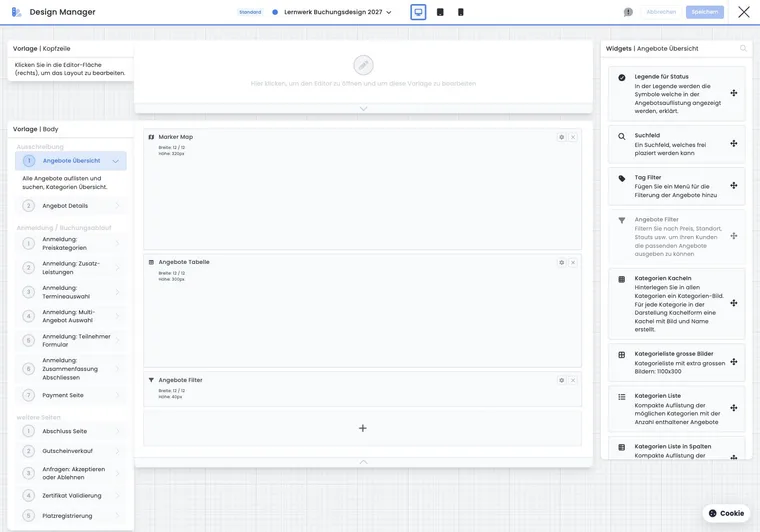
Save or discard layout draft
New widgets are first inserted as a draft. As long as the layout save button is active, order, width, spacing, or deleted widgets are not finally saved. When saving, edoobox processes changed existing widgets, newly inserted widgets, and removed widgets in a plan.
The Cancel button restores the last saved state of the template. If you change design, template, content area, or breakpoint with unsaved changes, edoobox asks whether you want to save, discard, or return. Closing the window is also protected against accidental loss.
For newly inserted widgets, first save the layout draft so that the component is permanently created. Then edit its settings. For an already existing widget, save open specific changes in the popup and then any open layout changes. General properties can be saved directly when changing; the displayed save status and error messages in the respective area are decisive.
Widgets, selection, and one-time widgets
The widget list depends on the template and content area. Outdated legal text or summary widgets are hidden from the new selection when a more modern version exists. This prevents new designs from accidentally using old components.
Some widgets may only exist once per template, for example offer filter, all bookings, or date calendar. If such a widget is already placed, it appears disabled in the selection or cannot be placed again.
Offer filter: Central filter for categories, tags, status, price, location or instructor in the offer overview.
All bookings: overview in the participant account or on finish pages.
Date calendar: calendar display for offers or dates.
Text block and cookie banner: Multilingual rich text content with its own Save action in the widget popup.
Grid, breakpoints, and handles
Widgets are placed on a 12-column grid. Desktop, tablet, and mobile store their own values. Width, left margin, top margin, and height can therefore differ per breakpoint.
The grid provides handles for width, left margin, and top margin. If width and left margin together would exceed 12 columns, edoobox automatically reduces the other value. This keeps the layout within the grid even with manual input.
After every major change, check all three breakpoints. A desktop layout with three columns can become cluttered on mobile if the widget order, visibility, or margins have not been adjusted.
General and specific widget settings
The widget popup consists of specific settings and general settings. General settings affect name, width, height, height behavior, margin, visibility on devices, and visibility for participants. Specific settings depend on the widget.
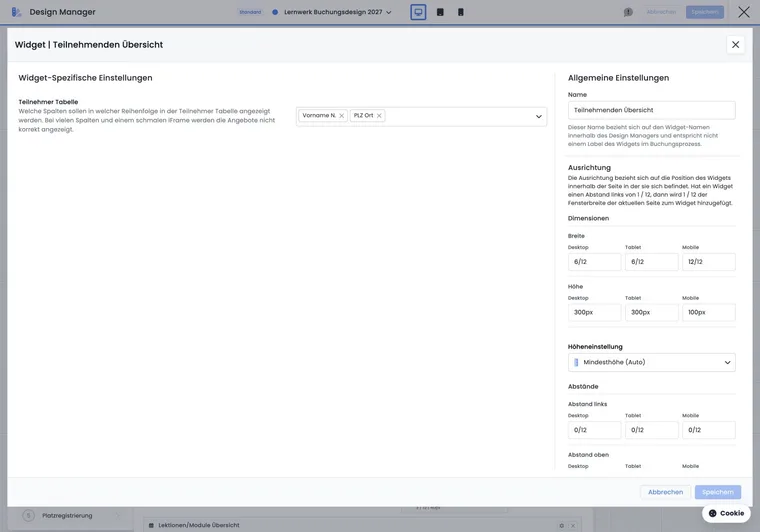
If visibility via tags is active, positive and negative tags can be set. This logic complements tags as conditions, but here it affects the display of the widget in the booking process.
Form field: links a field in the participant form with a participant data field and controls required field, validation, options, or visibility.
Payment systems: controls selectable payment methods and their order in the booking process. Details are available under Payment systems for participant payments.
Login: can enforce login, manage titles per language, and display login options.
Schedule calendar: can display available spots and fully booked dates and control minimum or maximum date selection.
Category tiles: controls tile width, display button, and whether empty categories remain visible.
Configure Bootstrap 5.3 style
The Bootstrap editor manages name, theme mode, WordPress-optimization, version, as well as light and dark variables. New styles use Bootstrap 5.3. The editor offers a form mode for important variables and a JSON-mode for direct editing.
When switching to the JSON-mode, the form values are serialized. When switching back, both JSON-fields must be valid, non-empty objects. Check brackets, commas, and quotation marks especially carefully. In the JSON-mode, change only a few variables at a time and test the preview afterwards.
After saving, a compilation may run. Wait until edoobox has updated the status. If no change is detected, the interface indicates that no compilation was necessary.
Public preview and rendering
The public booking page does not render the editor, but the saved design with the saved widget data. Therefore, layout drafts only appear in the preview, iFrame, or WordPress-plugin after saving.
The appropriate design source can come from the default design, the main category, or the specific category. If a category uses its own design, test exactly this category in the Preview-Share view.
After layout changes, check at least one account overview, one category, one individual offer, one registration, and the completion page. Only then can you see whether header, body, footer, widget order, and Bootstrap style fit together.
Operating a category design and a complete offer overview
The design assignment determines appearance. The account, category or offer link opened determines the entry point and therefore the visible range of offers. Hiding a category widget alone does not restrict the offer selection to a particular category.
| Entry point | Design and control |
|---|---|
| Complete account overview | Uses the account default design. Open the link generated for the account and check the visible categories and offers. |
| Specific category and its offers | edoobox follows design assignments in the category hierarchy. Without a dedicated assignment, the parent category’s design or the default design applies. A more specific assignment further down the hierarchy can override it. |
| Direct offer link | Check the design in the associated category path and the template Offer Details. A correctly designed overall overview is not sufficient for this page. |
- Create or select your own design in the Design Manager for the complete overview. Set it as the default via Set as default design if it should design the general account view.
- Copy the desired source design for the individual main category and give the copy a unique name, for example «Workshops».
- Open this copy’s settings and enable the relevant main category under Categories with this design. Check the current design assignment shown.
- Design the header and Offers Overview in the category design. Keep one widget that displays the offers. Decide separately whether the category navigation is needed there.
- Open Preview-Share once at the account level and once for the desired category. Use the appropriate link or embed code generated there for each website page.
- Check both entry points, subcategories, and one offer detail each. Also check back navigation to the overview and the actual booking completion.
Example: An organization displays all categories in the default design on the general program page. A second website page should only show workshops with its own header. There, the link to the category «Workshops» is embedded and the workshop design is assigned to this main category. The complete overview remains in the default design. Explicitly check in the second entry point that no offers from other categories appear.
A common chronological sequence across several categories requires the appropriate entry point, a shared offer widget and offer sorting. Hiding category navigation alone does not change sorting. Display chronologically across categories describes the steps. Configure a return to your own course website as a custom link in the header.
Data, caches, and reloading
The Design Manager loads widgets, widget selection, and templates depending on the design and template. Already loaded data can be cached so that the sidebar reacts faster. After saving a layout, edoobox reloads the widget data of the template so that new widgets receive real IDs and removed widgets no longer appear.
If a change is not visible in the preview, first check whether the layout was saved, whether the widget popup was saved separately, and whether you have opened the correct category or design. Then reload the preview. For WordPress- or website integrations, a website cache may also be involved.
Avoid editing the same template in parallel in multiple browser windows. Otherwise, the last saved state may overwrite changes from another window or create the impression that settings are disappearing.
Find a saved design change on the website
If text, logo, or layout is missing, proceed in this order. This allows you to first determine which saved template the website is actually calling.
- Identify specific page: Open the affected website page and determine whether it shows an account overview, category overview, offer detail, or a booking step. Also note the language and screen view.
- Compare working design: Check the name of the edited copy at the top of the Design Manager. A new copy does not automatically become the default or category design just by saving.
- Check assignment: Compare Set as default design and Categories with this design with the affected category path. For subcategories, also check for differing assignments in the hierarchy.
- Open appropriate template: A change in Offers Overview does not automatically appear in Offer Details or in the participant form. For texts, additionally check language, mobile visibility, and any tag conditions of the widget.
- Finalize save states: Save open widget settings and the layout draft according to the displayed state. For a new widget, first save its creation in the layout. Resolve error messages before evaluating the result.
- Open generated link directly: Open the appropriate link from Preview-Share anew. If content and design match there, compare the category/offer link or embed code used on the website with this entry point.
- Check integration: Check the same page in the direct view and on the website. Only if the correct direct view is current and the website differs, additionally check website cache, WordPress-theme, and embedding. Then reload the affected browser context.
A common case: The logo was changed in the new design copy, but the embedded category still uses the previous design. Assign the released copy to the correct category and check the same website page again. The complete booking path including the completion page is part of the check, especially if multiple designs are used in the account.
Special widgets and typical pitfalls
Payment systems: Layout and payment logic are separated. If a payment method is missing, additionally check the payment system settings and not just the widget.
Cookie banner: Multilingual texts and banner type must match legal settings and website integration.
Login: An enforced login can significantly change the booking flow. Test existing and new participants.
Form field: A visible form field is only useful if it is linked to the correct participant data field.
Category tiles: After clicking on a tile, the next level needs a widget that displays offers.
Text block: Maintain content in all active languages and check whether the text should appear only when opened directly or also in the iFrame.
WordPress-optimization and external websites
If a design is used via the WordPress plugin, WordPress-CSS can influence the display. Therefore, check not only the edoobox preview, but also the actual WordPress-page with active theme and cache.
For iFrame integrations, the separation is stronger, but height, scroll behavior, and mobile display can still depend on the website. Align Design Manager, Preview-Share, label, language, and scroll-to-top. If you use a Bootstrap style with WordPress-optimization, additionally check whether theme styles override buttons, margins, or form fields.
Test changes
Duplicate design or use working design.
Change layout, check all breakpoints, and save.
Open widget popups, save content, and test again.
Open preview at account, category, and offer level.
Perform a test booking with the most important payment methods and form fields.
Check WordPress or iFrame integration separately if the website supplies different CSS.
Practical example: A custom registration form for each category
An academy creates a design for corporate courses. In the participant form, unnecessary fields are removed, additional fields are added, and required fields are checked. Then the team first saves the layout, opens each form field, and checks the booking on mobile and desktop.
Practical example: Offer overview with filters and tiles
For a course program, offer filters and category tiles are placed. The offer filter remains a one-time widget. Additionally, an offer list is added so that offers are visible after clicking on a category.
Align template, plugin, and saved design
The current selection includes additional body templates for waiting zone, seat registration, certificate validation, and, with active subscription plugin, a subscription catalog and subscription checkout. Use the complete template overview if the desired component is not offered in the current template.
For widgets intended to be used only once, the selection prevents further insertion into the same template. This includes, among others, offer filter, all bookings, balance, my subscriptions, subscription selection, individual catalog and checkout components, and the schedule calendar. Switching to another template may show a different selection.
With the subscription plugin deactivated, appropriate templates and insertion options are hidden. Already saved subscription layouts are not deleted as content by this; public usability still depends on the plugin status. After activation, check the layout and navigation and consciously save your configuration.
Custom code widgets can have their own name. Name multiple components according to their purpose so that you edit the correct component in the widget header and in the selected content area.
Fix save errors and assign design
If an error message remains after Save, successful saving is not confirmed. Keep the editor open, correct the reported details or connection and save again. Then check the same template again. Cancel discards the layout draft and restores the last saved layout; widget content already saved separately is not automatically reverted.
In the design settings, select the categories that should use your custom design or explicitly set it as the account default. The account and certain general pages use the default design. Saving a working design alone does not automatically assign it to every category. Shopping cart and completion action describes the additional Booking view mode.
Related guides
- Design Manager
- Design the booking process with the Design Manager
- Design Manager: Editing options for widgets
- Use the Design Manager safely
- Bootstrap 5.3
- Template: Offers Overview
- Template: Offer Details
- Template: Participant Form
- Template: Header
- Participant data fields
- Use tags as conditions
- Integration into the website and preview-share