
Sell and safely redeem vouchers
The voucher sales button lets you offer fixed gift voucher values directly in your edoobox booking interface. After successful payment, edoobox automatically creates a separate voucher promotion, generates a code and places the voucher email in the outbox.
The original code of a sold voucher can be redeemed once. Whether unused remaining value expires, remains as a participant balance or is issued as a new code depends on the campaign setting for fixed total application. Describe this process in sales text, conditions and the support process.
Decide before selling
Which fixed voucher values and currencies are offered?
Should the code reduce the offer price or booking total?
Which VAT and document logic applies in your organisation?
Which payment methods reliably trigger code creation?
How are single redemption, expiry, queries and refunds explained?
Clarify tax and legal requirements before production launch. Technical implementation does not replace substantive assessment of single-purpose or multi-purpose vouchers.
Configure the voucher sales button
Open Design Manager and the desired public template.
Add the Voucher sales button widget.
Maintain button text in all active languages and select the colour.
Enter the available positive preset voucher amounts. Drag to change their order.
Select the initially selected price and currency.
Choose offer price reduction or application to the booking total.
If needed, enable Show price categories and publish the design.
The buyer can only select an offered value and cannot enter an arbitrary free amount. Active price categories can additionally appear as values only when the button is in the offer detail template. On a category or offer overview, only the fixed configured prices are used.
Understand VAT and displayed prices
If the button is in offer details and its price categories are displayed, the purchase adopts the offer’s VAT assignment. In other templates, edoobox uses the account’s active default VAT rate.
For exclusive VAT, the purchase view adds tax to the supplied values and rounds the visible voucher price. Therefore test every value on the purchase page, invoice and payment, instead of checking only widget input. Further basics are provided under VAT settings.
Use a voucher purchase link and a dedicated purchase page
- Open Promotions → Vouchers.
- As an authorised admin, copy the displayed voucher purchase link or open it to check.
- In Design Manager, design the Voucher sales template with the voucher sales form.
- In the form’s Source of voucher values, choose whether values come from the triggering voucher sales button or the page uses its own voucher values.
- For custom values, enter amount, default selection, currency and application type. Check form, legal texts, payment and voucher email.
The displayed purchase link is reusable and does not expire. No public short link is offered for entirely internal accounts. Use the intended protected entry there. Also test the direct link with page values without first clicking a voucher sales button.
What happens during purchase
The person selects a permitted value and enters contact details and legal text confirmations required in the voucher form.
edoobox creates a separate payable voucher item and leads to the payment page.
Only successful payment completion converts the item into a paid voucher purchase.
edoobox then creates a voucher promotion with exactly one code.
The Voucher sales system template is placed in the outbox in the language determined during purchase, with code, value, expiry and voucher name.
Template data includes ##PromoCode##, ##PromoExpiry##, ##PromoName## and ##PromoValue##. Check this output in your active template and the outbox.
Validity, original code and remaining value
The automatically generated voucher is valid from payment within the intended offer scope and in the selected currency. For normal voucher sales, the end date is 1080 days after code creation. Check the actual date in the generated voucher.
The original code can be redeemed once. For a fixed amount applied to the booking total, there are three options for excess value:
- Remaining value expires: A CHF 100 value code covers CHF 80; the remaining CHF 20 expires.
- Credit the full promo code value to the user account: CHF 100 is credited to the booking person’s account, CHF 80 is used for the current booking, and CHF 20 remains as a positive balance.
- Create a new promo code for the remaining value: The original code is used; a new code for CHF 20 is created with the remaining validity.
Before communicating, check the voucher promotion’s specific setting. With Offer price reduction, the remaining value process does not apply; additional services are not automatically part of the discount base there. The complete guide is provided under Remaining values and credit balances.
Online payment and manual invoice
For immediate delivery, you need a successfully tested online payment system. While payment is outstanding or failed, no usable code should be expected.
If manual invoicing is allowed on the payment page, the buyer can download the document. The code is created only once incoming payment has been successfully posted in edoobox. For support cases, therefore first check transaction, payment status and invoice, and only then the outbox.
Configure invoice creation and invoice email separately
If automatic invoice creation is enabled under Payment systems → Invoice, an invoice may already be created upon voucher purchase completion before payment. With automatic external invoicing, the route configured for it handles creation. Without this automation, the person can use the permitted invoice action on the payment page. An existing invoice does not yet activate the voucher.
After successful payment, the Voucher sales system email containing the code is created. The edoobox voucher process examined does not automatically attach an invoice to this email or trigger a separate automatic invoice email. The familiar invoice attachment to an ordinary course booking confirmation is a different sending route. This also applies if a paid invoice document already exists for the voucher purchase.
- In the buyer’s profile or invoice table, open the document belonging to the voucher purchase. Compare amount, currency, billing address and payment.
- If the document is missing, first check invoice settings and existing billable voucher items. Do not create a second document for an existing invoice.
- To send the invoice, select Email in invoice details, read the Send invoice by email dialogue and confirm Send.
- Check invoice email and voucher email separately in the outbox. An invoice may already exist while payment is outstanding; the usable code follows only after payment is posted.
For externally managed invoices, local sending may be restricted. Check sending in the responsible accounting system. Custom automation must be separately configured and checked before use; it does not arise solely from an active voucher sales button.
Manage sold vouchers
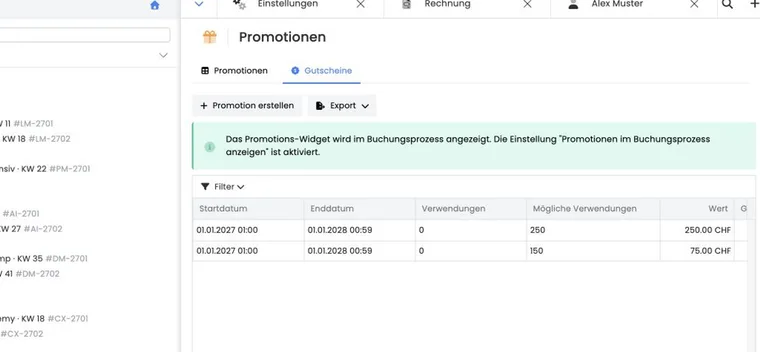
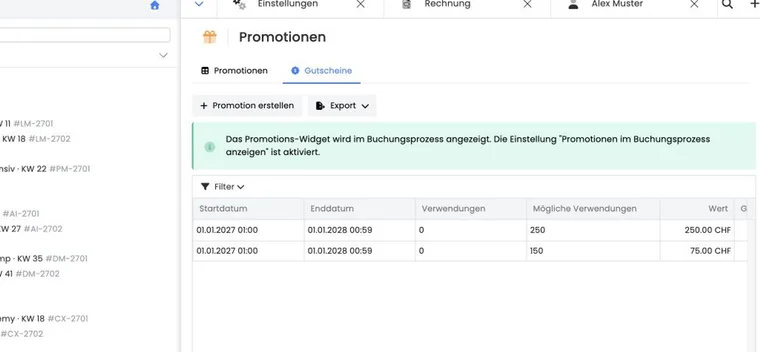
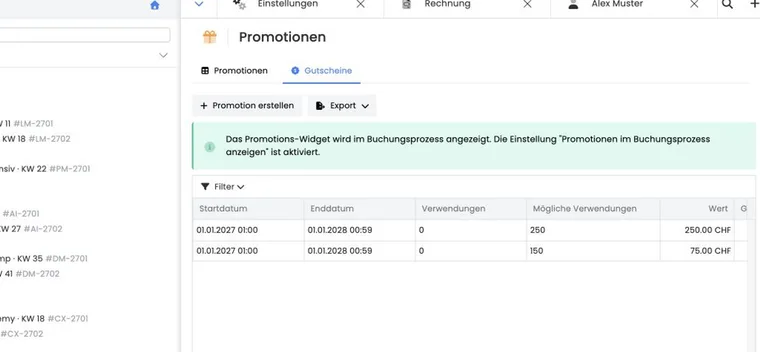
Open Promotions and the Vouchers tab. Each paid purchase appears as a separate promotion with buyer name and booking number, value, term, usage and code count.
In campaign details, open the individual code. There you see active status and linked bookings, and can copy or disable the code. A code cannot be renamed or deleted. For redemption with excess value, additionally check the participant balance or newly generated remaining-value code if the campaign provides for that treatment.
For a refund, check before payout whether the code has already been used. Disable an unused code if the purchase is effectively reversed, and document invoice, payment and decision together.
Make the purchase page and email understandable
The purchase page uses the selected design’s voucher form with active legal texts. Button text should not promise that any arbitrary amount or reusable credit balance is being bought.
In the voucher email, include at least value, currency, expiry date, single redemption, redemption route, actual applicable remaining value rule and contact address. Test every active language with a paid demo transaction.
Use cases
Example: CHF 100 for a course costing CHF 120
The recipient redeems the single-use CHF 100 code for a CHF 120 booking. When applied to the booking total, CHF 20 remains payable. The administration checks code usage, remaining amount and invoice.
Example: Voucher exceeds the booking
A CHF 100 voucher is used for an eligible CHF 80 booking. With ‘Remaining value expires’, the remaining CHF 20 is lost; crediting the user account leaves a positive balance, and ‘New promo code’ creates a CHF 20 code. The original code is used in every case. The organisation explains the exact configured variant.
Example: Course value directly from offer details
In offer details, the button shows active course price categories in addition to CHF 50 and CHF 100. The purchase adopts offer VAT. If the course price changes later, the purchased voucher value stays unchanged; the team therefore tests price, tax and email before each season.
Check the conditions of a remaining value separately
Participant credit and a new code for the remaining value inherit the original code’s restrictions differently. Credit becomes a separate balance without the original offer restriction or expiry. A new code receives its own promotion with a minimum booking value of 0; customer tag conditions are not copied automatically. For restricted campaigns, check the restrictions actually created. For the complete process, see Vouchers: remaining values and credit.