
Add participants manually and book them into offers
You can manually record registrations received by telephone, in person or by email as admin bookings in edoobox V2. The quick dialogue connects a person to an offer and price category, or adds them directly to the waiting list.
This route deliberately does not reproduce the full public registration form. Additional questions, additional services, payment method and other public rules are not requested in the entry dialogue. Therefore always plan a substantive follow-up check.
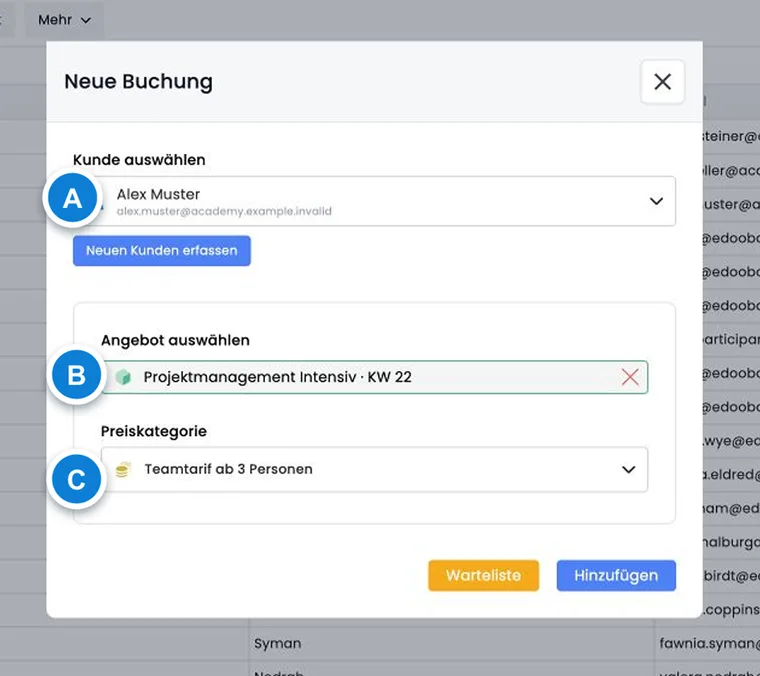
Where to start a manual booking
Participant overview: Use New booking to freely select a person and offer.
User profile: The known person is already preselected.
Offer or offer participants: The desired offer is already specified.
Quick menu: Use the global entry point for a new person or booking.
Find an existing person or create a new one
First search by name and email address. Reusing an existing person keeps bookings, invoices, tags and communication in one profile. If you find several likely matches, also compare company, address, previous bookings and invoices before booking. Guidance is provided under Avoid duplicates and check participant data.
Create a new person only if no suitable profile exists. First name and last name remain required in the entry dialogue even if they are hidden in the data structure. The email address, when displayed, is validated. Also check language and the required billing details. File data fields do not appear in the new person form; upload files afterwards to the saved user profile.
Plan for people without their own email address
First clarify whether the individual people are already known or whether initially only a number of places should be booked. For known people, you need traceable participant data; for people not yet known, an open group registration with registration later may be suitable. This feature does not replace a missing email address for an already known person.
In the new person dialogue, first name and last name are always required. If the email field is displayed, it requires a valid, completed address. A company field is not generally mandatory here. Global field visibility, mandatory information in the public form and CSV import requirements must be checked separately.
- First search for an existing profile instead of creating a second profile because the person has no email address of their own.
- Identify the contact person actually responsible for confirmations, invoices and queries. For a group, check the named group registration process and its form requirements.
- Do not invent email addresses to bypass input validation. A shared contact address does not make several people the same person; consider the duplicate check before imports or merges.
- After booking, check the recipients and outbox. A saved profile without a reachable email address will not receive an electronic confirmation through that address.
Select an offer and price category
Select a person or create a new one.
Select the specific offer in the offer tree; categories and folders cannot be booked.
Check the price category. The first available price category is preselected when the dialogue opens.
Select Add for a normal booking or Waiting list for a waiting list entry.
For offers with free lesson booking, a waiting list booking is not permitted through this route. edoobox displays a corresponding message in this case.
Information the quick route does not request
The admin booking records person, offer, price category and waiting list status. It does not request additional questions, additional services, selected individual lessons, promotion codes, payment method or an alternative billing address. Admins must also substantively check rules of the public booking process such as tag conditions, MustPay or the registration deadline.
For special cases, open the booking details after saving. Add the required data there, check price and transactions, and create or send an invoice only after this check.
Booking confirmation after an admin booking
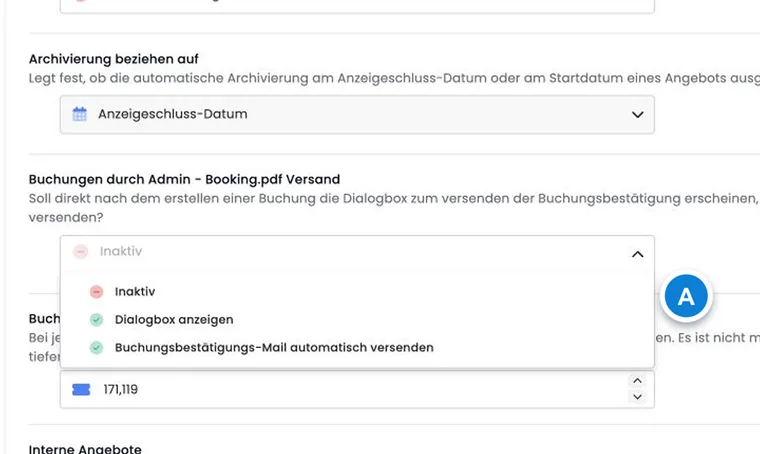
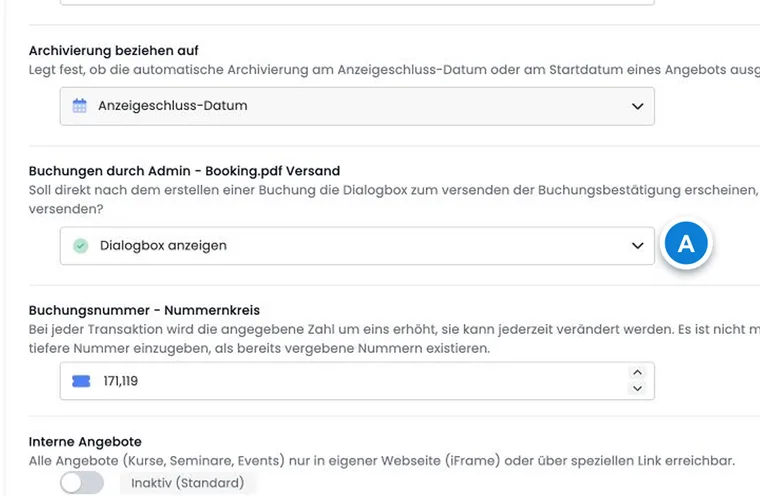
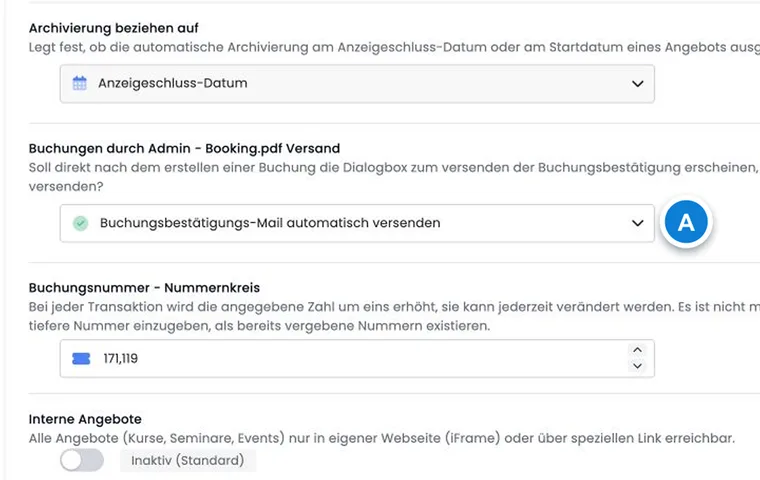
In the global offer settings, Bookings by admin - Send Booking.pdf controls behaviour after creation:
| Setting | Behavior |
|---|---|
| Inactive | No confirmation is started automatically. |
| Show dialogue box | A sending dialogue opens; recipients and sending can be checked. |
| Send booking confirmation email automatically | The confirmation is triggered for the email address stored in the user profile. |
For automatic or manual sending, check the outbox. Otherwise an incorrect or missing email address in the profile can lead to an unnoticed communication gap.
Offer tasks after adding a booking
If the offer has prepared tasks scheduled for execution relative to an offer date, after a normal admin booking edoobox asks whether these tasks should be started for the newly booked person. Appropriate tasks are created only after confirmation.
This task prompt does not appear for waiting list bookings. Before confirming, check the task’s recipient, content and scheduled execution time, for example for access details or preparation materials. Creating a task does not mean its email has already been sent.
Check after saving
Correct person and correct offer?
Normal booking or waiting list correct?
Price category and price correct?
Do additional questions, additional services or individual lessons need to be added?
Billing address, invoice and payment status correct?
Confirmation checked in the outbox and intended tasks created with the correct recipient and execution time?
Use cases
Example: Standard registration by telephone
The administration finds the existing profile, selects the course and standard price, and adds the booking. The global sending dialogue opens, the email address is checked and the confirmation is sent. Afterwards, the administration checks the booking details and outbox.
Example: Course fully booked, person on the waiting list
The same entry process is started for a fully booked offer, but Waiting list is selected. The administration then checks whether the appropriate waiting list communication was triggered. Offer tasks are not started for the waiting list entry.
Example: Special price with an additional service
A corporate customer receives a special price category and also needs course materials. Only the correct price category is booked through the quick route. The additional service, billing address and invoice are then deliberately added in the booking details and sent only afterwards.
Check subscriptions and pass entitlements for admin bookings
For a member price, check the assigned subscription or pass in the participant profile before booking. The admin route uses the offer’s manageable price categories; it does not prove that the person would also be allowed to select this price category publicly. After saving, check the actual subscription benefit or Pass used and usage status in the booking summary.
A membership number or member tag alone does not prove an active participant subscription. With an access pass offering a 0 percent discount, the regular price may still apply. See Manage participant subscriptions and Price categories.