
Admin authentication: login, password, two-factor authentication, and SSO
This guide covers login for admins, instructors and superadmins in the edoobox administration. Participant login, Magic Login and participant profiles are described separately, for example in Automatic profile recognition and Participant account and login types.
For managing admins, permissions and two-factor entries, also read Admins and their user permissions. SAML configuration is described in Enable Single Sign On via SAML in edoobox.
Open admin login
The standard admin login requests the email address, password, language, and optionally a security check. Additionally, the option Stay logged in can be offered. Depending on the environment, use the appropriate login for APP1 or APP2. If your company has set up Single Sign-On, use the internal SSO address with the account abbreviation instead.
If valid sessions are already saved in the browser, edoobox displays these admins for selection. Clicking on a saved admin switches the session, renews the authentication, and reloads the current login context. This is helpful if you manage multiple edoobox accounts. After switching, always check at the top of the interface whether you are working in the correct account.
Distinguish between V1, V2, test account, and booking design
| Term | What it determines |
|---|---|
| Administration V1 or V2 | The interface for your team. The personal admin access can allow V1 and V2 separately. Custom rights groups use V2. |
| APP1 or APP2 | The server environment of your account. APP2 does not automatically mean “V2” and is not a general test environment. |
| Test account | The test status of the account subscription. A trial booking in an existing account can generate real bookings, emails, and payments. |
| Bootstrap version | The foundation of your public booking design in the Design Manager. It is independent of the selected administration interface. |
- Determine the existing account abbreviation and its APP1/APP2 environment based on your previous access.
- Open the V2 login page in the previous environment of your account: V2 on APP1 under
https://app1.edoobox.com/ed-admin/or V2 on APP2 underhttps://app2.edoobox.com/ed-admin/. Log in there with your existing admin access. The older V1 administration uses the path/adminon the same host. For SSO, use the SSO entry point belonging to the account. - Check the organization name and account abbreviation. Switching from
/adminto/ed-admin/on the same host opens the other administration interface and does not trigger an account or data migration. If access is missing, do not switch the APP1/APP2 host on speculation, but have your own V2 access and rights profile checked. - Open existing offers, persons, bookings, and templates. An additionally newly registered account has its own data set; it is not a migration of the previous account.
- Check the actually integrated booking page, emails, and PDFs before the production launch. For a design modernization, follow Bootstrap 5.3 separately.
A change of the admin interface is not a guarantee that every older design or individual integration will function unchanged. For a planned migration, secure the necessary exports and document which production processes were tested.
Log in with email and password
Enter your email address and password and sign in. If a second factor is configured, complete that step too. edoobox then opens the administration with the areas permitted for your login.
If the login was started as part of an integration, edoobox can generate a code for the external application instead of going directly to the start page. For normal admin work, this difference is not visible; it only becomes important with connected apps or special redirect flows.
If multiple login attempts fail, an additional security check may appear. Check the email address, password, keyboard layout, active admin status, and rights. Admins with restricted rights groups need access to the desired interface.
Application example: Switching between two admin accounts
You manage two edoobox accounts. First log in to both accounts. When opening the login page next, the saved admins appear. Select the desired admin, wait for the update, and then check the account name and rights.
Reset or change your password
Via Forgot password, you enter the first name and email address. edoobox deliberately shows a neutral success message so that it is not visible whether an account exists. If spam protection is active, a security check must additionally be solved.
The reset link or code is time-limited. After a successful change, it becomes invalid. If an old reset link is opened again, a new password request must be started.
If an admin logs in via SAML or an external identity provider, the password must be reset at the identity provider, not in edoobox. This applies, for example, to organizations that use Microsoft Entra ID or Google Workspace as central login.
If the password email does not arrive, check the spelling of the first name and email address, spam folder, active admin status, SSO association and email delivery. Delivery details are explained in Outbox: emails and failed deliveries.
Use two-factor authentication
If second factors are set up, edoobox leads to the two-factor check after the email address and password. Select an available method and complete it. The login is only complete after that.
| Method | How you confirm the login |
|---|---|
| Passkey | Select Passkey and click on authenticate. Confirm the device dialog with device lock, Touch ID, Face ID, or a configured security key. In edoobox, no numeric code needs to be entered. |
| OTP authenticator app | Enter the current code of the configured app. |
| Backup key | Enter an unused replacement key. |
| Phone | Select the saved number and SMS or call. Request the code and enter it in the second step. |
| YubiKey | Enter the code generated with the configured YubiKey method. |
Multiple passkeys are displayed together on the login page as Passkey with their names. The selection of the appropriate key takes place in the device dialog. If the browser does not support passkeys, edoobox shows a notice; then use another configured method.
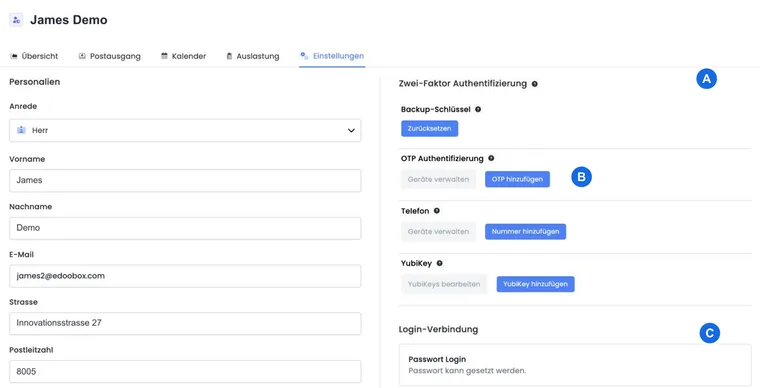
The setup is performed in own admin profile → Settings → Two-Factor Authentication. There you can store multiple methods and remove devices that are no longer needed. The complete steps and recovery in case of device loss are located under Set up two-factor and passkeys.
For SAML, the additional identity check is performed according to the policies of your identity provider. The personal edoobox two-factor configuration is the second step of the edoobox password login; check the MFA policies of the identity provider for SSO separately.
Sessions, saved admins, and logout
edoobox can store multiple admin accesses in the browser. Open the profile menu to check the current access or switch to another logged-in admin. When switching, the account, language, and rights of this admin apply.
- Log out individual admin: With multiple logged-in admins, use the logout action directly on the relevant entry.
- Log out all saved admins: Select Logout (all admins) at the bottom of the profile menu. With only one access, this action is called Logout.
- Log in additional account: Select Add account and complete its login.
After switching, check the admin name and account. If views are then missing, check the permission profile for this login. With SSO, a separate session may remain active at the identity provider; on shared devices, end that session too, following your organisation’s guidelines.
SSO and SAML login
For SSO accounts, edoobox uses its own SSO URL with your account abbreviation. When opening, edoobox loads the available SAML providers and shows login buttons. A click redirects to the identity provider. If no valid provider is found, it switches to the normal login page.
After successful login with the provider, you return to the edoobox administration. The setup of a SAML provider, attribute mapping, and metadata file are described in Enable Single Sign On via SAML in edoobox. Provider examples are located under SAML with Microsoft Azure and SAML with Google Workspace.
Application example: Distribute SSO link internally
First set up the SAML provider and test the login with an admin. Then use the SSO URL with your account abbreviation from the SAML configuration and distribute it internally. Admins with classic passwords continue to use the normal login page.
Login for integrations, redirects, and API
For special redirect or OAuth-like processes, edoobox can return a code to an allowed redirect URL after successful login. If two-factor is active, the code is only generated after the successful second check. Such processes are intended for integrations, not for normal admin work.
If an external app expects a login code, it must correctly pass the redirect URL and optional state. The state helps to assign the response to the original request. For API accesses, use dedicated API keys with appropriate rights instead of personal admin passwords. Start under edoobox API first steps and Manage API keys and access rights.
Always check in integrations whether the redirect URL is allowed and whether the expected response type fits the application. If 2FA is active, an external application can only expect a valid code after the successful second factor.
Fix common login problems
- Password is rejected: Check spelling, password manager, keyboard layout, and active admin.
- Captcha appears: After multiple failed attempts, the security check must be successfully completed.
- 2FA code does not work: Check the device time, selected factor, and last used backup codes.
- Phone code does not arrive: Check reception, country code, SMS/call selection, and saved phone number.
- Password email does not arrive: Check the first name, email address, spam folder, SSO association and outbox.
- SSO redirects incorrectly: Check SAML provider, account abbreviation, redirect URL, and active admin assignment.
- Saved admin is wrong: Log out the old session and log in again with the desired account.
If a login problem occurs only for one person, first check their admin status, rights, 2FA, and SSO assignment. If multiple admins are affected, check account security settings, SAML provider, and general availability.
Important security notes
- Each person should use their own admin login.
- Enable two-factor authentication for admins with sensitive rights.
- Never share passwords, backup keys, and API secrets via email or chat.
- Remove saved sessions when a device is no longer used.
- Deactivate admins immediately when persons leave the organization.
- Check SSO providers regularly and remove outdated accesses.
Application example: Admin uses SMS instead of authenticator app
For an admin, the authenticator app and phone are active. On the two-factor page, the person selects phone, decides on SMS, requests the code, and then completes the login. Afterwards, they check in the profile whether a secure backup key is available.
Check passkey login
- Passkey missing: Check whether a passkey is already saved for the selected admin and whether the browser supports this method.
- Device dialog aborted: Restart the passkey check or select another configured method.
- Multiple edoobox accounts: First check the selected account and the admin. Factors belong to the respective access.
- Device lost: Sign in with a remaining method or an unused backup key, remove the lost passkey, and set up a replacement.
Related guides
- Admins and their user rights
- Security settings in the account
- Enable Single Sign On via SAML in edoobox
- Enable Single Sign On via SAML in Microsoft Azure
- Enable Single Sign On via SAML in Google Workspace
- edoobox API
- edoobox API first steps
- Automatic profile detection / Magic Login
- Participant account and login types