
Admin workload and admin calendar
When admins are assigned as leaders, speakers, or support staff, the utilization view helps with planning. It displays appointments, bookings, and potential conflicts in a clear manner.
This page explains when to use the admin calendar and utilization view, and which data must be maintained for this purpose.
Prerequisites
Admins must be assigned as the lead, presenter, or responsible person in offers or appointments.
Only maintained assignments can appear meaningfully in the calendar or in the utilization view.
Open an instructor’s calendar
- Open Administrators and select the relevant person.
- Switch to Calendar in the profile to review the appointments assigned to this person.
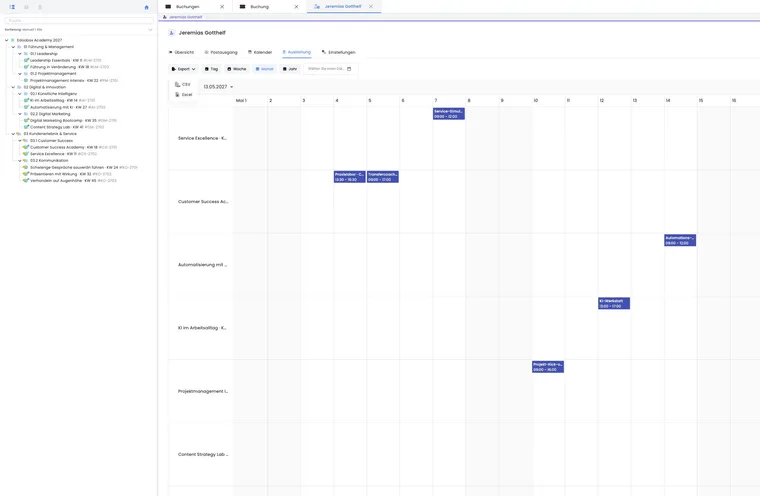
- Open Utilization for the timeline and select the period as well as the day, week, month, or year view.
- Check for overlaps in the affected offer before saving a schedule change.
If course leaders are to prepare new offers themselves, use a personal offer entry link. This entry saves a draft, which the administration then reviews.
Use the Admin Calendar
The Admin Calendar displays appointments in a time context. This allows you to see when a person is already scheduled.
Use this view especially when there are many parallel offers or multiple locations.
Check utilization
Utilization helps to avoid conflicts and overbookings. Check the time period, offer status, and the person's roles.
Not every entry automatically means a conflict; sometimes preparation or online times are intended to run in parallel.
Improve planning
Maintain responsibilities consistently and use clear roles. This ensures the view is reliable for the entire team.
When dates are changed, the affected admins should be informed.
Use views, time period, and export
Utilization is a read-only timeline view. Switch between Day, Week, Month, and Year, or select a custom date range. The time zone and first day of the week are taken from the account settings.
For coordination with personnel planning or course organization, export the visible time period as CSV or Excel. The export includes offer, description, start date, end date, and duration in hours. Before sharing, verify that the selected time period is complete.
To prepare monthly instructor fees, read the instructor schedule example. Reconcile scheduled dates with work actually performed, multiple assigned instructors and your fee rules. The workload view does not calculate fees owed.
What utilization shows and what you assess yourself
The view displays assigned appointments and their temporal placement. It does not automatically determine whether every overlap is professionally impermissible. Simultaneously scheduled online and preparation times may be intentional; travel time, breaks, or internal tasks are only visible if they have been maintained as appropriate appointments or responsibilities.
Therefore, use the utilization as a planning basis and open the affected offer or appointment in case of uncertainty. Make changes there, not directly in the utilization view.
Example: check an instructor’s schedule before changing a date
Before rescheduling an appointment, the administration opens the course leader's admin calendar. They identify an overlap with another offer and select an available alternative date.
Application example: Coordinate quarterly planning as an Excel file
A team leader selects the period from January to March in the admin profile and exports the utilization as an Excel file. They check the offer, start, end, and duration, add internal planning notes outside of edoobox only, and subsequently correct appointment overlaps in the affected offers.
Plan instructors, assistants and substitutes
In an appointment, you can select several admins under Instructors. This assigns the people actually working together to the date in the calendar. The multi-selection does not distinguish individual assignment roles such as lead instructor, assistant or substitute. The admin role controls access to edoobox; it does not certify professional qualifications.
- Determine outside of the appointment assignment which qualification, availability, and substitution rule is required for the deployment.
- Open Calendar in the offer and then the relevant appointment. Under Instructors, select everyone who will actually supervise it.
- For each assigned person, check the admin calendar or utilization. Additionally, verify the location, room, and any required travel or preparation time.
- Agree on the task distribution internally. If you include notes in the appointment title, keep in mind that they may also appear publicly or in calendar files.
- When changing an assignment, remove the person who is unavailable and select the confirmed substitute. Then check the calendar, communication and any templates containing instructor information.
The selection does not check the qualification matrix and does not automatically assign a substitute. Therefore, a backup person mentioned only as a precaution should not be misunderstood as a confirmed assignment. Manage open availabilities and professional approvals in your own planning process.
Example: Course leadership with assistance and substitute
A practical training day requires a lead instructor and an assistant. The administration confirms both assignments and adds both people to the appointment. A third person remains available as a potential substitute in the internal staffing plan. Only after an arrangement has been confirmed is this person added to the edoobox appointment in place of the person who is unavailable. The administration checks their suitability for the role before making this change.
You will find the step-by-step procedure for the control of parallel offers and rooms under Calendar and Appointments.