
Worldline / Saferpay
Worldline connects to edoobox through the Saferpay interface. Payment methods available during booking depend on your Worldline contract, terminal, country, currency and provider activation. edoobox requires four credential values and an API version.
Provider prerequisites
An active Worldline/Saferpay contract for online payments.
A Customer ID and Terminal ID.
API user or API key and corresponding Secret key.
Activated payment methods, currencies and a coordinated payout process.
Current conditions and supported payment methods come from your provider contract. Historical package names or price examples are not a reliable basis for this technical guide.
Save credentials in edoobox
Open Settings → Payment systems → Worldline.
Enter Customer ID, Terminal ID, API key and Secret key.
Select version 1.50 offered in edoobox for this integration.
Click Save. The button remains disabled while mandatory values are missing.
Check the activation switch and immediately perform an internal test payment.
Version 1.23 is outdated: V2 still lists 1.23 in selection and marks it outdated. For new or updated setups, use version 1.50 and coordinate the change with Worldline.
Version selection identifies the Saferpay interface used by this edoobox integration. The provider may already document newer versions; their functions do not automatically become available in edoobox. Check required payment methods and minimum versions with Worldline. Mapping is explained in Saferpay’s versioning documentation.
Change API key and secret securely
Existing secrets are not loaded back into the form as plain text. V2 shows a masked placeholder representation instead. Leave a secret field empty to retain the stored value; enter a new value only for deliberate rotation.
Customer ID and Terminal ID remain visible and can be changed separately. Upon saving, V2 sends only credential parts actually changed. Show neither API key nor Secret key in screenshots or support messages.
Check active status after saving
An incomplete configuration cannot be activated. On opening, the current V2 interface also checks whether a complete configuration exists and may activate a complete, previously inactive record. Therefore deliberately check the switch after each opening or change.
Active means only that edoobox may offer the payment method. Only a successful provider payment with correct return and transaction shows whether a specific method works.
Refund through Worldline/Saferpay
V2 supports refunds for a refundable original Saferpay transaction. Amount must be positive and must not exceed the remaining refundable amount. edoobox sends provider transaction ID, amount, currency and stored API credentials to Saferpay.
Depending on provider status, a refund is reported directly as captured or captured afterwards. On a provider error, V2 displays the Saferpay message longer so you can note the specific reason.
Reset configuration
Reset deletes Customer ID, Terminal ID, API credentials and secret in edoobox, sets version 1.50 and disables Worldline. Do not use this action as a normal test step.
Before resetting: Check published offers, ongoing payments and pending refunds. Keep provider data available outside edoobox according to your security process in case reconnection is needed later.
Test matrix
Complete version 1.50 configuration and deliberately checked active status.
Successful payment with every method actually offered in the contract.
Abort or rejection at the provider without incorrect edoobox payment status.
Secret rotation without overwriting unchanged fields.
Partial refund and a second transaction up to the remaining amount.
Refund error with a documented provider message.
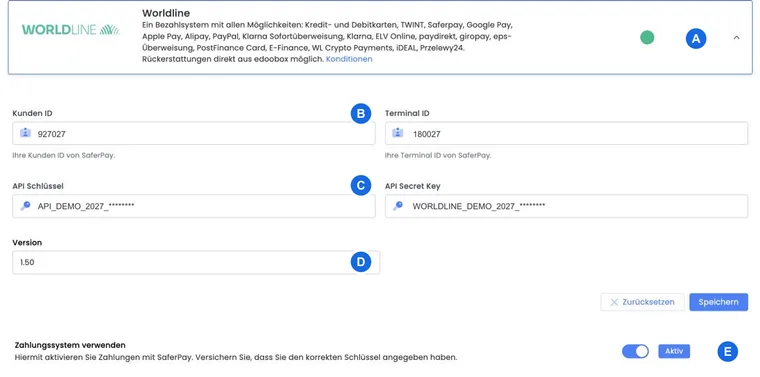
Example: New Saferpay 1.50 connection
The administration receives four credential values from Worldline, saves them with version 1.50 and checks active status. An internal payment checks provider return, edoobox transaction, booking and confirmation email.
Example: Secret key rotation
Worldline supplies a new Secret key. The team enters only the new secret, leaves the still-valid API key field empty and saves. A test payment is then performed immediately without documenting secrets in a screenshot.
Example: Partial refund initially fails
A Saferpay transaction is still in an unsuitable provider status. edoobox shows the specific refund message. The team notes provider ID and text, waits for the correct status and retries only the amount still refundable.
Check the current connection and payment purpose
If a payment method is enabled in the Worldline account, test it using the offer currency actually used. The edoobox activation switch confirms only the configured connection; contract and terminal still determine which methods are accepted.
On error, note amount, currency, time, booking number and provider reference. Check the provider portal for an already successful payment or refund before triggering the same process again.