
Price categories
Price categories determine which prices participants can select during booking. In addition to the standard price that is always present, your subscription may allow further prices limited by time or quantity, for example early-bird, member, student, last-minute or special internal prices.
Price categories are not the same as additional services. Additional services supplement a selected price with extra bookable services. Additional questions and services explains how to maintain service groups.
Overview in the offer dashboard
In the offer dashboard, the Prices area contains all price categories for the offer. You can see active and inactive prices, descriptions, amounts, availability, sold or reserved units, and the order for public display.
The order in the offer area can affect which price appears first. Depending on the view, price categories can be sorted by drag and drop. Before publication, check that the standard price, additional prices, currency, VAT, order and visibility are correctly configured.
The standard price
The standard price is always present in the system and serves as the offer’s base price. It cannot be deleted. You can, however, edit its description, amount and translations and, depending on configuration, control whether it is visible in the booking process.
The number of places bookable at the standard price is limited by the maximum participant count and offer logic. The standard price should therefore remain substantively correct even if you later add more price categories.
Hide the standard price
If you hide the standard price, it is not offered as a regular price option during booking. Participants see the other active and available price categories. The standard price remains as the system’s base price and may still be used in special workflows, for example a waiting list without another available price category. This is useful if, for example, only an early-bird, promotional or member price should be displayed.
Check that at least one active price category with sufficient availability exists in every booking period. Otherwise, the offer may be published while no valid price is available to select during booking.
Add new price categories
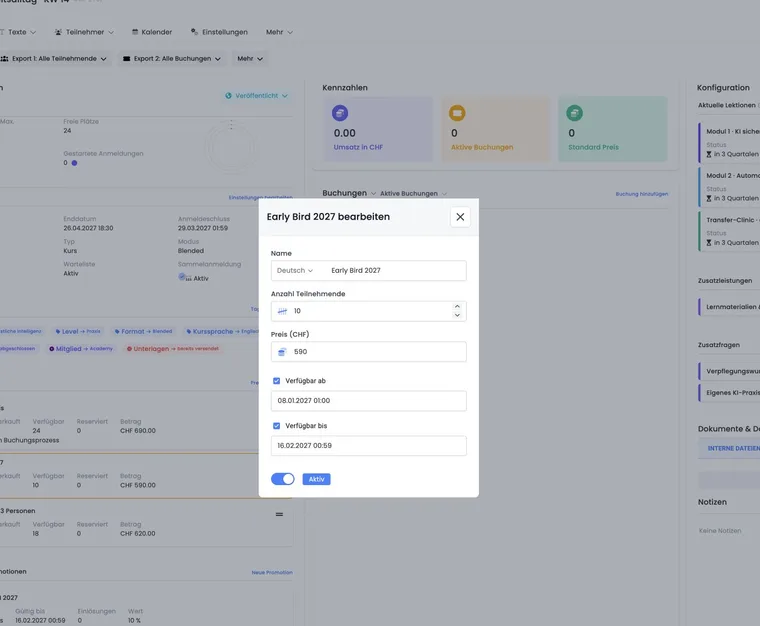
Use Add price to create further price categories with a name, price, optional quantity, availability from/to and status. Additional price categories can be active or inactive in the booking process. Inactive prices are not normally displayed but may remain relevant for administrative corrections and traceability of existing bookings.
Use clear names such as Members, Early bird until 31 March or Students. For multilingual accounts, maintain the names in all active languages.
If a date field such as valid from or valid until is enabled, the corresponding date must be set. Prices must be at least 0.00; a participant limit, if set, must be a positive whole number. If a subscription limit for additional price categories is reached, check edoobox subscriptions.
Decision guide: A separate price or an additional service?
A price category is suitable when participants should choose between different base prices for the same attendance, for example regular and reduced rates. An additional service is suitable when an optional extra is added to attendance, such as materials or catering. This distinction makes price selection clearer and helps you check individual items later.
Name the price so that its requirement is clear. For a technically verified member price, assign the required subscriptions in the new Requirement area. The label “Members” alone does not check eligibility. You can configure suitable additional conditions for further substantive rules. For booking-related requirements, see Tags as conditions.
Distinguish account subscription limits, place limits and subscription requirements
Price categories have three different kinds of restriction. If a price is blocked or an action is unavailable, first check which one is affected:
| Restriction | What it controls | Where to continue |
|---|---|---|
| Features of your edoobox account subscription | How many additional price categories you may create in the offer. Inactive additional prices also count when a new category is created; deactivating one therefore does not free up capacity within the account subscription limit. | Check edoobox subscriptions or the account subscription. |
| Quantity and availability of a price category | How many places are available at the price and during which sales period it can be selected. | Check the quantity, reservations, validity and maximum participant count in the offer. |
| Required personal membership | Which identified person may select a member price. At least one assigned plan must be usable. | Check the requirement on the additional price category and the person’s subscription. |
Activating the Memberships & Passes plugin does not automatically increase your account subscription’s price category limit. Conversely, a higher account subscription does not turn a price named “Members” into a technically protected member price.
Example: Adult and youth prices with limited places
A workshop has 20 places in total. At most 12 should be bookable at the adult price and at most 8 at the youth price. The overall offer limit and the quantity on each additional price must align.
- Open the offer settings and set the maximum participant count to 20.
- Under Prices → Add price, create the adult price and enter 12 in Number of participants.
- Create the youth price with a quantity of 8. For both price variants, maintain the amount, active languages, activation status and, if applicable, sales period.
- Hide the standard price if regular bookings should use only these two variants. Separately check any enabled waiting-list workflow.
- Use test bookings to check both prices, the last available unit and the overall offer capacity. For collective registrations, check the price selection for each person.
| Situation | Effect |
|---|---|
| 12 adult places filled, youth allocation still available | The adult price allocation is exhausted. An available youth place does not automatically become an adult place. |
| 20 places in total filled or reserved | A higher quantity on an individual price category does not create additional places in the offer. |
| Price category still shows a remaining quantity, but the offer has only 2 free places | At most these 2 overall places are available for new regular bookings. |
If both price groups may flexibly use the same overall inventory, plan the price limits accordingly; their sum then need not equal the offer capacity. The overall limit remains decisive. A price label such as “Youth” alone does not check age. For a member price, additionally use the subscription requirement described below.
Model a two-person price and quantity discount correctly
A price category’s amount is the price for one attendance. A name such as “Two-person ticket” or “Family package” does not create a second person or reserve additional places. The Number of participants field limits the total allocation for that price; it is not a minimum quantity per booking.
Example: Two people for a combined preferential price
The normal price is CHF 50 per person. Two people should pay CHF 90 together. A price category of CHF 45 per attendance gives CHF 90 and two places when two people are actually recorded. However, the same category can also be selected for only one attendance. A category with an amount of CHF 90 would give CHF 180 for two people.
- Configure a named collective registration and record each actual participant separately.
- Set the price per person and describe the substantive condition clearly. Check whether your organisation must administratively verify the correct quantity before confirmation.
- If no more than two attendances per collective booking are generally wanted, check the global maximum. It applies account-wide and enforces neither at least two people nor a minimum quantity at a particular price.
- Check a one-, two- and three-person booking as well as later removal of a person. Compare the number of active attendances, reserved places, price and invoice.
A promotion with a minimum booking value checks an amount. It therefore does not reliably distinguish “exactly two people” from other combinations that reach the same minimum value. Browser-side preselection or hidden quantity controls do not replace binding validation in the booking system.
Normal price category management offers no “at least two per booking” setting and no package that automatically creates two places. If this rule is essential without administrative checking, clarify the appropriate booking structure before publication. Do not describe a voluntary price selection as a technically enforced quantity condition.
Distinguish a flat price, daily price and a rate based on times
| Structure | Calculation in the normal booking workflow | What to check |
|---|---|---|
| Normal registration with multiple appointments | The selected price is charged per attendance for the offer. | All offer appointments belong to the registration; ten appointments do not automatically become ten price line items. |
| Free date selection | The price is multiplied per attendance by the number of selected lessons. | Two lessons on the same day count as two lessons. This does not create an automatic daily price cap. |
| Price based on duration or the highest daily hours | A description or additional question does not constitute a calculation formula. | A rate level determined automatically from several times is not a standard price category feature. |
For a daily price with free appointment selection, the planned booking unit must match the rate: if exactly one day should be charged, create a suitable bookable appointment for that day. A flat weekly price, by contrast, suits a normal offer if attendance includes all associated appointments.
For care registrations, clear fixed rate categories could represent, for example, “up to 3 hours” and “up to 5 hours”. Ask for required times separately and verify the selected level administratively. edoobox does not automatically select the highest daily value from these answers alone. Answers to additional questions do not reserve individual lesson places either. If times should control place occupancy, first define the appropriate lesson structure.
Distinguish a fixed group price from a subscription discount
For a fixed final price for a target group, first create a price category with the required amount. The public label alone does not check group membership. Normal participant tags cannot be directly selected as an alternative price requirement in this editor; the personal requirement described below uses membership plans.
If a subscription should simply unlock an already fixed price, use a benefit of 0 percent. An additional subscription discount would otherwise change the applicable base price. Tag conditions on an offer, by contrast, control access to the entire offer and do not automatically select a rate per person.
For an offer intended exclusively for subscription-eligible people, check every publicly selectable price: the standard price cannot have a personal subscription requirement. Hide it in such a setup and assign the required plans to all intended additional prices. Also check the waiting list, administrative bookings and collective attendances. Hiding the standard option alone does not replace checking every booking route actually used.
Restrict a price category to subscriptions
The Memberships & Passes plugin lets you link additional price categories to personal participant subscriptions. You can assign one or more plans. At least one selected plan is sufficient. This requirement is not available for the standard price.
- Enable the feature under Settings → Plugins. In addition to price permissions, the responsible admins need read access to membership plans.
- Create a suitable plan with status Published or Internal use. Ensure its scope includes the offer. The guide is under Configure participant subscriptions.
- In the offer dashboard, open Prices → Add price or an existing additional price category.
- In the Requirement area, select the permitted plans under Required membership.
- Also check the amount, activation status, quantity and validity, then save the price category.
- Check the booking workflow with an eligible and an ineligible person. For collective bookings, check each person individually.
Published and internal plans are available for selection. An archived membership already assigned remains identifiable during editing. Check such links before further sales: an archived membership is not newly sold publicly or assigned administratively; existing personal entitlements must be assessed according to their validity.
What participants see during booking
A locked member price remains visible but cannot be selected without appropriate eligibility. The notice names the required membership; multiple possible plans appear in an expandable list. Publicly purchasable plans may be linked directly.
edoobox checks the actual beneficiary, current status and payment, validity, scope and, for passes, the remaining freely available use. A suitable subscription held by the payer does not automatically unlock the price for all participants. Without an identifiable person, a personal entitlement cannot be verified.
A suitable subscription can be assigned to the same person together with the course in one basket and purchased together. Removing the last suitable subscription from the basket reverses dependent price selections and reservations. Purchase and use subscriptions explains the details.
Unlock a price without an additional discount
A member price can be unlocked solely by the subscription. Set its benefit to 0 percent if the lower price is already fully reflected in the price category. A 0-percent pass can also serve as an access requirement; this consumes a pass use even though no further monetary discount arises.
Example: Standard price CHF 100, member price CHF 70
Create the annual membership with a 0-percent benefit and appropriate scope. Leave the standard price at CHF 100 and create the additional Members CHF 70 price. Assign the annual membership as its requirement. A person with a usable subscription can select CHF 70. Without this subscription, the member price remains locked. To allow annual or supporting members as alternatives, select both plans; the person needs one of them.
Edit prices when the plugin is inactive
You can create and edit normal price categories without an active membership plugin. The existing account subscription limit and normal permissions still apply. The subscription requirement area is then unavailable.
Changing the amount, quantity, status or date does not remove subscription requirements already saved. Deliberately changing or removing an existing condition requires active access to the feature and the relevant permissions. A hidden setting therefore does not mean that the member price has automatically been opened to the public.
Before cancelling the plugin, check existing price conditions. They may affect the deactivation workflow. The Plugin Manager explains the conditions and controlled phasing out.
If the area is missing despite an active plugin, also have read access to membership plans checked. Normal price permissions alone do not make the subscription selection available.
Subscription requirements when copying an offer
When copying an offer, active subscription requirements are assigned to the copied additional price categories by default. The permitted alternatives are retained; the standard price does not receive such a condition. If you disable copying subscription requirements in the copy dialog, the copied prices are created without these access restrictions.
After copying, check the amount, availability and requirement of each price category and the scope of the linked plans. A copy in another category is not necessarily within the scope of the same memberships.
Early-bird and special prices
Early-bird prices should have a clear quantity and/or expiry date. Once the date is reached or the available quantity exhausted, the price category is no longer available as a regular price during booking.
Use special prices deliberately: member prices often need a clear description, internal prices should not accidentally be publicly visible, and time-limited prices should be coordinated with descriptions, email templates and the support team.
Example: An early-bird price with a quantity and date
Create the Early bird price category, set its quantity to 20 places and enable valid until. Once the date expires or the quantity is exhausted, the price can no longer be selected normally. Test the booking process before and after the expiry date.
Also check the subsequent price selection: after the early-bird period ends, the intended regular price should remain available. This is especially important if the standard price is hidden.
Edit existing price categories
Open existing price categories by clicking them in the offer dashboard. Depending on the type, you can change the name, price, status, limit and validity. Additional price categories have an active/inactive status. Inactive price categories do not appear as a regular booking selection but remain traceable for existing data and administrative corrections.
The standard price is a special case. It has no normal participant limit or from/to availability like additional price categories. Instead of a normal activation switch, there is an option to hide the standard price during booking.
Statistics, reservations and availability
A price category’s statistics explain how many units are allocated, reserved and available. These values help explain why a price is still bookable, already exhausted or reserved by outstanding bookings.
If a price appears sold out, check not only the price category’s maximum quantity, but also outstanding bookings, reservations, MustPay windows, waiting-list situations and the offer’s maximum participant count.
Reservations and booking logic can affect place calculations. Alongside the price category, therefore check the offer rules under Offers: General settings and special workflows such as MustPay and countdown.
Currency and VAT
The displayed currency depends on the offer country and account settings. Select the substantively correct currency and VAT rate for each offer. When creating new offers, a default VAT rate may be adopted if the tax rate’s country matches the organisation’s country.
If no suitable VAT rate is available on the price category or offer, maintain it in the global settings. See VAT settings for details. For international bookings, B2B or Reverse Charge, also check your account’s special tax cases.
Display prices in offer details
In the Design Manager, prices can be displayed differently on the offer details page or during booking. Check whether prices appear inclusive or exclusive of VAT, whether tax notices are clear and whether hidden prices are mentioned accidentally.
After every price change, test the public view using a real preview. In particular, check multilingual names, expired early-bird prices, inactive special prices, the invoice, booking confirmation and analyses.
Example: Member and non-member prices
An association creates two price categories: Members and Non-members. It hides the standard price so participants see only these two clearly named options. In the member price, the association selects the appropriate published or internal plan under Requirement → Required membership. edoobox then checks the participant’s eligibility. The offer description additionally explains the rule. After an example booking, the team checks the price selection, booking confirmation and invoice.
Related guides
- Participant subscriptions: Memberships and passes
- Purchase subscriptions and use them for bookings
- VAT settings
- Create a new offer in 7 steps
- Additional questions and additional services
- Promotion campaigns and vouchers
- Offer detail
- Offer dashboard
- Offers: General Settings
- The booking process for participants