
Internal and external documents and files
For each offer, you can save additional materials under Documents & files. edoobox distinguishes internal and external files. Internal files are intended only for admins or authorised people in edoobox. External files can be provided to participants in the participant area or referenced in email workflows.
Consistently separate internal working documents from external participant materials. This prevents course concepts, internal schedules or confidential information from accidentally becoming publicly accessible.
Save files in an offer
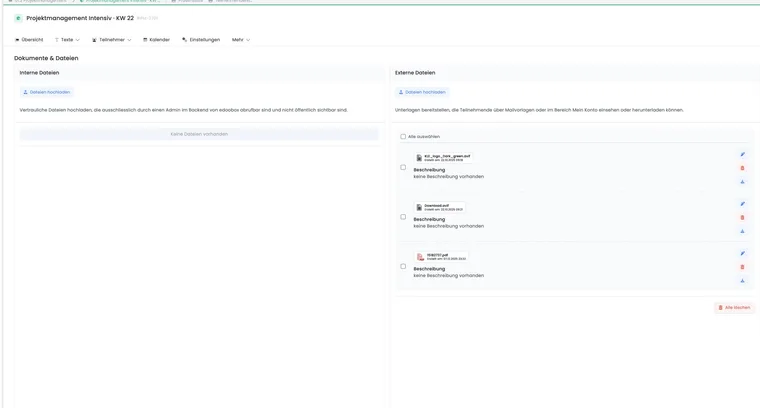
Open the offer and select More > Documents & files in offer details. Separate areas for internal and external files appear there. Filename, description, download, edit and delete may be available per file.
Use descriptive filenames, such as seminarprogramm.pdf, checkliste-leitung.pdf or weg-zum-kursraum.pdf. For external files, add an understandable description in all active languages so participants recognise the file's purpose.
Internal files
Internal files are available exclusively in edoobox. They suit course concepts, schedules, room plans, material lists, internal forms, instructor checklists or documents that must not be passed to participants.
Storage location: Open the offer, select More, open Documents & files and upload in the internal files area.
Access: Visible only to authorised admins after login. Check admin permissions for external instructors.
Instructors: Depending on the role model, authorised instructors can upload or download internal materials for their sessions without managing external participant materials.
Management: Files can be uploaded, described, downloaded, edited and deleted.
External files
External files are intended for booked participants. Typical examples include training materials, handouts, preparation tasks, directions, information sheets, follow-up materials or additional participation terms.
Storage location: Open the offer, select More, open Documents & files and upload in the external files area.
Access: Admins see the file in the offer. Participants see it in the participant area if the design and visibility are configured accordingly.
Sub-offers: The external file list is not displayed in sub-offers' document view. Therefore save and manage external materials on the appropriate main offer and check the participant area.
Enable visibility in the participant area
For external files to appear in the participant area, the appropriate widget must be configured in the Design Manager or default design. In the All bookings widget, the external offer files option is relevant.
After activation, test a booking from a participant's perspective. Open the participant area using the access link and check that files are visible, clearly named and downloadable.
If you remove external files later, they also disappear from the participant area. Before deleting, therefore check whether participants already received the materials or a replacement file must be provided.
Make external files accessible through email templates
Suitable email templates can direct participants to the participant area, for example through the account access link. ##UserAccessURL## often works as a hyperlink. Participants can then access their bookings and available files without large email attachments.
Important: do not confuse external and internal files. To attach files directly to emails, instead check Edit email templates: invoice/PDF and the appropriate placeholders under All placeholders for emails and PDFs.
Display external files on a schedule
External file visibility can be scheduled so materials appear neither too early nor too late. Configure this in the Design Manager on the completion or account view, often in the All bookings widget.
Depending on setup, options include always visible, 14 days before offer start, 7 days before offer start, 3 days before offer start, on the offer start day or after attendance in the first module. Match the option to the content: preparation before the course, handouts on the course day or follow-up after confirmed participation.
Example: provide external materials before the course starts
Upload the handout to external files, add a short description in the active languages and configure the Design Manager so the file appears in the participant area seven days before offer start. Then create a test booking and open the participant area using the access link.
PDF-Sign protection and password protection
For external PDF files, a PDF-Sign watermark can be used in the All bookings booking widget. This associates a downloaded document with a participant and discourages uncontrolled sharing.
The PDF documents are password-protected switch is under Settings → System. It controls editing protection for PDFs newly generated by edoobox: printing and copying remain allowed, and no opening password is intended. PDF/A-compliant output does not receive this encryption. This switch neither protects a public file URL nor removes password or permission protection from an uploaded original.
| Feature | Effect | Check separately |
|---|---|---|
| Participant area and display window | Show the download in the intended booking context. | A known external file URL remains shareable. |
| PDF-Sign | Requests an attributable watermark when downloading a PDF. | No self-defined opening password and no guarantee against sharing. |
| Account-wide PDF editing protection | Restricts editing of newly generated documents. | Printing/copying is allowed; existing original files and old downloads remain unchanged. |
| Protection in the uploaded original PDF | Was already defined when that file was created. | Request a suitable version approved for sharing from the responsible person. |
A PDF requires a password or cannot be printed as expected
- Identify the file type: newly generated certificate/invoice, static email attachment or uploaded offer file. Distinguish errors when opening, printing or saving.
- Open the original local PDF outside edoobox. If the restriction already exists there, ask its creator to review the original. edoobox does not provide general unlocking of third-party PDFs here.
- For generated documents, check the system switch for PDF editing protection. Change it only deliberately for the account, then generate a new document; an old download is not retroactively rewritten.
- For external materials, also check PDF-Sign in the All bookings widget actually loaded. Compare the new output with the original. If watermark processing fails, the original file may be delivered; check the visible result.
- If another original is needed, replace the file and reopen the new entry using the intended participant access. Check its filename and content to avoid comparing an old download.
Use a suitable demonstration file for comparison. A watermark and PDF editing protection do not provide additional access authorisation.
Uploads, editing and limits
In offer file management, multiple files can be uploaded in turn or together depending on the view. Current offer file management permits up to five files per selection and at most 20 MB per file. Avoid unnecessarily large files and compress PDFs before uploading. If an upload is rejected, check file size, filename, format and your permissions.
Filenames and descriptions can be edited later. Maintain descriptions in multiple languages if the booking process offers several languages. edoobox asks for confirmation before deletion; still check first whether ongoing courses, emails or participant areas need the file.
If combined files such as certificates are still being generated, the document area may show a notice about pending tasks. Open the task manager if needed, wait for completion and then refresh the file list.
Choose the correct file location
Internal offer file: Schedule, instructor notes, internal checklist.
External offer file: Handout, directions, participant information.
Email or PDF attachment: A file to be sent or generated directly with a specific template.
File field in the participant form: A file uploaded by a participant, such as evidence or a form. More under Participant data fields.
Secure File Manager: Confidential or large exchange files for support or special processes. More under Secure File Manager.
Replace materials and check the result as a customer
- Upload the new file in the correct internal or external area.
- Open the new entry and check its contents, filename and multilingual description.
- As a booked participant, check the display window and download in the participant account.
- Remove the old file only when the new version is available in the intended workflow. Notify affected people directly about important content changes.
A new file list does not change materials already downloaded. Scheduled widget visibility does not retroactively revoke access to an already known public external file URL. Use the appropriately protected area for confidential evidence.
Related guides
- Offer detail
- Design Manager
- Edit email templates: Invoice/PDF
- All placeholders for emails and PDFs
- Participant data fields
- Secure File Manager
Distinguish visibility from file access
Internal offer files are stored with protection. External offer files are intended as shareable participant materials and delivered through public file storage. Anyone with such a direct URL can pass it on.
A widget time window controls when a download appears in the participant view. It is not a general access block for an already known external file URL. Therefore do not use external files for confidential personal evidence or internal materials. A watermark labels a PDF but does not prevent complete sharing.
The file list also offers selection and bulk actions. Before deleting multiple files, check every selected entry and deliberately choose internal and external files in the correct area.
These workflows do not provide an arbitrary file download link with a self-defined password for recipients without a course booking. The Secure File Manager serves support/administration exchanges. Use the described participant area for course materials; for another confidential recipient group, choose an appropriate approved exchange method.