
Email settings
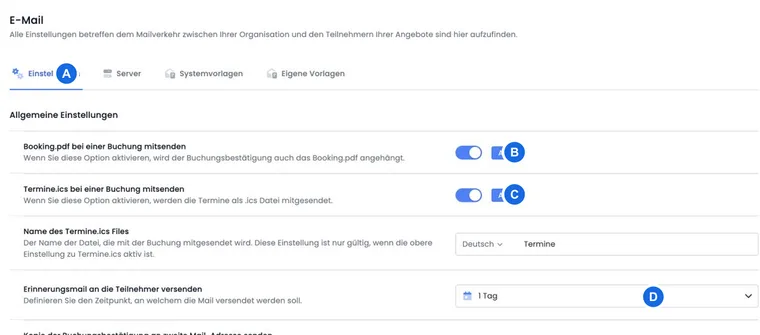
In the Email settings, you specify which automatic messages edoobox sends, which attachments are included, and which provider is used to send emails. You can find this section in the app menu under Settings > Email.
Use this page for the sending rules. You edit the content of the messages in Email templates; suitable placeholders can be found under All placeholders for emails and PDFs.
Video tutorials
These videos complement this guide. The spoken language is indicated for each video.
Preview images are loaded directly from this website. Playing a video connects to YouTube, only for the video you select.
Customise ICS calendar files in edoobox
Add suitable location details, online links and other appointment information to the ICS calendar file in the system templates.
A separate setting controls whether the calendar file is sent. Check its actual content and appearance in the target calendar. The ICS template and sending setting are separate.
Check internal registration information
Open Settings → Email → Settings. Under Emails from edoobox → Email upon registration, you can switch the internal registration information on or off. The message text is maintained in the system template Registration Info.
Check the organization addresses and an actual new booking in the outbox. This switch is separate from confirmation to the person making the booking and from Email when offer is fully booked.
For internal notifications only from specific booking channels, use Label notifications to the back office. This also explains how to distinguish between company and public entry points and how to control the global registration information separately.
Recipients and data of the internal Registration Info
The global message is sent to the Organization address for internal registration information stored under Settings → Organization → Contact → Email. Open this setting, check the address, and wait for it to be saved. This is a different specification than the send-as address of the mail provider, the email of a course leader, or a different billing address.
Then activate Email upon registration and check a new internal demo booking in the outbox. The confirmation path, waiting list, and MustPay can generate different status information. An enabled function does not prove that the specific message was created and delivered. For a different back office target, use the targeted Label notification.
Check sub-offers and selected appointments in Registration Info
The system template Registration Info provides organization, offer, participant, and booking values as well as UserName and BookingInfoType. The individual OfferName describes the context of the process and is not a complete list of selected sub-offers. Special lists such as OfferAllBookedOffers are not available as an offered variant in this template catalog; do not copy them unchecked from the participant confirmation.
Use the provided booking number for internal assignment and open the booking detail via it, which includes all participations and sub-offers. If the booking process generates and includes a Booking.pdf, also check the selection therein. Actually test a multi-offer booking and a lesson booking; a general template preview does not prove their selection. The Date and appointment blocks have their own contexts.
Send Booking.pdf along with booking
The Booking.pdf is a compact but comprehensive overview of the booking data. Enable sending if participants or internal departments should receive the booking information as a PDF attachment. Check whether the same data is already in the email text to ensure participants are not informed twice or with contradictory information.
Many pieces of information from the Booking.pdf can also be output directly in the booking confirmation. Therefore, first check the System templates and the Placeholders before filling the PDF and email with the same information twice.
Distinguish between payment confirmation, Booking.pdf and invoice
Start with the actually received message: Compare the message type, event time, recipient, template used, and file names of attachments in the outbox. A PDF with a self-chosen name can still be a booking overview. Disabling a payment confirmation does not automatically suppress the attachment of a booking confirmation.
| Output | Appropriate setting or check |
|---|---|
| Payment confirmation email | The global switch Payment confirmation in the offer settings controls the message after a processed payment. It uses the corresponding payment confirmation template with payment details. If exactly this additional email is unwanted, check this switch and a new controlled payment case. |
| Booking.pdf attached to the booking confirmation | Under Settings → Email → Settings, Send booking as PDF with booking controls the normal Booking.pdf attachment. Disable this switch if this booking overview should not be sent along in the normal completion. The text of the confirmation email and an invoice remain separate outputs. |
| Invoice as attachment or separate invoice email | Check Invoice settings and automatic creation, the specific invoice document, and the recipient selection. An invoice attachment is passed to sending separately from the Booking.pdf. A disabled Booking.pdf switch therefore does not prevent a necessary invoice output. |
| Task, request list or custom PDF attachment | Also check the template and attachments selected there. A custom attachment or separate request delivery process is not governed by the normal Booking.pdf setting merely because it is called «Booking confirmation». |
- First assign each unwanted output to one of these lines. Open the PDF and check its content, rather than just judging by the file name.
- Change only the responsible setting and document the previous value. Do not generally disable a required payment method for this purpose.
- Check a new internal booking case and, for payment confirmations, additionally the corresponding controlled payment process. Compare the email text, all attachments, and, if applicable, the separately sent invoice.
Already generated messages are not retroactively changed by the setting change. Also note the Limit of an email recall.
Send booking confirmation to a second email address
You can allow participants to enter a second email address during registration, for example for supervisors, secretariat, or accounting. To do this, create a separate Participant data field, insert it in the participant form, and select this field in the email settings as the CC address.
In the Outbox, it remains visible if an email was additionally sent via CC.
Regardless of this, a booking confirmation can be manually sent again to a different address in a single booking: Open the booking, select the email action, and consciously adjust the recipient address in the sending window. Use this only for individual cases so that stored participant data and the actually addressed email address remain traceable.
Copy only invoices to a fixed additional mailbox
The setting Send copy of booking confirmation to second email address reads an address from a participant data field and uses CC. It is not an invoice-specific fixed BCC recipient. The current settings dialog does not offer a separate BCC rule just for participant invoices.
When deliberately sending an invoice, you may select the participant, invoice recipient or both, depending on the alternative billing address present. These are the intended invoice recipients. Do not replace their address with an internal archive mailbox merely to generate a copy.
If accounting only needs documents, use the Invoice or document export and pass the selected files via your established accounting process. If every actually sent invoice should additionally arrive in a mailbox, the separate sending or integration path must explicitly support the invoice context and recipient selection. A general forwarding of all booking confirmations does not meet this narrower scope. Check the invoice email, recipient, and attachment in the outbox.
Send Termin.ics file along
With the Termin.ics file, participants can import the appointment directly into their personal calendar. Carefully check the title, location, start and end time, time zone, online link, and description.
You can find the template for Termin.ics in the system templates. There, you can supplement the calendar file with important information, such as meeting point, online link, room, or preparation note. Changes should be tested with a test booking to ensure that Outlook, Google Calendar, and Apple Calendar interpret the appointment correctly.
Send reminder email to participants
The reminder email informs participants before the start of the offer. Select the offered lead time before the start. The selection also includes short values such as 2 and 12 hours as well as several day values; Inactive disables the reminder. This setting applies to offers in your account for which the sending conditions are met. Note that the minimum number of participants, offer status, and booking status can influence sending.
For automatic detection, edoobox considers approved offers or published, guaranteed to take place or closed offers that have reached the minimum number of participants. Drafts, canceled or deleted offers, and normal waiting list entries are not treated as regular reminder cases. Especially check copied offers, canceled offers, and offers with a waiting list.
For offer-specific information, use Additional texts. This allows a global reminder email to still contain specific notes per offer, such as room, online link, material, or preparation. Typically, several additional text blocks are available so that you can clearly separate different notes.
Practical example: Add a voucher for a follow-up offer
A provider supplements the reminder email with a voucher code for a follow-up offer. The code is integrated in a suitable template or via additional texts. Afterwards, the team checks with a test booking whether the information appears only for the desired offers.
Check reminders after a booking transfer
A booking transfer does not prove that a new reminder has been scheduled for the person or that a missed message was sent afterwards. Automatic offer delivery considers the offer start, configured lead time, offer and booking status, and any reminder time already processed for the offer.
- Open the target booking after the transfer. Check the offer, dates actually booked, booking status and email address.
- Compare the start of the target offer and the globally set lead time. Is the intended sending time still in the future, just in the current time window, or already in the past? If the offer has already started, it no longer belongs to the automatic advance reminder.
- Check the outbox for the person and target offer. Distinguish an earlier message about the old offer, a reminder for the new offer and a failed delivery. The automatic run is recorded at offer level; a later transfer therefore does not guarantee a new individual run.
- If required information is missing, explicitly select this person and, if necessary, create a one-time Reminder email task for the correct target offer. Check the actually reachable future time and existing pending items to prevent duplicate messages.
- After execution, check the archive, recipients, appointments, links, and attachments in the outbox. If the course start has already been reached, consciously send the specifically still needed information via a suitable own message.
Do not adjust the account-wide lead time on a trial basis just to force a single missing message: The change affects other offers and does not replace the control of an already executed sending.
Attendance confirmation and certificate
After the end of the offer, edoobox can send an attendance confirmation and optionally a certificate. The prerequisite is a maintained attendance list. Without attendance data, edoobox cannot calculate attendance; missing attendance does not automatically count as 0%, but remains undefined.
The percentage values only apply if a suitable sending option is enabled, for example “Yes, if x % attended” or the variant via planned tasks. If these options are disabled, the threshold values for attendance confirmation, certificate, or non-attendance notification do not trigger an automatic sending.
Set the sending delay so that enough time remains to record attendances. You can define from which attendance percentage an attendance confirmation is sent and from which percentage the Zertifikat.pdf is sent along. These threshold values only take effect if the sending of the attendance confirmation or the certificate sending is fundamentally enabled.
Additionally, a copy of the attendance confirmation can be sent to a second email address. To do this, create a separate participant data field, insert it in the participant form, and select this field in the email settings.
If participants do not reach the required attendance value, a separate non-attendance notification email can be sent. Further basics: Record attendances, send attendance confirmation and certificate.
Attendance confirmation only via planned tasks
If you want to decide per offer whether attendance confirmations are sent, select the variant via planned tasks. Then create an email task for the attendance confirmation in the offer.
At the time of execution, the attendance list must be up to date. Otherwise, edoobox cannot correctly determine who should receive the email and the certificate. See Create tasks and plan emails.
Newsletter and Sold Out Notification
With the edoobox Newsletter, you allow edoobox to send you news, tips, and relevant product information. This setting concerns administrative communication to your account.
The setting Email when offer is sold out informs you when an offer reaches its maximum number of participants and has been closed. This is helpful if you want to manually manage a waiting list, additional dates, or communication.
Mail provider: no-reply, Mailjet, Microsoft 365, and SMTP
edoobox separates content templates from the technical delivery method. Therefore, in the email settings, you also select which provider is used to send emails. If deliverability is important, a dedicated provider with clean domain verification should be preferred; standard sending via no-reply is quick to set up but is not the best long-term solution for productive communication.
| Provider | Important to know |
|---|---|
| edoobox no-reply | Quick standard sending, but with possible deliverability or reputation warnings. If edoobox warns about no-reply quality, a dedicated provider should be set up. |
| Mailjet | Recommended provider with SPF/DKIM verification and DNS values to copy. The status only reliably turns green when the DNS entries are correctly set with the domain provider. |
| Microsoft 365 | Open the Microsoft dialog, connect the organizational account, and verify the Send-as address with Save. Only after a successful test email and saving is Microsoft activated as a delivery method. |
| SMTP | Your own server with host, port, encryption, username, password, and sender address. |
Connect Mailjet, Microsoft 365, and SMTP
For Mailjet, you enter the sender address, Public Key, and Secret Key. Afterwards, edoobox displays the SPF domain, SPF record, SPF status, DKIM record, DKIM value, and last check. Copy the DNS values and store them with your DNS provider.
For Microsoft 365, open the account dialog via Connect or Edit. There, you establish the Microsoft login and check the displayed account identity. Then enter the Send as email address and select Save. edoobox sends a technical test email to a fixed edoobox address. Microsoft is only activated upon successful acceptance and saving. The complete process is explained in Set up Microsoft 365.
For SMTP, known providers such as Gmail, Yahoo, iCloud, Hotmail, AOL, Bluewin, Directbox, GMX, Mail.de, WEB.de, Zoho, AIM, or a manual configuration can be used. Provider templates pre-fill the host and port; for manual configuration, you enter these details yourself. If saving fails, check the port, SSL/TLS, username, password, and sender address before switching back to no-reply.
Use case: Connecting Mailjet with DNS verification
Open Settings > Email, select Mailjet, and enter the sender address, Public Key, and Secret Key. After saving, copy the SPF and DKIM values to your DNS provider and later check whether edoobox displays the verification as successful.
Check settings before activating
Perform a test booking and check the booking confirmation, Booking.pdf, and Termin.ics.
Test the attendance list and delay before attendance confirmations run automatically.
Use the CC data field only if the additional address is cleanly validated and visible in the form.
Check provider status, SPF, DKIM and the outbox after the first message is sent.
For multilingual offers, check templates and additional texts in all active languages.
Payment reminders and subscription renewals have their own rules
The templates for Payment reminder management and Subscriptions and passes are maintained under System templates. Their delivery is controlled by dunning rules or subscription renewal. The normal offer reminder setting does not activate these processes.
- Set up and check payment reminder management
- Renew and cancel participant subscriptions
- Design renewal reminder
Also check the name of the Termine.ics file for each active language. The file name, the content of the ICS template, and the switch for sending along are three separate pieces of information.
Check Microsoft connection and sender
Connected in the Microsoft dialog describes the usable Microsoft access. Whether Microsoft is actually active for sending is checked separately in the server overview. The dialog shows the connected account and offers Reconnect and Remove connection. When reconnecting, the previous account connection is replaced after a successful login. Removing deletes the connection and sender address in edoobox; if Microsoft was active, standard sending follows. The app consent in Microsoft remains in place. Manage connection explains the individual actions.
For shared mailboxes, app consent and sending rights are required. After successful saving, additionally send your own message to an internal test address. The technical test email is not a delivery test; see Send check and delivery test.
Signed certificates and validation URL
Under Attendance confirmation → Generate signed certificate and URL, you enable certificate validation with the corresponding edoobox subscription. Afterwards, the certificate template can use the intended validation links, QR codes, and numbers. An enabled validation does not replace the attendance check or the switch for sending the certificate along.
If you turn off this feature, existing validation links are no longer valid, and the validation page is not available. Check the impact on already issued certificates before turning it off.
Request lists: copy and rejection email
In the Request list section, select the visible participant data field for Send copy to second email address. Check its format and whether the address is collected in the relevant form. This setting is separate from the normal booking confirmation’s second address.
Use Rejection email on rejection to control whether the requesting person receives a rejection email during the designated rejection process. Maintain the appropriate request list template and check a rejection in the outbox.