
Design Manager
The illustrations show an earlier version of the interface. Use the steps in this guide for the available features and options.
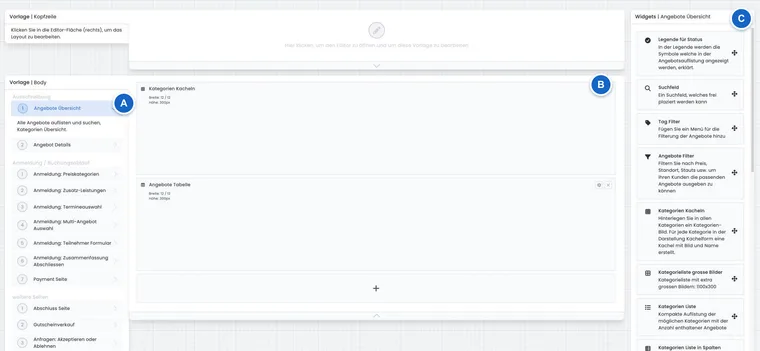
The Design Manager is the central area with which you design the visible booking process of edoobox. You determine which content participants see, how forms are structured, which widgets appear, and how strongly the booking process matches your corporate design.
This page is the entry point to the key Design Manager guides. Start with the overview and then switch to the appropriate detail page.
Video tutorials
These videos complement this guide. The spoken language is indicated for each video.
Preview images are loaded directly from this website. Playing a video connects to YouTube, only for the video you select.
Introduction to the Design Manager
An introduction to the structure and sections of the Design Manager, providing a starting point for designing your booking process.
When to use the Design Manager
You want to display the offer overview, offer details, or booking steps differently.
You want to place fields, notes, files, legal texts, or payment information in a targeted manner.
You want to adapt the booking process to your organization's brand, colors, and language.
You want to integrate features such as Magic Login, Double-Opt-In, cookie banners, or tag filters.
Fundamentals and editor
Start with Designing the booking process with the Design Manager. The technical operation of the workspace, templates, widgets, and Bootstrap integration is explained in Design Manager: Editor, Layout, Widgets, and Bootstrap Configuration.
If you want to understand why the Design Manager selects certain designs, templates, or widgets, read Operating the Design Manager safely.
Key templates
Templates control which part of the booking process is edited. Common starting points are Offer Overview, Offer Details, Participant Form, Booking Flow 1 to 4, Booking Flow 6 to 7, and Header and Template.
Request lists have a dedicated template: Requests: Accept or Reject. The other pages also include the completion page and voucher sales.
Widgets and form functions
Widgets bring functions into the booking process. Examples include a different billing address, Magic Login, tag filters, Double-Opt-In, pattern validation, cookie banners, and tile views.
The key pages on this topic are Design Manager: Editing options for widgets, Different billing address, Automatic profile recognition (Magic Login), Using the tag filter widget, Bookings with Double-Opt-In, and Pattern validation in form fields.
Styling, cookies, and tile views
For colors, spacing, rounded corners, and fonts, use Bootstrap 5.3. You control tracking and consent in the booking process with the Cookie Banner.
Categories can be displayed as tiles. Read about this in Create a tile view for categories and Create a tile view for categories and subcategories.
Practical example: Design the booking process for a new course series
A provider creates a new course series. First, the offer overview is designed as a tile view. Then, the participant form is supplemented with required fields, Double-Opt-In, and a different billing address. Finally, a Bootstrap style with the company colors is linked, and a test booking is performed.
Practical check in the Design Manager
If you are looking for a template, start in the Design Manager overview and then open the detailed guide for the appropriate body, header, or form template. Always check changes in an offer preview with real dates, prices, and form fields, as empty demo layouts may not reveal certain issues.
Additional templates and new widgets
The Design Manager also includes templates for Subscriptions, Subscription purchase, the Waiting zone, Place registration for group participants initially booked without names, and Certificate validation. They form part of the respective customer journey and should be designed together with the regular booking process.
- Find all templates and widget groups
- Design subscription catalog, subscription purchase, and my subscriptions
- Set up waiting zone with status, notes, and actions
- Assign reserved places to a person later
- Design certificate validation and LinkedIn action
- Configure offer image, participant photo, and other widgets
Whether a component appears depends on the selected template, Bootstrap version, and the features enabled in the Plugin Manager. A subscription catalog without an active subscription plugin and published plans is not yet a usable sales channel.
Choose the right entry point for a change
Editor and saving: custom design, templates, grid, and category assignment.
Shopping cart and completion action: booking view, button text, and navigation.
Offer filters: price, date, locations, status, and multiple tag groups.
Subscriptions and customer area: plugin prerequisites, custom catalog, checkout, and account.
Before making any change, check whether you need to edit a custom category design or the account default design. A system design is protected as a template. The publicly visible page and its current category assignment are crucial for verifying the result.
For two differently designed entry points, follow the Example with category design and complete overview. If a saved change does not appear, the Check order for design assignment and integration will help.