
Send invoices by post
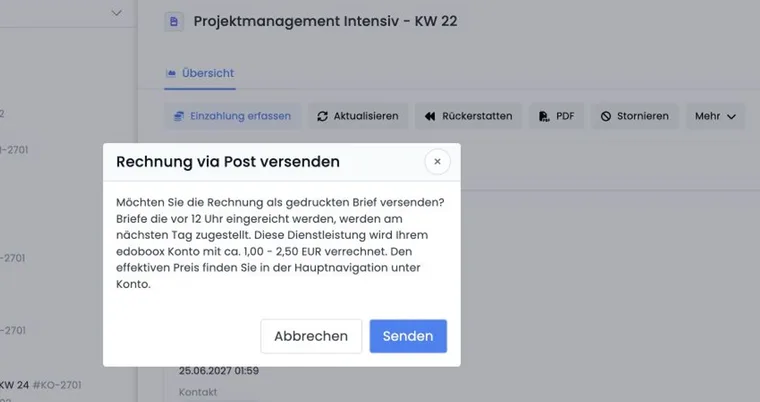
Postal delivery lets you have an edoobox invoice sent by post. This is useful when customers do not want an emailed invoice, when company procedures require a letter or when a payment reminder should be physically delivered.
Delivery is initiated directly from the invoice. Before sending, check the billing address, country, PDF template and your edoobox account credit.
Start postal delivery from an invoice
Open the required user profile or the relevant booking and go to the invoices. Select the invoice to be sent by post.
Open the invoice's action menu, select the letter action and confirm sending. edoobox then submits the invoice for postal delivery.
Requirements before sending
The edoobox account needs sufficient credit for sending. The available account balance and the requirements shown when sending are decisive; check the current balance before confirming.
The billing address must be complete. In particular, enter name, street, postcode, city and country.
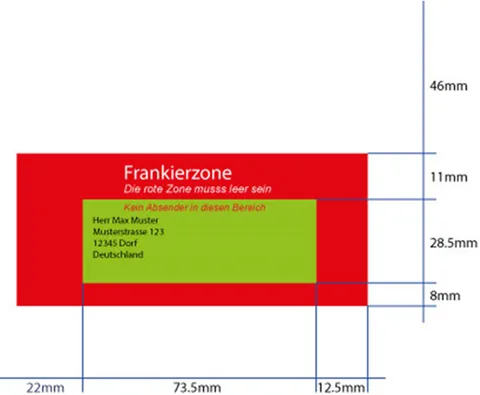
The address must be positioned in the designated window of Rechnung.pdf and aligned to the left.
The Rechnung.pdf template should be set to Standard or to a tested custom template.
Invoice setup is described under Invoice for offline payment and bank transfer. For custom PDF templates, see Custom PDF attachments and templates for email templates.
Franking area and PDF formatting
For the letter to be printed and packaged correctly, the address must be in the designated area of Rechnung.pdf. Do not place important content in the red area.
If you use a custom Rechnung.pdf template, first test postal delivery with a demo invoice. Check that country, address and sender details are positioned correctly.
Costs and delivery
Costs vary with the number of pages, envelope and delivery method. Check the actual amount charged in the account journal; page count, destination country and delivery service can affect the cost. Do not treat earlier price examples as binding terms.
This guide does not guarantee delivery on the next working day; check the current delivery information when submitting the request. Weekends, public holidays, destination country and service provider can affect delivery.
Good practice before first use
For the first test, use a demo invoice with no genuine outstanding receivable.
Check Rechnung.pdf in the preview before requesting the letter.
Collect the country during registration or add it manually before sending.
Document internally who may request letters and when postal delivery is appropriate.
Practical example: Send an invoice to a corporate customer by post
A corporate customer also needs the invoice by post. Open the user profile, check the billing address including country, review the Rechnung.pdf preview and then initiate postal delivery through the invoice's action menu.
Check the sending action and external invoice management
Open the invoice details and select Letter. In the confirmation dialog, review the chargeable sending action and confirm with Send. Wait for the processing result before requesting the same letter again.
If the document is managed by an external accounting system, the local letter action may be unavailable. Open the provider link offered on the document and follow the agreed delivery process. For Bexio, see Set up the Bexio integration.