
Manage add-on services
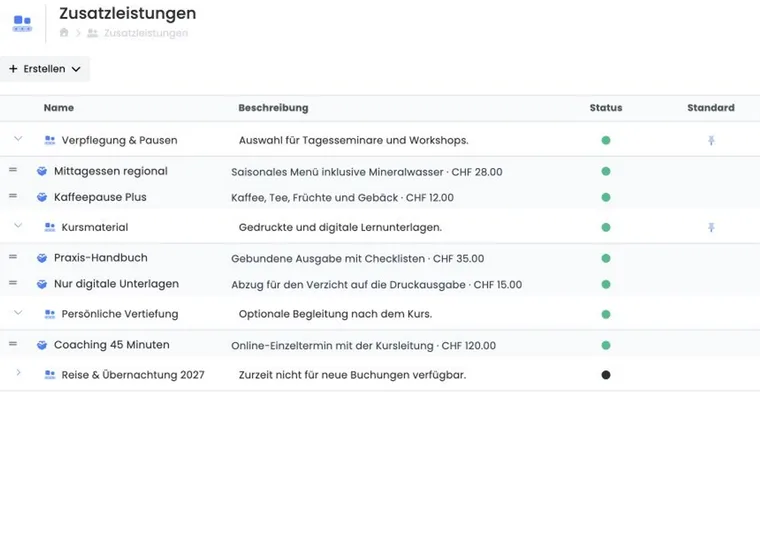
Additional services supplement the actual offer price with selectable items. Typical services include materials, catering, equipment, accommodation or a deduction when participants do not receive something. In edoobox, individual services are always managed in an additional service group.
The group determines currency and VAT. The individual service determines price and application type. The whole group is then assigned to the offer, rather than each service separately.
Prerequisite and visibility
Navigation for additional questions and services appears only if the corresponding global account feature is active. If the section is entirely missing, first check global settings and admin permissions.
Before entry, plan which services share currency and VAT. These belong in a shared group.
Create an additional service group
Open Additional services and create a new service group.
Give it a unique title and optional explanatory description.
Select currency. This currency applies to the group’s services.
Select an active VAT rate matching the chosen country/currency configuration, or deliberately select ‘No VAT’.
Optionally enable Default (Add to new offers). The group is then designated as default for offers newly created in future.
Set status to Active and create the group.
After creation, edoobox asks you to add at least one service. An empty group offers participants no selectable item.
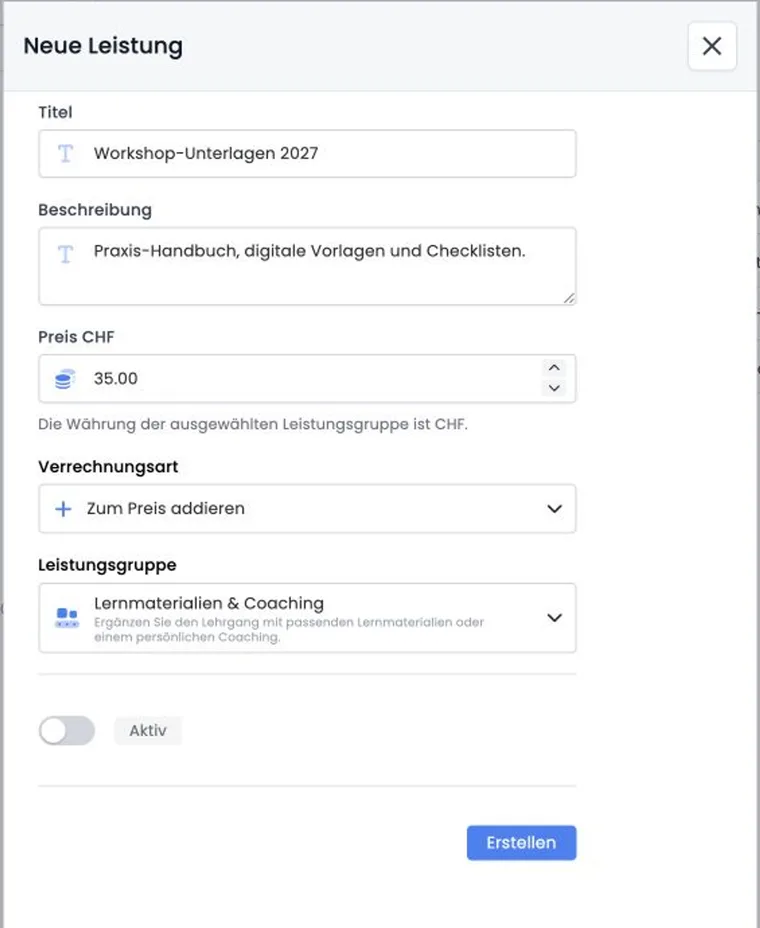
Record a service with price and application type
For each service, maintain:
Title and description: clearly explain what is supplied or deducted.
Price: an amount of 0 or greater in the selected group’s currency. A free entry can represent a simple materials selection, for example.
Application type: Add to price or Subtract from price.
Service group: determines currency and VAT.
Status: only active services should be offered for new bookings.
Use ‘Subtract from price’ only for understandable optional deductions, such as ‘Without printed materials’. A negative price is not entered separately; application type handles deduction logic.
Assign a group to an offer
Open the desired offer and Additional questions / Additional services.
Switch to Services.
Add the desired additional service group from the available list.
Arrange multiple assigned groups in the desired order.
Remove an unsuitable group using the Remove action.
The group’s ‘Default’ option concerns new offers. Check existing offers separately. Then test public booking with quantities 0, 1 and, if substantively allowed, several units.
Check quantities and price versions in bookings
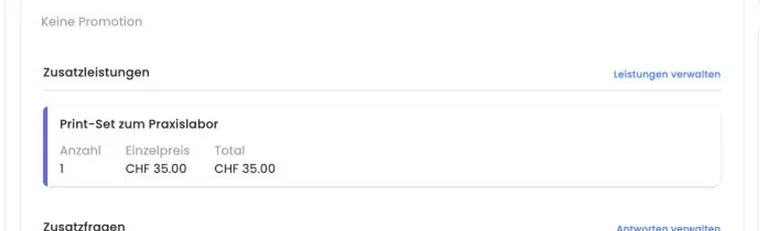
Admins can change a service’s booked quantity in the booking. edoobox shows unit and total price stored in that booking. If the service’s current master price has since changed, a warning additionally displays today’s price.
This keeps old and new price versions distinguishable. For every subsequent quantity change, check booking total, invoice and payments already received. Changing the master price does not replace deliberately correcting an existing booking.
Plan a registration fee that always applies
A normal additional service is a selectable item with quantity. In the public form, without a previous selection it starts at 0. Neither group nor service has a switch to automatically make it a mandatory fee with quantity 1 or charge it only on a person’s first booking.
| Desired fee | Appropriate planning |
|---|---|
| Fixed amount per participation, always included in the course | Include in the appropriate participation price and clearly describe included services. |
| Optional materials or catering | Use an additional service with freely chosen quantity. |
| Exactly once per booking or only on a person’s first admission | This condition cannot be configured in the normal additional services editor. Define the required checking and invoicing process beforehand. |
Example: Course including a one-off organisational fee
A course costs CHF 180 per person, with CHF 20 organisational cost for that participation. If both components may substantively be invoiced as one participation price, the price category is CHF 200. Description explains scope. Two participations total CHF 400. This is not a one-off CHF 20 fee for the entire group booking or an admission fee automatically charged only on the first visit.
If you need a dedicated mandatory invoice item, different taxes or a one-time check across several bookings, coordinate the appropriate invoicing process. A preselected widget, mandatory text or custom browser script does not turn optional quantity selection into a bindingly stored fee rule. Also check whether a promotion or subscription benefit discounts an amount included in the base price.
Optional rooms or materials and individual surcharges
For a recurring surcharge, create a dedicated, clearly labelled additional service with a fixed price. Its group assigns the service to every suitable offer. A room supplement as an additional service changes price; it reserves no room in venue and room management and performs no hotel inventory availability check.
- For example, create Accommodation and materials with suitable currency and VAT.
- Create separate services such as Single room supplement and Materials package with their respective prices and Add to price application type.
- Assign the group to offers actually providing these extras. Do not use a Default pin if intended for only a few runs.
- Check selected quantity during booking and in booking details, and total on the invoice. Coordinate necessary room or materials reservations in your own operating process.
Example: Seminar with two optional extras
One person books a CHF 120 seminar, a CHF 25 materials package and a CHF 80 single room supplement, one of each. Expected total is CHF 225. The administration checks all three items and organises accommodation separately. A booking without extras remains at the seminar price.
One-off individual agreement: In a booking’s additional service editor, you change quantity; the displayed unit price comes from the stored price version. There is no free entry of an arbitrary unit price per person here. Therefore do not change the global master price of a shared service to adjust only one booking. For recurring fixed variants, maintain separate services or a group assigned only to affected offers. A dedicated group restricts selection to offers, not to a specific person.
If this is a different participation base price, use an appropriate price category. If an existing booking should receive different financial treatment, clarify and document the desired document process before changing quantities or master data. Invoice editing and balance must match the actual agreement.
Checklist before publication
Group currency and VAT match the offer.
Each service’s application type is substantively correct.
Only intended services and groups are active.
The group is assigned to the correct offer and sensibly sorted.
Test booking, confirmation, booking details and invoice show the expected amount.
Example: Add catering to the course price
A day seminar offers lunch for CHF 28. The admin creates ‘Catering’ in CHF with appropriate VAT, adds ‘Lunch’ using ‘Add to price’ and assigns the group only to full-day offers.
Example: Deduction for digital materials
Printed materials are included in the course price. Anyone wanting only digital materials can select ‘Without printed materials’. The service gets a positive CHF 15 amount and ‘Subtract from price’. A test booking confirms the total decreases by CHF 15.
Example: Price change without retrospective confusion
A materials package increases from CHF 35 to CHF 39. In an older booking, edoobox still shows the stored booking price and additionally the current price as a notice. The admin changes the old quantity only after consultation and then checks invoice and payment.
Check additional services together with subscription benefits
For offers with member prices or passes, perform a test booking with and without additional services. Compare subscription benefit with individual price items. An access pass with a 0 percent discount may grant booking entitlement without reducing additional service or base price.
After a later quantity change, recheck booking total, balance and invoice. Applied benefit details are in booking details.