
edoobox Entry App for iOS and Android
edoobox Entry is the mobile app for admission and attendance checks. Instructors, reception staff and event teams use it to open upcoming sessions and guest lists, record attendance with a swipe or scan QR tickets with the device camera.
The app is suitable for both a small seminar and a quick admission process. Attendance changes are synchronized with the edoobox account. An active edoobox account is required for use.
Video tutorials
These videos complement this guide. The spoken language is indicated for each video.
Preview images are loaded directly from this website. Playing a video connects to YouTube, only for the video you select.
Mobile attendance tracking with the edoobox Entry App
Overview of mobile attendance tracking with appointment lists, swipe gestures and ticket scanning in the edoobox Entry App.
The December 2025 video still announces Android as upcoming. The guide provides current installation instructions for iOS and Android. Use the confirmed device capabilities described there.
Install the app and log in
Open the official download links on the edoobox website or install edoobox Entry from Google Play. The website also links to the Apple App Store. Sign in with an active edoobox account that has permission to view the required sessions and participants.
Check the login, camera permission, and network before the event day. Do not rely on an untested offline mode; plan a documented alternative process for connection issues.
Open sessions and guest lists
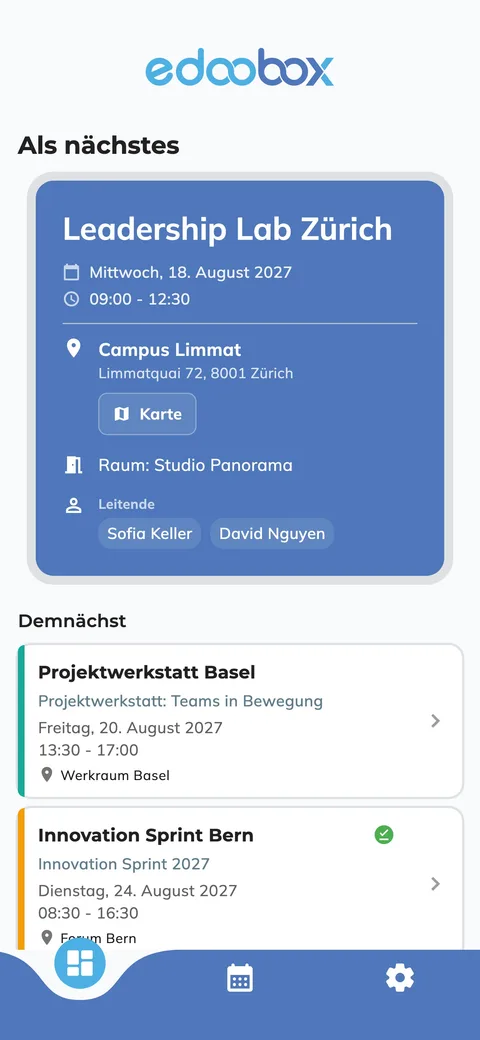
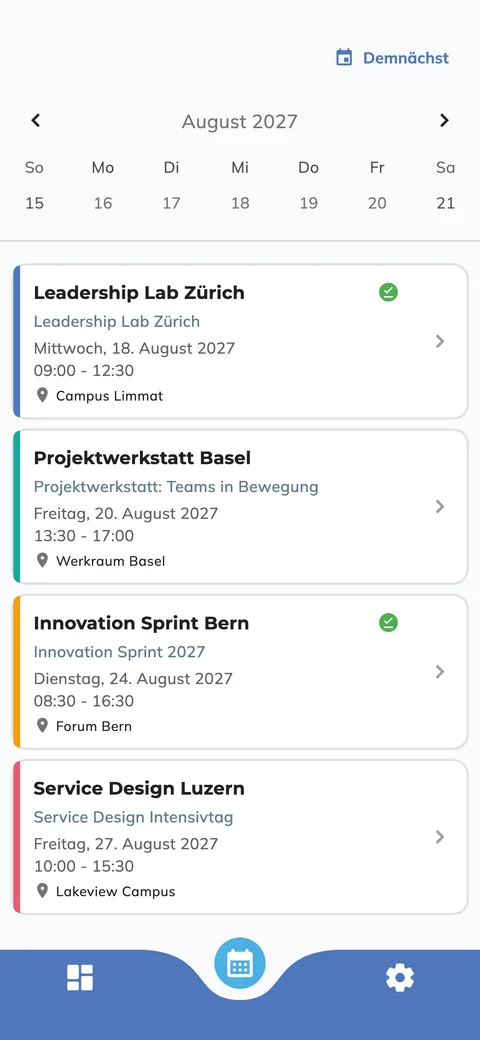
The session overview shows which courses or events are coming up. Select a session to open its current participant list. The team can work with current data instead of an outdated paper list and see attendance statuses already recorded.
If a session is missing, compare its date and offer, and the account you are signed in to, with the edoobox administration. Then check that account’s permissions. Reload the session and check an existing attendance record to confirm that the data is up to date.
Record attendance via swipe
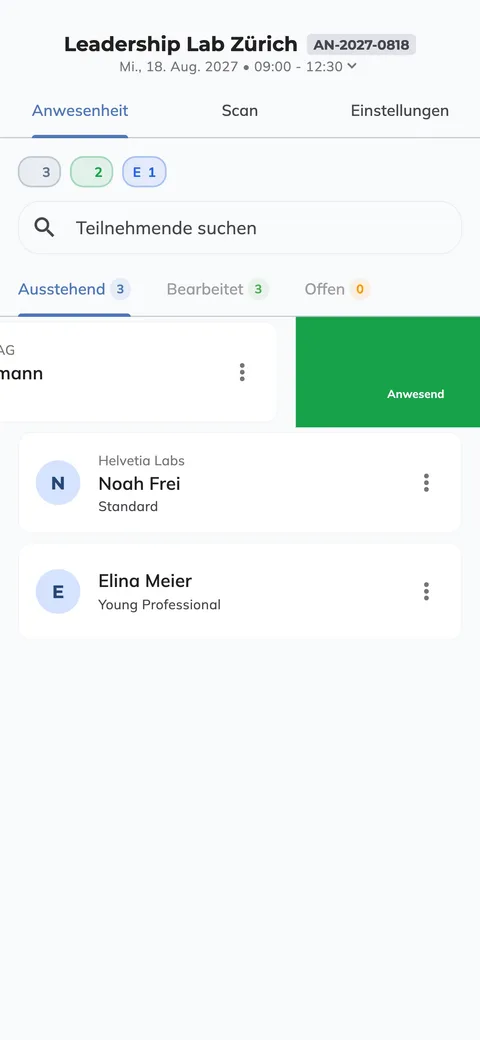
The official app description specifies swipe right for present and swipe left for absent or cancelled. Check the action displayed using a demo participant in the correct session. Do not assume the app uses the same gestures as the browser-based swipe view.
This is particularly useful when participants cannot show a QR code or the instructor records attendance in the classroom. The saved attendance can later be used for reports, attendance confirmations or certificates.
Scan QR tickets for quick admission
In scan mode, the device camera reads the QR code on the ticket. A valid scan assigns the ticket to the matching booking and can automatically set the attendance status. The app provides visual and acoustic feedback on whether a ticket is valid or invalid.
The app description mentions entry and exit controls. Check on each device how repeated scans behave in the specific workflow. Scan a valid, invalid, already used, and cancelled demo ticket and compare the attendance status in edoobox. Basics: Ticket and barcode settings.
Complete an open booking in self-service
If a booking is still open or unpaid on site, the participating person can scan a provided code and complete the process independently on their own device. This means the admission staff does not have to accept payment data, and the queue is relieved.
Define in advance which payment methods are allowed on site and from which status admission is released. After completion, the booking must show the expected payment and booking status in edoobox.
Settings and preparation on site
Check the signed-in account, selected session and available actions with the team.
Charge devices, clean the camera, check the volume, and have a power bank ready.
Scan a test ticket for each entry rule and discuss the feedback together.
Determine who resolves invalid tickets, missing bookings, and open payments.
Perform spot checks in edoobox after the event starts to ensure that synchronization and attendance status are correct.
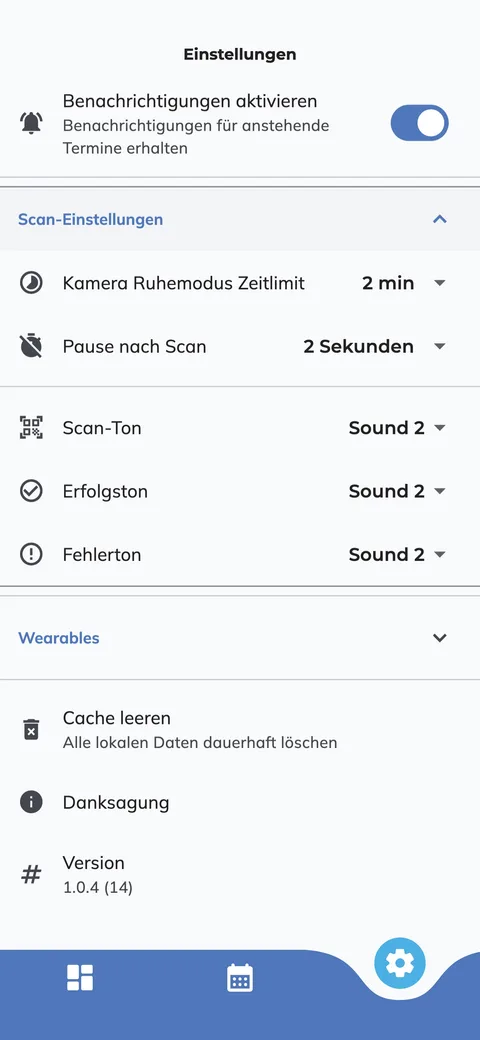
Device-specific additional features and menu labels may differ between iOS and Android. This manual contains no confirmed functional commitment for offline operation, wearables, background updates, and camera idle mode. Clarify a necessary function for this with edoobox in advance and use the tested process with connection and manual backup list until then.
Use case: Small seminar with attendance list
An instructor opens today’s session, checks a demo participant and works through the list in the classroom. They verify the displayed swipe action before confirming, then compare the attendance records in the edoobox administration.
Use case: Event with entry and exit control
Two staff members scan QR tickets at the entrance. Before opening, they test tickets presented a second time, cancelled bookings and tickets for the wrong sessions. If exits must be recorded, the process must work clearly on the designated device; otherwise, the responsible person corrects attendance directly in the table.
Example: Complete an open booking without a payment queue
A person arrives with an open booking. They scan the self-service code and complete the payment on their own smartphone. The admission staff then checks the updated status and allows the person to enter with the regular ticket.
Verify the person and session on site
For a group booking, check the actual participant and booked session. The booking contact can organize registration without attending. Assign unallocated places to people in good time so that tickets and later attendance records identify the right person.
For permanently installed door scanners, there is also the Comydo connection. Agree in advance which process handles the admission decision and which handles attendance maintenance.