
Calendar and dates
In edoobox, every offer has its own calendar. Sessions tell participants when and where an offer takes place. There is also a global calendar combining sessions from different offers in the currently open account.
Depending on setup, sessions appear on the website, in email templates, tickets, attendance lists, calendar feeds and instructor or location workload views.
Global calendar
Open the global calendar through Calendar in the app menu. It shows your account's sessions and can be filtered by instructor, venue, offer and offer status. Use these filters to check daily schedules, room occupancy or instructor resources across offers.
Clicking a session opens an edoobox QuickInfo with start, end, location, room, instructors, available places, offer name, category and offer status. From there, go directly to the offer calendar or attendance view.
The global calendar suits daily coordination, room planning and instructor allocation. First filter by instructor, location or offer status before deciding on rescheduling or additional sessions.
Offer calendar
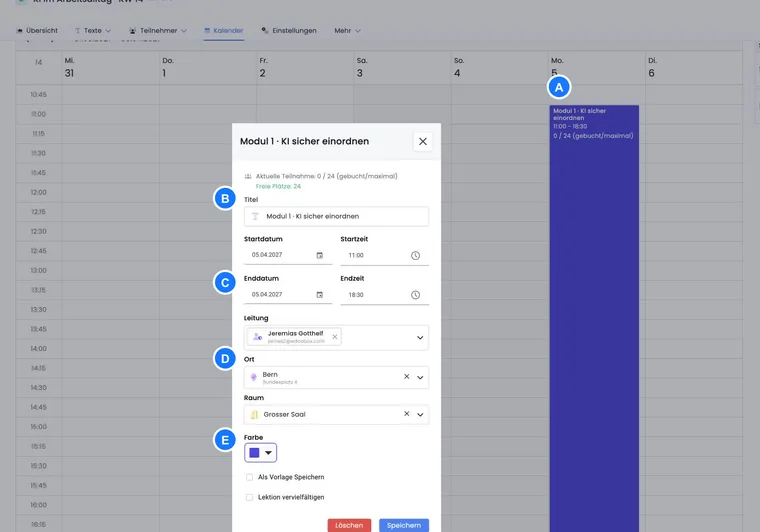
Enter one or more sessions for a planned course delivery. An offer draft can initially be created without a session. Depending on the offer type, sessions are also called lessons, modules or talks. A session can contain a description, start and end dates, start and end times, instructors, location, room and colour.
Open the offer calendar through the Calendar tab in the offer. Create, edit, move, duplicate, export or delete sessions there. Depending on the view, the calendar may also appear as a compact sidebar in offer details so sessions can be checked beside other offer information.
Quick views and calendar views
Calendar views help in different ways depending on your work:

Choose a time-grid view, month overview or session list according to the task.
Table: A list with name, start date, end date, instructors, location and room; suitable for exports and bulk checks.
Day: Daily view with a time grid. Sessions can be moved to different times and edited in a dialog by clicking.
Week: Weekly view using the first weekday configured in the account. Suitable for course weeks and room planning.
Work week: Monday to Friday. This view reduces weekend sessions when you plan only working days.
Month: A month overview and common default view. Sessions can be moved to other days.
Agenda: A continuous session list from the selected starting date; the current view uses a 31-day range and can load more entries while scrolling.
Today jumps to the current date; the selected calendar view determines which additional days are visible. The last-used view may remain saved for admins.
In Day, Week, Work week and Month views, sessions can be moved directly with the mouse depending on permissions. In Table view, click a session, check its data in the dialog and export the list if needed. Agenda is useful for a compact chronological list. Check the displayed range and newly loaded entries before treating it as a complete schedule.
Create a new session
Click a day or time in the offer calendar to create a session. Start, end and associated offer are mandatory. Add a short description or label so sessions are understandable in calendars, emails, tickets, the frontend and internal planning.
A session can span multiple days, and one day can contain several sessions. Configure the time grid globally as 1, 5, 10, 15, 30, 60, 120 or 240 minutes. Account format details are in Formats: date, time and number formats.
Instructors, location, room and colour
Instructors come from the admins. First create instructors under Admins and their user permissions so they can be selected in a session.
Locations and rooms come from venues. If locations have map information, travel directions can be presented more clearly through Google Maps in the booking process. Colours help distinguish sessions visually; edoobox offers a broad range of calendar colours.
Session templates and recurring sessions
A session can be saved as a template. Templates contain typical values such as description, duration, instructors, location, room and colour and are then available in offer calendars. Drag a template onto a date to create a new session with prefilled values.
On small screens, templates often open through an action icon above the calendar. Custom templates can be edited or deleted after confirmation. These session templates are stored in your personal admin configuration. Other admins can use their own templates.
Use Duplicate session to create recurring sessions. Set the number of duplicates and spacing in days, hours and minutes. edoobox copies the description, instructors, location, room and colour from the original session. Up to 50 duplicates can be prepared per series. Check the preview before saving. For larger series, also check the table view.
Show all offers and check conflicts
Depending on the view, the offer calendar can also display other offers. Sessions from other offers then provide context, for example to identify room or instructor conflicts. They appear muted and should be edited in their original offer.
This view is particularly useful when several offers use the same rooms, instructors or time slots. After moving sessions, always check that the location, room, instructors, attendance list and calendar feed are still correct.
- Open the global calendar and choose the required day or week.
- First filter by instructor, then by venue. Open the affected sessions and compare the room in QuickInfo.
- For multiple instructors, check every person and the necessary preparation and travel times.
- Resolve an unintended overlap in the affected offer and check both sessions again.
Calendar filters and workload views show planning data. Assigning a room or subscribing to a calendar does not create a shared reservation lock across offers. Do not rely on every double booking being prevented automatically when saving. The admin workload guide explains how to plan instructors, assistants and substitutes.
Free session selection or normal registration
Normal registration books all sessions in an offer. With suitable subscription levels, the Free session selection registration type is available; participants then choose individual sessions or lessons themselves.
With free session selection, pay particular attention to additional questions, additional services, attendance lists and email communication. Not every additional item can be assigned to an individual lesson. See Registration types.
Plan a complete programme and individually bookable blocks with the same capacity
If a complete programme and individually sold blocks use the same real sessions and places, do not treat copied sessions as shared capacity. A copy is booked independently; a room name and time do not connect the two capacities.
- Define the actual booking unit: complete programme, individual lesson or standalone workshop.
- Where possible, use one offer with free session selection and its existing lessons for individually selectable sessions of the same course delivery. Check the capacity of every selected session.
- If someone should attend all blocks, check their complete session selection in this workflow. A price called “Complete programme” does not automatically select all lessons.
- Compare the pricing structure: with free session selection, the selected price is multiplied by the number of selected lessons. This does not create a fixed total price or automatic minimum count per price. The pricing examples explain this limitation.
- Check complete and individual bookings, the last available place in a block, attendance, confirmations and invoices. For later changes, edit the session selection in the existing booking.
A multi-offer suits selectable standalone sub-offers; it does not automatically combine a second, separately created complete programme with their sessions. If you need a fixed complete programme alongside independently bookable blocks sharing capacity, clarify this combination before selling. Additional offer copies or additional questions alone do not solve shared capacity management.
Recognise prior learning: maintain attendance status and booking scope separately
Recognised prior learning may mean someone does not need to attend certain lessons. An attendance status for an exemption documents the attendance assessment. It does not remove a booked lesson, free a place or automatically reduce the booking price.
- First decide whether only the attendance assessment changes or whether the person actually does not book and pay for the lesson.
- For a normal offer, the price for the entire offer remains. A different attendance status does not calculate a proportional waiver. Agree and record a discount separately if your programme model provides one.
- For an offer with free session selection, choose only lessons actually to be booked. For an existing booking, change the booked sessions. The changed lesson count enters the price calculation; it does not automatically create a fixed package price or special recognition of prior learning.
- Afterwards, check session selection, available places, attendance list, new booking price, existing invoice and payments. A price change is not an automatic refund; use the appropriate refund workflow.
Example: An offer with free session selection costs CHF 40 per lesson in this example. Booking four of six lessons makes the lesson portion CHF 160 instead of CHF 240. By contrast, six booked lessons with two attendances marked exempt remain six booked lessons. Additional services, discounts and existing documents must also be checked.
Session dialog: create, duplicate and update
The session dialog combines description, start and end, instructors, location, room, colour, template and duplication. Creating a session by clicking the calendar prefills its start date and, depending on the view, time. Creating from a template copies saved values such as duration, instructors and location.
Use Duplicate session to create recurring sessions. Check the count, interval in days, hours and minutes, and resulting start times before saving. Plan multiple series for very large schedules because edoobox creates at most 50 duplicates per operation. After saving, check series in table view, where outliers are easier to identify.
Edit, move and delete sessions
Sessions can be edited by clicking in the calendar or moved with the mouse depending on the view. Deletion requires confirmation. Created sessions are edited or deleted individually; for series, check whether one session or several are affected.
If an offer already has bookings, coordinate session changes with email communication, attendance lists, tickets and calendar feeds.
Generate a calendar feed URL
Use the calendar feed URL to subscribe to edoobox sessions in external calendars such as Outlook, Google Calendar or Apple Calendar. The subscribing calendar retrieves the feed on its own update schedule. Changes are therefore not guaranteed to appear immediately; check the current state directly in edoobox. The feed covers sessions from two weeks in the past to twelve months ahead. For earlier reports, use the session table in edoobox.
In the global or offer calendar, click Calendar feed URL.
Choose whether to include all sessions or those of a specific instructor.
Generate the URL and copy it to the clipboard.
Subscribe to the URL in the external calendar.
Which information appears in the subscribed calendar
The admin calendar feed uses the offer name and lesson description as the event title. The offer number appears in the description; maintained location and address details are transmitted as the location. An empty or very general lesson title therefore makes entries difficult to distinguish in the external calendar.
| View | Check instructors and rooms |
|---|---|
| Calendar and QuickInfo in edoobox | The instructors, location and room assigned to the session can be checked directly. |
| Subscribed admin calendar feed | A personal feed filters for the assigned instructor. Instructor names and the separate room field are not automatically copied into the entry as independent text details. |
| Calendar file for a booking | The description is generated from the ICS attachment template. Check this content separately; changing the attachment template does not redesign the admin calendar feed. |
If you also need brief room information in the feed title, open the session in the offer calendar and use a clear description, such as Practical block · Room 2. Still maintain the actual room field. Check the public display and external calendar entry after its next update. Internal staffing notes do not belong in a publicly used title.
Feed in Outlook, Google Calendar and Apple Calendar
In Outlook, add the feed as an internet calendar. In Google Calendar, use Other calendars > From URL. In Apple Calendar, select New calendar subscription. Do not make the calendar public if it contains internal session or instructor information.
Give the external calendar a clear name, such as “edoobox instructors” or “edoobox all sessions”. Since external calendars do not synchronise in real time, also confirm last-minute changes through email, tickets, attendance lists or internal communication.
Deleting an admin also ends their calendar feed. Deactivating an admin may pause the feed, which can become available again after reactivation.
Add booked sessions to participants' calendars
You can send participants an ICS file with their booking. It contains the booking sessions determined for delivery. Normal registration uses the offer's sessions; free session selection uses the selected lessons. Waiting-list registrations do not receive this regular calendar attachment.
- Open Settings → Email and enable Send sessions in ICS format when booking under general settings. The settings search also finds the switch by this name.
- Check the filename in each language used. In email templates, check the Attachment: Sessions ICS file template and placeholders available in that context.
- Make a test booking with maintained sessions. In the outbox or received booking message, check that the attachment exists and contains the correct sessions.
- The participant opens or imports the file in their own calendar and checks the title, date, time, time zone and location. For free session selection, also check that only booked lessons are included.
The person or their calendar application performs the import. The file creates neither an ongoing calendar subscription nor two-way synchronisation with edoobox. If a session changes later, notify the booked participants and ask them to check the existing calendar entry. Depending on the calendar application, reimporting the file may update an existing entry or create a duplicate.
Online course: check session location, website map and ICS location separately
For an online course, an old training address should not suggest travelling there. Check three separate places:
| Place | What it controls | What it does not change |
|---|---|---|
| Location on the booked session | The assigned venue's postal address is transmitted as LOCATION in the participant attachment. | Simply naming a location “Online” and disabling automatic map positioning do not remove an existing postal address. |
| Map widget in the Design Manager | The map displayed on your website. Check the Google Maps widget in offer details in the design actually assigned. | Removing the website widget does not suppress a location in the ICS file or a map in a third-party calendar app. |
| “Attachment: Sessions ICS file” template | The calendar entry's description text, technically DESCRIPTION and its HTML variant. | Changing the description text does not overwrite the separate LOCATION field. |
- Open Offer → Calendar and each affected session. Remove an incorrectly assigned physical location and room if applicable. Alternatively, assign a separate venue with a clear name such as “Online” and no postal details in Street, Postcode or Town. Do not modify a shared in-person venue for this purpose.
- Check the online instructions in the offer description, confirmation and ICS attachment template. A location name without an address is not automatically output as
LOCATIONin the current participant attachment. Therefore add “Online – access as described in the booking confirmation” to the ICS description if required. - Check the public offer page separately. To omit a travel map there, remove the corresponding map widget from the template used and check which other offers use that design. Location map positioning is not a general switch to disable maps.
- Generate a new test booking confirmation with an ICS attachment using the changed session data. Also open the actual new file in a text editor: search for
LOCATION, the previous street or location details andDESCRIPTION. Without an assigned postal address, no old travel address should remain asLOCATION; the online instructions belong in the description. - Import this attachment into your calendar and check the visible location/map display. Compare an entry imported previously with the new file before treating old data as another export problem. Depending on the calendar application, reimporting may create an additional entry.
edoobox provides no separate “Disable maps in all calendar apps” switch for this participant attachment. The calendar determines whether it creates a map or search from received text. If a misleading map persists despite a correctly address-free new ICS file, check the saved entry and that calendar application's settings. An admin calendar feed is a different source for this check.
Example: three booked lessons rather than the entire course schedule
An offer with free session selection contains ten lessons. Someone books three of them. The administrator checks those three sessions in the ICS attachment using a test booking. For ongoing team scheduling, they also use the admin calendar feed. They do not share this as a personal participant calendar because its scope is determined by instructor or all sessions.
Table view, filters and exports
The session table shows description, participation, start date, end date, instructors, location and room. It supports sorting, paging, period filters and Excel export. Past sessions can be shown or hidden depending on the view.
Use table view particularly after series, templates or many reschedulings: outliers in start time, end time, instructors, room and participation are easier to spot there than in Month view.
In the global calendar, instructor, location, offer and offer-status filters control visible sessions. A filtered calendar helps with room planning, instructor workload and daily coordination.
For monthly instructor fee preparation, use the instructor schedule and report example described there. Planned sessions and durations do not yet prove a service was actually performed or is payable.
Example: prepare a session series with a template
An instructor first creates a template with duration, location, room, instructors and colour. They then drag it onto the first course day in Month view, enable Duplicate session and set the count and interval. After saving, they check Table view and export the session list if needed.
Print the agenda as a session list or share it as a PDF
The calendar provides an Agenda view but no dedicated command for a fully formatted agenda PDF printout. For a verifiable print list, use the session table and its Excel export.
- Open the offer and its Calendar. Switch to Table.
- Check the required period and whether past sessions should be included. Check descriptions, start, end, instructors, location and room.
- Select Excel export. The export uses the rows loaded for the table. Therefore compare the page scope and result; if there are multiple table pages, check every required page before promising a complete schedule.
- Open the file in your spreadsheet application, sort by start time and limit the print area to the required columns and days.
- Check print preview and print the list or save it as a PDF there. Compare the first and last session with edoobox in particular.
For a schedule across several offers, use the session/instructor schedule in the Export Manager. Deliberately choose the period and row structure there. A browser printout of the visible agenda may omit entries loaded later; it does not replace checking the export scope.
Follow-up checks after session changes
After session changes, check the offer status, registration deadline, calendar feed, Termin.ics, reminder emails and attendance list. For already booked participants, also consider whether and how to communicate the change.
Switch between Sessions and Customer view
In the global calendar, switch between Sessions and Customer at the top. Customer view shows a card per booking and session and can display the contact person, participant count and answers to additional questions. Under Settings, choose the title and additional rows yourself.
The Customer switch appears only with read permissions for bookings and participants. The complete guide with examples is under Customer view in the calendar. The view is for administrative planning and is not a public participant calendar.
Plan the same course delivery in several offers
A session belongs to exactly one offer in edoobox. Using a session template to enter the same time, instructors and room in a second offer creates a separate session. Changes and bookings for these entries are managed separately; this creates neither a shared lesson nor shared capacity.
| Your objective | Suitable structure |
|---|---|
| The same course delivery with different participation fees | One offer with several price categories. The maximum participant count then remains shared within the same offer. |
| Make individual sessions in the same offer bookable | Free session selection with the required lessons. |
| Several selectable workshops in one programme | A multi-offer with separate sub-offers and capacities. |
| Repeat similar but genuinely separate course deliveries | Use a session template or offer copy and check every resulting session and its capacity separately. |
If registrations from different offers should share the same room or actual number of places, explicitly plan that shared capacity. Identical names, times or room assignments do not combine capacities. Use a shared booking structure where possible; any desired resource management across offers must be clarified separately in advance.