
Additional questions and add-on services
Additional questions and services extend an offer’s booking process. Additional questions collect information per booking. Additional services offer chargeable or price-reducing options such as materials, catering, accommodation, travel or donations.
Both functions are stored globally in the edoobox account and then assigned to individual offers. They can be maintained multilingually and appear during booking according to assignment.
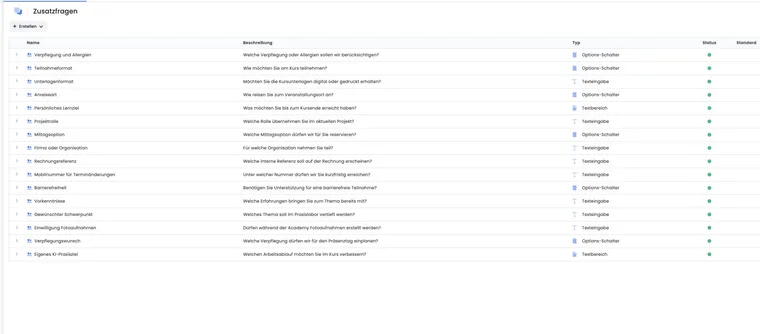
Both functions are created globally in the account. The same question and service groups can therefore be used in several offers, translated and centrally maintained. Changes to a global group affect every offer assigned to it. This is why default groups should be used only for recurring, thoroughly checked questions or services.
A separate group is therefore often sensible for one-off special cases. This prevents a test offer change from unexpectedly affecting live offers, translations or existing booking processes too.
When additional questions make sense
Additional questions suit information relevant only to a specific booking, such as workshop preferences, queries, comments, selection options or agreement to offer-specific notices.
Permanent personal data such as address, date of birth or membership number belongs instead in participant data fields. A question such as ‘Which workshop option would you like?’ fits the offer as an additional question.
Create additional questions
In the app menu, open Additional questions and create a question group. Enter title and description; title appears as the group heading during booking, while description can contain the actual question or a short explanation. Translate both into every active language and select answer format: radio buttons, text input or text area.
Default adds the group to new offers. Status controls whether it is visible during booking. A question group needs at least one active input field or answer option; otherwise it can cause booking completion problems in the offer.
After group creation, edoobox reminds you to create its first input field. Give each field a clear label, assign it to the correct question group and maintain translations. The group’s answer format applies to its subordinate input fields: radio buttons suit selection answers, text input short details, and text areas longer comments.
Activate only groups and input fields participants should actually see. Disabled groups do not appear during registration but may remain relevant for historical answers.
Add an additional question to an offer
Open the desired offer and go to Additional questions. Prepare assignment before publication. Available groups appear left and assigned groups right. Use plus to add a group, Remove to unlink it and sorting to control booking order.
Additional questions appear below or in connection with the registration form during registration. Check display with a test booking, especially on mobile devices and in every active language.
Before assignment, open the group to check included answer fields. Assigned group sorting determines question order for participants. Too many questions can slow completion; bundle related questions into a few clear groups.
Create additional services
In the app menu, open Additional services and create a service group. Enter title, description, currency, VAT rate, default status and status. Service group currency must match offer currency.
Each service group needs at least one service. A service contains title, description, price, application type, status and associated group. Application type decides whether the amount is added to or subtracted from offer price. Disabled services remain traceable for existing bookings but are no longer offered during booking.
Currency and VAT are maintained at group level. Therefore use separate service groups for offers with different currencies or tax rates. Translate group and individual service titles and descriptions into every active language.
Add an additional service to an offer
In the offer, go to Additional services. Add the desired service group and check included services. Additional services appear on a separate page after price category selection and before the registration form.
Service groups without services can be saved but offer participants nothing selectable. Before going live, therefore check every active service group and open included services through its expanded row. Additional services can increase or reduce totals and therefore affect invoice proposals, payment and booking confirmation.
Example: Climate contribution or materials option
An organisation wants to offer a voluntary climate contribution. It creates a Climate contribution service group, maintains description, currency and VAT, and creates 1 tree - Germany location with price and Add application type. The group is then assigned to the offer and checked with a test booking.
The same principle suits course notes, rental materials, catering, accommodation, shuttle services, examination fees or optional deductions. The complete process with room supplement, materials package and limits of custom unit prices is explained under Manage additional services. A price-affecting option reserves neither physical rooms nor materials stock.
Example: Sell materials as an additional service
Create a ‘Course materials’ service group, select currency and VAT, and activate it. Add ‘Printed course notes’ with price and ‘Add’ application type. Then assign the group to the offer and perform a test booking through to invoice proposal.
Important note on free date selection
If an offer with free date selection uses additional questions or services, answers and services are not assigned to an individual lesson. They belong to the booking. This also applies if several services are booked or several questions answered.
If information is needed per lesson, plan particularly carefully or work with separate offers or clear additional questions.
Tables, groups and entries
Global tables show groups first, with individual input fields or services beneath them. New entries can be added in the expanded row. Drag and drop to sort subordinate entries.
If a group has no subordinate entry yet, edoobox asks you to add the first input field or service. Take this notice seriously: an active empty group may confuse booking or prevent participants making a meaningful selection.
Column logic is described under Question group columns and Additional service group columns.
Edit answers and services in bookings afterwards
In booking details, additional questions and services can be opened from the summary if the section is active for the booking. edoobox loads both groups currently assigned to the offer and already stored historical answers or services.
Inactive questions or groups remain visible but locked. Editing is also locked for a cancelled booking. For additional services, quantity per service can be changed; edoobox shows stored unit price, total and, for price discrepancies, a current-price notice.
After changing additional services, check invoice proposal, balance and email communication because the booking amount may change.
Example: Correct an additional service afterwards
Open the booking, switch to Additional services and expand the appropriate service group. Change service quantity and save. Afterwards check invoice proposal, balance and, if needed, invoice.
Effects on booking, invoice and communication
Additional questions are saved with the booking and can be used in booking details, analyses and, depending on template, emails or PDFs. After adding questions, therefore check booking confirmation, Booking.pdf and internal processes as well as the form.
Additional services change the booking amount. After a subsequent adjustment, check invoice proposal, balance, payment, invoice and outbox. Older bookings retain traceability of the unit price stored at booking time.
Distinction from participant data, prices and payments
Participant data fields are a person’s master data. Additional questions are offer-related booking questions. Price categories define a booking’s base price; additional services change the amount as optional extra items.
VAT and currency for additional services come from the service group. General tax rate setup is provided under Global VAT settings. Payment itself then follows normal payment systems and invoicing processes.
Use default groups deliberately
Enable Default only for groups that should actually appear for new offers. For rare special questions, materials options or internal tests, leave Default disabled and add the group specifically to the relevant offer.
This keeps booking short and traceable. Too many optional questions and services can lower completion rates.
Check additional services with subscription discounts and vouchers
A subscription benefit or promotion need not reduce every additional service. In the booking, check the displayed benefit and additional service’s own price. A materials or catering price change requires invoice, payment and balance review even for participation entitled by a pass or subscription.
Additional questions you want to transfer during rebooking appear in the rebooking preview. After the change, check whether answers suit the destination offer. Further rules are explained under Use subscriptions and Promotions and vouchers.
Plan additional questions separately in multi-offers
If main and sub-offers use the same question group, answers are kept separate by offer. An answer for the first workshop does not replace the second workshop’s answer. Steps and export checks are provided under Additional questions in multi-offers.
An additional question reserves no workshop places. If selection should control capacity and participation, use a bookable sub-offer rather than a mere answer option.