
Registration settings, cancellation and withdrawal
The global registration settings control what happens after a booking, whether a participant account is created and which login methods are allowed. Configure self-cancellation in the separate Cancellation & Withdrawal section.
Changes apply account-wide. Therefore, always test at least one public offer and an existing participant access before communicating the new process.
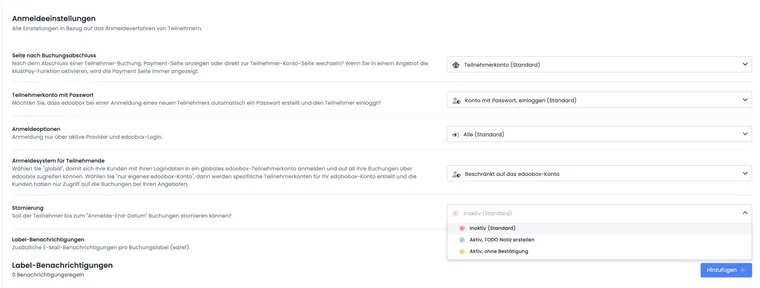
About the illustration: It shows the previous combined settings view. In the current state, you will find Cancellation and the additional selection Rules under Settings → Cancellation & Withdrawal.
Page after booking completion
You choose between:
Payment page: After the booking, the available payment methods are displayed.
Participant account: After completion, the person switches to their account or to the intended completion view.
If MustPay is active in the offer, the payment page is displayed regardless of this global selection. This is necessary because the booking is only completed after the required payment.
Participant account with or without password
Three account modes are available for selection:
| Option | Effect after a new booking | Suitable for |
|---|---|---|
| Account with password, log in | The account and password are created; the person remains logged in. | Recurring bookings and portals with multiple offers. |
| Account with password, do not log in | The account and password are created, but no active session is continued. | If access should be possible later, but the completion should end without a logged-in state. |
| Account without password, do not log in | No local password and no active login. | One-time, as short as possible booking processes or purely external identity. |
“Without password” does not mean that personal data are anonymous. The profile and its bookings remain available to the organization.
Allowed login options
Three login methods are available:
All: Booking without an existing login as well as with edoobox login or an active external provider.
Active providers and edoobox login only: A known identity is required; local edoobox login remains allowed.
Provider only: The person must use a configured external provider.
Test the provider first: Enable “Provider only” only after at least one external login has been fully set up and verified with a test account. An incorrect SAML/provider configuration can otherwise block all public bookings.
Global or own participant account
Global: The person can use the same edoobox login with multiple providers and view their own bookings across providers in their global account.
Own edoobox account only: The profile is restricted to your account; the person can only see bookings from your organization.
Your admins see exclusively data from their own edoobox account in both cases. The switch should be planned for existing profiles, as duplicate or already global identities may need to be cleaned up. Carefully check existing profiles for duplicate person data before making the change.
Additional email per booking label
Label notifications send an additional internal email after a completed booking if the booking label exactly matches a rule. Existing confirmation and organization emails are not replaced by this.
The following are maintained for each rule:
a unique label with a maximum of 15 characters;
a valid target address;
a custom email template. System templates and PDF templates are not permitted for this purpose.
The language of the template is based on the contact person, where available. A successful dispatch or an invalid rule is documented as a note on the booking. The rule only reacts to the exact label; therefore, capitalization and spaces must be deliberately standardized.
Report only selected booking paths to the back office
A team wants to receive additional internal messages for company registrations, while public individual bookings remain without this additional email. To do this, you link a deliberately marked booking path with a label notification.
- Create a custom email template under Settings → Email → Custom Templates, for example “Company Registration Internal”. Use only the information required for the booking context within it.
- Open Registration settings → Label notifications → Add. For example, record the label
firmenportal, an internal target address likebackoffice@example.org, and your own template. Save the rule. - Open the preview/share function for the desired offer and enter the same value under Label. The generated link contains
edref. The link generator writes labels in lowercase; therefore, use lowercase in the rule as well. - Use this generated link in the company portal. The public booking path remains without this label or receives a different label. A category name alone does not select a notification rule.
- Make a test booking through each of the two booking links as a participant would. For the labelled booking, check the booking note and the additional message in the outbox. Also check a group registration: the message relates to the booking process and is not automatically sent separately to each person included in the registration.
Selection follows the label supplied. A completed company field, billing address or multiple participants does not automatically turn a booking into a company notification. If someone shares the labelled link with a private individual, that booking may also trigger the extra email. Use the label to identify the booking route and check the contents of the registration received.
A label rule supplements the normal emails. The global internal message Registration Info remains separately controllable under Email → Email on registration. If you switch it off, check beforehand whether other teams need this general notification. When setting up, also check the waitlist and MustPay; an internal additional email does not by itself confirm a payment or confirmed participation.
An active provider or an existing login does not enforce supervisor approval. For every new registration, check the continuous inquiry path including normal direct links. The global registration info address is located under Recipients and data of the internal Registration Info.
Configure cancellation in your own settings area
You will now find self-cancellation under Settings → Cancellation & Withdrawal. There are four modes: Inactive, Active with admin confirmation (marked as obsolete), Active, without confirmation (also obsolete), and Rules.
In the Rules mode, you maintain groups with deadlines before the offer start, percentage cancellation fees, automatic cancellation or admin confirmation, withdrawal, and refund path. A default group applies if no other group was selected in the offer. New bookings save their conditions. The setup is located under Manage cancellation terms.
The selection of the participant account or a login provider does not save consent to your terms of participation. Separately link the legal texts in the design and the booking proofs. The entire process from the text version to the cancellation invoice is explained in Legal texts, cancellation, and proofs.
Confirmation for admin cancellation
Outside rule mode, Confirmation for admin cancellation appears under Cancellation & Withdrawal. It controls automatic cancellation confirmations when an admin cancels or approves a request. In rule mode, this older switch is hidden in the interface. The existing account setting may nevertheless still determine whether an automatic confirmation is sent for an admin cancellation. Check the outbox afterwards. If no message appears, send the reviewed cancellation confirmation from the booking details. If unexpected sending behaviour persists, clarify the account configuration.
A request is not yet a cancellation. With a rule requiring admin confirmation, the booking remains active until the request is processed. Before approval, check the task, saved terms, fee preview and invoice. Cancellation and withdrawal explains the follow-up.
Edit an open request using Review cancellation requests and fees. Completing a linked task may trigger the cancellation; therefore, verify the intended decision before completing it.
Secure changes with a small test matrix
| Test case | Check |
|---|---|
| New person without login | Form access, account/password mode, completion page, confirmation. |
| Existing edoobox login | Detection, profile data, additional booking, global/local. |
| External provider | Login, redirect, allowed identity, error case. |
| MustPay | Payment page despite global completion selection, interruption and completion. |
| Booking label | Exact match, deviating label, internal additional email and booking note. |
| Cancellation | Allowed and prohibited cases, withdrawal, fees, refunds, confirmation and outbox. |
Use case: One-off workshop without local password
The organization allows all login methods, selects “Account without password, do not log in” and redirects to the participant account after completion. A test checks that no local password is sent, but that the booking and confirmation are correctly present in the profile. If MustPay is enabled, the payment page must appear first instead.
Use case: Staff portal only with SAML
An internal continuing education portal selects “Provider only” and “Own edoobox account only”. Before the switchover, three staff members test login, logout, and booking via the active SAML provider. Additionally, an administrative emergency plan remains in place in case the identity provider fails.
Use case: Report special bookings to the event team
Bookings with the label “vip” should additionally be reported to eventteam@example.org. The administration creates a custom email template and a unique label rule. The share link also uses “vip”. “vip”, a different label, and an empty label are tested: Only the exact value generates the additional email and the corresponding booking note.