
Template: Offer details
The illustrations show an earlier version of the interface. Use the steps in this guide for the available features and options.
The Offer details template contains widgets for designing an offer’s public detail page. This determines whether visitors understand content, dates, venue, price, instructor and the next registration step.
Offer details widgets follow the same grid, width and breakpoint rules as other Design Manager templates. Place the most important information near the top and check appearance on desktop and smartphone.
Core widgets of the offer details page
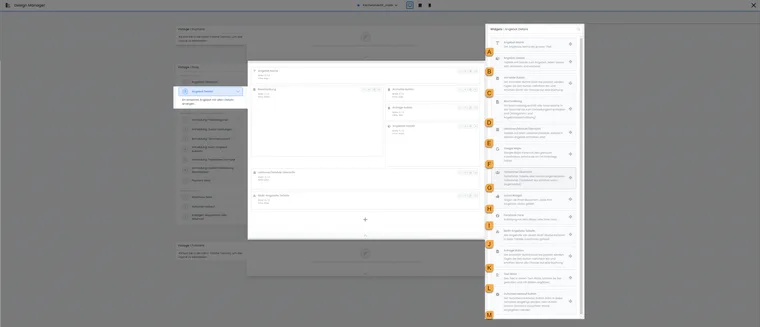
The labelled overview helps identify components on an offer detail page. Older social components H and I depend on the design used and external service.
- A
- Offer title
- B
- Key offer details
- C
- Go directly to registration
- D
- Description from category and offer
- E
- Show lessons and modules
- F
- Map of the venue
- G
- Public participant overview
- H
- Social component from existing designs
- I
- Facebook fans from existing designs
- J
- Sub-offers of a multi-offer
- K
- Start an enquiry
- L
- Free-form notices and images
- M
- Open voucher sales
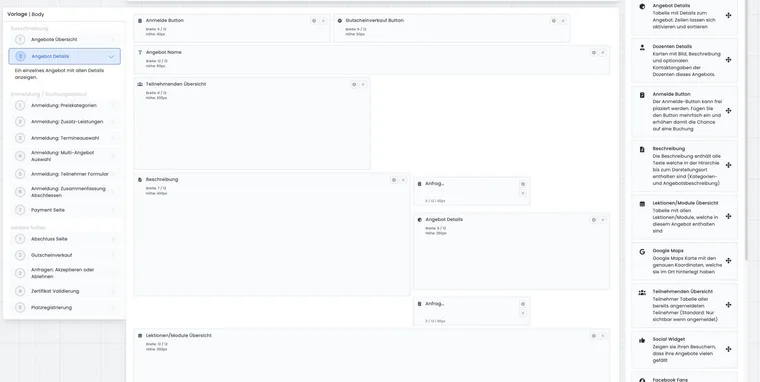
| Widget | Task | Important settings |
|---|---|---|
| Offer name | Shows the offer title | Text size: normal, Heading 3, Heading 2 or Heading 1 |
| Offer Details | Shows offer data such as number, available places, date, venue, price and contact | Selection of visible information, additional row for tags with values |
| Registration button | Leads to the registration form | Button text and colour for normal booking and waiting list |
| Description | Shows category and offer descriptions | Uses general widget settings |
| Lessons/modules overview | Lists dates, modules or lessons | Columns, past dates, current row and responsive table |
| Google Maps | Shows the location of the first lesson or module | Zoom, marker, map type and map style |
Plan widget selection
The offer detail page should give participants enough confidence to register. Therefore place offer name, essential details, description and registration button first. Additional widgets such as map, social links or voucher sales should support the decision and avoid distracting from the next step.
If an offer consists of modules, lessons or multi-offers, this information should appear before the registration button or clearly below it. Participants need to understand what they are booking and which dates are included.
Offer name, details and registration button
Offer name shows the offer title in the selected text size. Avoid duplicate main headings if the title already appears prominently elsewhere.
Offer details can selectively show information such as offer number, available places, date, venue, price, contact, registration deadline or additional tag values. For special notices such as language, level or target group, tags with values may help. Select only information bookers actually need.
The additional row for tags with values suits compact notices that should not get lost in description text. Examples include teaching language, difficulty, target group, materials notice or course format. Check display in preview, as too many detail values can overload the initial view.
The Registration button leads to the registration form. You can adjust ‘Register now’ text and colour. If waiting lists are active and the offer is fully booked, text and colour for ‘Join waiting list’ can be defined separately.
Button texts and status logic
The registration button can have different texts and colours depending on status. Besides ‘Register now’, waiting list, enquiry or closed may be relevant. Check these states with actual demo offers so participants do not click a misleading button.
The Offer details widget can show information such as offer number, available places, date, venue, price or contact. Additionally, a tag value can appear in a separate row, for example course language, level or delivery format. Further information: Use tags with values.
Display a clickable email address
In Design Manager, open Body → Offer details and the Offer details widget settings. Add Email to the visible row selection, save and open the public detail page. This dedicated email row outputs the organisation address as a mailto: link with the offer name as subject. It is separate from the general contact row and instructor contact.
The instructor’s contact address is output as text in this widget. For a different fixed contact, you can use a Text block: select text such as ‘Ask about the course’, choose Insert link and enter, for example, mailto:kurse@example.org. The text block is fixed design content and does not automatically adopt a different instructor address for each offer. Check all languages and mobile views. An email link opens the email program configured on the device; the website does not itself send a message through it.
Reduce price information for free offers
In Offer details settings, remove unneeded price rows such as price range, price or price categories and save. The selection applies to every offer using this design and widget. It is not an automatic rule solely for zero prices and does not alter actual price calculation.
For a dedicated free offer section, you can use a category design without price rows and explain ‘Free participation’ in the relevant description. For mixed offers, retain necessary price information. Also check overview price columns and the actual registration process.
Coordinate external registration in details and overview
The normal registration button starts registration for the selected offer. If that offer has the special tag name redirect with a complete valid destination URL as value, this registration start redirects to the external website. The complete setup and cross-check also applies to the detail page.
Changed button text or an arbitrary tag value does not replace the destination address. Check the direct offer link, access from the overview and the same routes with an active tag filter. A free text link to the external website can provide additional information; it does not configure an edoobox booking completion.
Description, lessons/modules and Google Maps
The Description widget shows category and offer descriptions if both are maintained. Content itself is edited in the offer or category. Details are provided under Description texts in offers and categories.
Lessons/modules overview shows individual dates, modules or lessons. You can add or remove columns such as instructor, venue, date or time. For ongoing offers, hiding past dates is often sensible. If past dates remain visible, the current row can be highlighted. Enable the responsive table for mobile devices.
For short individual events, a brief date entry in offer details is often sufficient. For courses with several modules, series, workshops or congress components, the lessons/modules overview is much clearer because participants can check dates and venues before booking.
Google Maps shows the location of the first lesson or module. Check zoom, marker, map type and map style. Maintaining the address is essential for venues. Further information: Venues.
Participant overview, Social Widget, Facebook Fans and multi-offers
The Participant overview shows people already registered. Who can see this list depends on the widget’s general visibility settings. Check while logged in and logged out. Use as little personal data as possible, for example only first name or first name with last-name initial. Custom participant data fields can also be displayed, but should be checked particularly carefully.
The Social Widget offers sharing buttons depending on the Bootstrap style used. Choose logos with or without counters and the URL to share. Check the platforms in the actual loaded rendering. Facebook Fans can show a Facebook page with a Like function; enter your Facebook page URL for this.
The Multi-offer table appears only if the offer is a multi-offer. It lists associated offers and mainly uses standard widget settings. Basics are provided under Multi-offer / Congress module.
Check social platforms for each Bootstrap style
| Appearance | Platforms provided in the widget |
|---|---|
| Bootstrap 5.3 | Facebook, X and LinkedIn. |
| Older Bootstrap rendering | Xing, Facebook, X/Twitter and LinkedIn. |
A Xing selection still present in the editor does not create a Xing button in the Bootstrap 5.3 widget. Instagram is not offered here as a sharing button. For a fixed link to your own profile, use a text block with a normal hyperlink if needed; this is not an automatic sharing dialogue.
- Check the Bootstrap style of the design actually assigned.
- Open the Social Widget, select appropriate platforms and the URL to share, and save.
- Check the public detail page and embedded view with the cookie/browser settings used. External platform scripts and browser blocking may affect display.
- After a style change, compare all buttons and the shared offer link again.
Full sub-offers: Distinguish information and selection
For multi-offers, check the public table and actual sub-offer selection separately. Visible information about a full workshop does not make it bookable again. The option to expand by default controls only the initial display. The multi-offer guide explains which fully booked entries are considered in details and selection, and which limits apply. Check available places, fully booked prices and waiting lists in the actual booking route.
Use internal and social widgets deliberately
The participant overview can help internally, but should be displayed only when substantively appropriate and compatible with data protection. Social Widget and Facebook Fans can support reach, but can quickly distract during actual booking.
For Google Maps, venues must be maintained accurately, and external map services may create data protection or consent requirements. Therefore test the detail page with and without cookie consent.
Enquiry button, Text block and voucher sales
The Enquiry button is used when working with an enquiry list. First link the desired list, adjust button text and colour, and maintain translations for every active language. Text on the summary page can also be adjusted.
The Text block inserts multilingual texts, images or notices anywhere. You can specify whether text appears only when accessing edoobox directly or also in the iframe embed.
Use text blocks for brief additional information such as preparation, meeting point, materials, catering or internal notices for a closed target group. Longer offer descriptions still belong in the offer or category description so they remain consistent in other views.
The Voucher sales button leads to the voucher sales page. Edit this page in Design Manager under Template | Body among the additional pages. Button text, colour, voucher values, default value and currency can be adjusted. The booking person cannot freely enter any voucher value; you define the selectable values.
The Application type setting has two important variants. Offer price reduction is suitable if the voucher should not affect additional services. Apply to booking total is broader and can affect the booking total. An offer’s price categories can additionally be offered as voucher values. Basics are provided under Sold vouchers.
Always test voucher sales using the public detail page, voucher page and confirmation. This shows whether default value, currency, price categories, button text and application type suit the intended sales process.
Widget order and mobile appearance
Widget order is crucial. On desktop, information may appear side by side; on smartphones, it often appears vertically. Therefore place title, key details and registration first, followed by description, dates, venue and supplementary elements.
Large maps, social widgets, participant lists or long tables should not precede the actual registration decision. For an offer with several modules, the date overview may be important; for a simple one-day course, a brief detail row plus description is often sufficient.
After each change, check desktop, tablet and smartphone. Check whether button text, table columns, Google Maps and text blocks are readable without horizontal scrolling. Available width may be smaller than in Design Manager, especially in iframe embeds.
If you use several designs or languages, test the template in every relevant combination. Long translations, different button texts and different date formats can alter layout more than the default view suggests.
Checklist for good offer details
- The title is clear and is not displayed twice at an excessive size.
- Price, venue, date, available places, instructor and registration action can be found.
- The registration or enquiry button is visible without long scrolling.
- Modules and tables are readable on mobile devices.
- The participant overview shows only data compatible with data protection.
- Social widgets do not distract from the booking decision.
- Waiting list, enquiry list, internal offers, multi-offers and voucher sales have been tested separately.
Example: Seminar detail page
A seminar shows offer name, description, venue, instructor, dates, price and registration button. An additional text block explains preparation. The participant overview is omitted because this is a public offer. The registration button remains visible directly below the key facts.
Example: Offer with free date selection
A fitness offer shows name, price range, upcoming dates and registration button. Detailed lesson selection takes place only in the appropriate registration step. On mobile, the registration button remains visible while a large map is hidden.
Example: Internal notice only for authorised people
A text block with an employee notice is restricted using participant tags. The team tests while logged in with and without required tags, and without login. Public offer data and the registration button remain understandable independently.
Add an offer image, instructors and subscriptions
For Bootstrap 5.3, you can place the Offer image widget independently of title and description. Choose an image resolution of 300, 600 or 900 pixels and, if needed, the offered Bootstrap image classes. The widget fills its area without distortion; without a stored offer image, it is hidden. Details: New image and information widgets.
Instructor details shows cards for instructors assigned to the offer. Image or initials, description, email and telephone can be displayed separately. A description in another language must be maintained accordingly; publish contact information deliberately.
With the subscription plugin active, a subscription catalogue can also appear on the offer detail page. It explains available plans; whether a specific price category is bookable is configured in its subscription restriction. Add the catalogue where interested people can understand price and benefit before booking. The subscription design guide describes catalogue and checkout.
If an image, text or booking action is missing
First check the specific category’s design and the offer’s public availability. A registration button follows offer status, period and capacity. Custom button text or an additional image card does not override these rules.
For text blocks, the iframe option means display when accessing edoobox directly or additionally in the embed. Images and instructor cards require corresponding source data. Add a public subscription catalogue only with an enabled plugin and published plans; a price category’s subscription restriction must still be configured separately under Price categories.