
edoobox API
The edoobox API enables direct access to edoobox data for own websites, accounting systems, CRM, reporting, automations, or other integrations. API projects should always start with a clear goal, appropriate permissions, and secure key management.
What the edoobox API enables
Via the API, systems can read edoobox data or, with appropriate permissions, write it. Typical resources are offers, categories, bookings, participants, invoices, transactions, or other master data. API V2 works with JSON Web Tokens and provides typical operations such as reading, creating, updating, and deleting, depending on the resource.
Do not use the API directly from public browser code if Secret Keys or Tokens are required for it. Such requests belong in a server-side backend.
Permissions and permission groups
With API V2, you can restrict access via permission groups. For an accounting tool, for example, only invoice and payment data should be released, not all admin or offer functions.
Standard main roles such as Superadministrator, Administrator, Instructor or Limited instructor can generally also permit API access when an admin authenticates using their login credentials. This is rarely ideal for permanent integrations.
Create your own permission groups for integrations where possible. Do not carelessly use the permissions of a real admin, as this either grants too many permissions to the API or causes the admin to lose permissions in normal operation. A separate group makes it visible which data the integration actually needs.
Create and securely store API keys
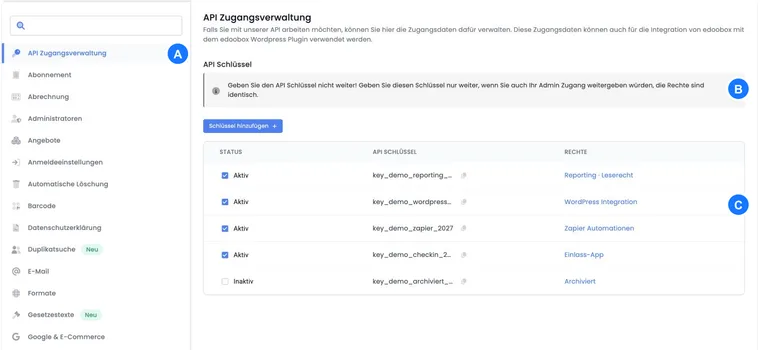
Create API keys in the account settings in the API access management. The Secret Key is displayed only once. Save it immediately in a password manager or secret system.
Create a separate key per integration. This allows you to later assign permissions, responsible persons, rotation, and deactivation clearly. Details are under Manage API keys and access rights.
API V2, Base URL, and Postman
Postman or a similar API tool is suitable for initial tests. Create an environment with Base URL, API Key, Secret Key, EdID, Token, and expiration time. The Base URL depends on the used edoobox environment; for the production V2 environment, https://app2.edoobox.com/v2 is typically used.
You can find the current endpoint reference in the integrated API-v2 documentation. The OpenAPI file for download and Markdown for LLMs are also available there. The delivered server address is a local test environment; when importing into your API tool, set the host of your actual edoobox environment.
Postman helps to check authentication, headers, parameters, and error responses before an integration is programmed. Never share Postman collections with real secrets. If you document examples, replace API Key, Secret Key, Token, customer data, and invoice data with placeholders.
Authentication and Tokens
The API uses credentials to obtain an access token. A typical start is the authentication request to /auth with API Key, Secret Key, and desired expiration time. You then use this token for API calls. Tokens and secrets must be treated like passwords. Store the expiration time, environment, and assigned permission group in your technical documentation so that later errors can be narrowed down more quickly.
The specification describes two alternatives for most protected operations: Bearer-JWT together with edid or the existing browser session via _edlogin together with edid. The exact structure of the token response is partially open in the delivered OpenAPI file. Use only a login implementation confirmed for your environment. For server-side integrations, own API accesses are usually easier to control than personal admin logins.
If authentication fails, check the environment, API Key, Secret Key, permissions, expiration time, headers, and whether the key is still active.
Identify API errors
API errors contain a status code and message. Common causes are missing permissions, incorrect credentials, invalid parameters, wrong environment, expired tokens, or non-existent resources.
Log errors without secrets. Useful details include time, request ID or business context. Secret Keys, Tokens and raw personal data do not belong in logs.
API V1 and older integrations
Older integrations may still refer to API V1 or old app versions. The API V1 is no longer being developed and should no longer be used for new projects. Existing interfaces may continue to work; older WordPress connections may also still refer to V1 mechanisms. Check for new projects whether API V2 can be used. Document old integrations so that dependencies remain visible.
If you modernize an existing integration, plan tests with demo data, permission reconciliation, and a clear switchover. For old scripts, check in particular whether they still work with admin login, old Base URLs, or overly broad permissions.
Practical example: Offer data on your own website
An organization wants to display published offers on its own website. The backend uses an API key with read permissions for offers and categories, retrieves data on the server and sends only required fields to the website. Secret Key and Token remain on the server.
Categorize errors in a read or write request
Check both HTTP status and the JSON response’s error field. Receiving a response successfully does not mean the operation was accepted. For authentication problems, check the active key, its permission set, the token and that token’s edid.
If the result of a write operation is unclear, first search for the already created object or its documented external reference. Do not blindly create a booking, invoice, or payment again after a timeout. For complete lists, pay attention to the start position and page size of each page.
Build your own offer website and course planner
For your own pages, read offer data and texts server-side, assign them via the offer ID, and update a deliberately managed cache. Your own editorial summaries can be read from an agreed additional text via the text resource. The guide API: Your own offer website and course planner shows data fields, language context, current booking links, and image limits.
The booking remains in the intended edoobox process. A local cache does not reserve a spot. For timely updates, suitable webhooks can trigger a targeted retrieval; regular synchronization remains part of your integration.
Change a session’s instructors through the API
The assignment belongs to the date resource, meaning the specific session. The leader field is a list of public admin IDs. Multiple instructors are saved together in this list.
- Read the date with
GET /v2/date/{id}and take over its currentleaderlist. - Determine the complete desired list: keep existing persons who remain responsible, add a new admin ID, or omit the ID to be removed.
- Send the entire list with
PUT /v2/date/{id}in the fielddata.leader. - Check the HTTP and functional status. Then read the same date again and compare the actually stored IDs with the desired list.
// currentLeaderIds was read from the date.
// additionalAdminId and removedAdminId are verified public admin IDs.
const desiredLeaderIds = [...new Set([...currentLeaderIds, additionalAdminId])]
  .filter(id => id !== removedAdminId);
const requestBody = { data: { leader: desiredLeaderIds } };
// Send requestBody as JSON using PUT /v2/date/{id} and read back the result.
The submitted list replaces the previous assignment. Sending only a new ID does not automatically retain previous instructors. {"data":{"leader":[]}} removes every instructor assignment from this session. Custom add or remove operators are not supported for this field.
Coordinate concurrent changes to avoid overwriting an instructor assignment updated in the meantime. Also check the session assignment in the calendar. Changing this session does not automatically change all other sessions of the offer.
Reconcile bookings with CRM and other systems
For a current booking overview in the CRM, combine a complete initial import, ongoing retrieval of new bookings, and regular updates of already known bookings. The booking time time is not a modification timestamp: A time filter for new bookings does not automatically capture later cancellations of older bookings.
The guide API: Synchronize bookings explains field filters, URL encoding, unique sorting, all list pages, repeatable processing, and the combination with webhooks using a CRM example.
Related guides
Check existing features before starting an API project
For accounting integration, the native Bexio integration is available. Internal rules for tags, notes, data fields, and template selection can be configured with automations. Both functions are enabled via the Plugin Manager.
For subscriptions and multi-passes, there are separate resources for definition, user assignment, periods, and redemptions. Check plugin availability, permissions, and functional workflows before write access. A normal booking or transaction does not replace a check of subscription validity or remaining redemptions.