
Offer data, status logic, and protection rules
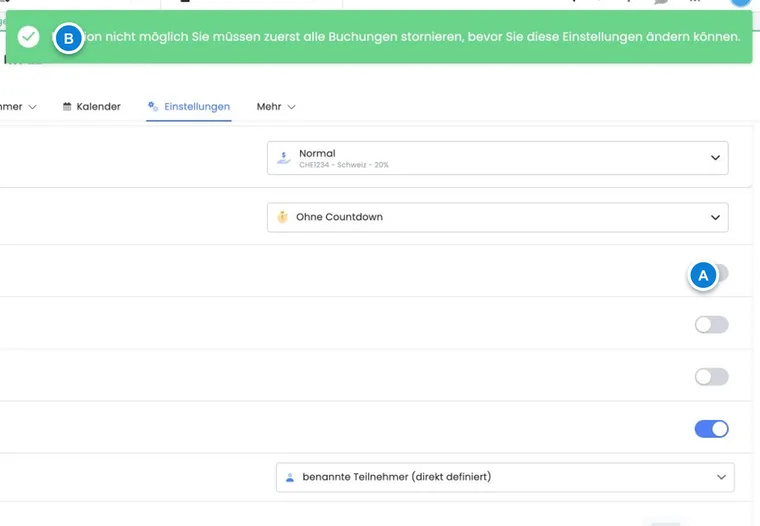
edoobox protects offers against conflicting settings. When you save, publish or translate an offer, or mark it as internal, edoobox checks several rules in the background.
This guide explains from an admin perspective why certain fields are reloaded, why some combinations are blocked, and which status, table, and option values are visible in the interface.
Why edoobox checks offer rules
An offer consists of many connected settings: status, dates, prices, participant numbers, waitlist, MustPay, countdown, visibility, internal links, tags, VAT, additional questions, and additional services. Some combinations would lead to incorrect availability or unclear emails in the booking process.
If a setting cannot be saved, edoobox usually protects against a faulty booking situation. Then first check bookings, dates, waitlist, status, and offer settings.
Lists, tree view, and dashboard data
The offer list, tree view, dashboard, and offer detail do not always show the same amount of data. Lists load many fields for filters and tables, while the dashboard additionally loads dates, bookings, participants, price statistics, promotions, additional questions, additional services, and tags.
For large offers, participants and bookings may appear with a delay to keep the interface usable. Wait a moment after opening large offers before making final judgments on numbers.
Application example: Checking maximum participant number after saving
If you change the maximum number of participants, edoobox reloads relevant dashboard data. Afterwards, check available places, reserved places, price categories, and existing bookings so that the evaluation matches the new limit.
Cache, update, and share link
After saving an offer, edoobox updates relevant offer data and clears affected caches. This makes offer details, dashboard, booking data, and tables consistent again.
If an internal code or an internal offer link changes, a saved share link may become invalid and must be regenerated or rechecked.
Protection rules when saving
Free appointment selection: Cannot be changed if there are already active bookings on the offer. It is also blocked if it is to be combined with an active waiting list.
Waiting list: A waiting list cannot be activated if free appointment selection is active.
MustPay: Check MustPay always together with booking completion, countdown, payment methods, and offer type.
Minimum and maximum participants: edoobox keeps these values consistent. The maximum must not be lower than the minimum, and the minimum must not exceed the maximum. If a new maximum is below the previous minimum, the minimum is adjusted to that maximum. If the minimum exceeds the maximum, the maximum is raised accordingly.
Publishing: Changing the status to Published or Guaranteed to take place triggers checks of subscription limits and required offer data.
Application example: Change free appointment selection for an existing offer
First open the bookings of the offer. If there are active bookings or other existing participation data records, edoobox may block the switch to free appointment selection. A cancellation does not automatically remove historical data records. Check an offer copy for the new mode and control waiting lists, inquiry lists, and MustPay in the process.
Also consider older processes: A switch to free appointment selection can be blocked by existing participation data records; therefore, checking only the currently active bookings is not always sufficient. Waiting list entries, inquiry lists, and cancelled old processes also belong to the clarification. Do not delete historical processes to bypass the block. For a new booking mode, a checked offer copy is usually the traceable way.
Understand status and option values
edoobox distinguishes six offer statuses: Draft, Published, Guaranteed to take place, Closed, Released and Cancelled. Archive and Trash are additional filing states.
Further global option lists explain why only certain selection options appear in the settings:
Archiving: No archiving, automatically after 1 day, automatically with copy, or automatically after 30 minutes.
Sorting: Manually or by start date.
Next status after Guaranteed to take place: Closed or Released.
Visible until: On the offer date, 7 days after, 2 weeks after, 1 month after, or 6 months after.
Countdown: No countdown, minute values from 2 to 60 minutes, 2 or 12 hours, and 1 to 7 days.
The functional effect of the status values is described in Offer status .
Table and field logic
The offer list has a fixed set of core fields such as name, number, category, start date, end date, registration deadline, status, participation, waiting list and filing state. You can show further columns, such as type, mode, Visible from, Visible until, instructors, rooms, locations, calendar week, MustPay, Countdown, group registration, minimum and maximum participants, or number of request lists.
When merging dashboard and tree data, edoobox retains existing structural values such as category, order and offer tree if the new detailed responses do not contain all this information.
AI translation and status events
The automatic offer translation starts in the offer details. After starting, edoobox shows a loading notice and regularly checks whether the translation is finished, still in the queue, or failed.
Start AI translations only after the active languages have been set correctly. After completion, check offer name, description, price categories, additional texts, and email-relevant texts. Existing translations may be replaced by the run.
If a setting is blocked
First check active bookings, waiting list, and free appointment selection.
Check status, archive, trash, and subscription limits.
Compare minimum and maximum participant numbers and check whether edoobox has automatically adjusted a value to the logical limit.
Open the dashboard for surprising numbers and wait until all data is loaded.
Document major structural changes so that other admins can follow them.
Understanding saved terms and subscription usage
New bookings adopt the cancellation terms as their own saved copy. This allows you to trace the rules that were saved at the time of booking later on. A change to the global group does not replace this copy. In the booking details, authorized admins can specifically save a different active condition or remove the assignment; generated fees remain traceable in the history.
Subscription conditions on price categories are checked in addition to price validity and capacity. A visible price may therefore only become usable after identification and verification of the matching participant subscription. If a booking is rejected, check the specific participation and its subscription, rather than just increasing the capacity limit.