
Ticketing, admission scanning, DINACO and attendance tracking
With ticketing, admission scanning and attendance checking, you check whether a ticket is valid, whether a person may enter and whether attendance was correctly recorded.
The functions work together: tickets contain barcodes, admission scanning checks these codes, and attendance checking records who actually participated. Depending on configuration, additional Dinaco connections or access systems may be involved.
Prepare admission and attendance together: Define which offers and sessions a ticket is checked against and which attendance status a successful scan should set. Check this workflow with a demonstration booking before first use.
Video tutorials
These videos complement this guide. The spoken language is indicated for each video.
Preview images are loaded directly from this website. Playing a video connects to YouTube, only for the video you select.
Ticketing and event management for any occasion
A brief overview of event lists and mobile admission with ticket scanning in edoobox.
The following guides explain the specific scanning rules, device checks and attendance workflows. This clip is a feature overview.
The appropriate guide for your process
Prepare admission control with a handheld scanner or turnstile
Record attendance and send attendance confirmations or certificates
Overview of the functions involved
Ticketing: provides tickets and barcodes for bookings.
Admission scan: checks barcodes at the entrance and returns a status message.
Validity scopes: connect offer, date range and desired attendance action.
Attendance checking: documents attendance for the offer or date.
Dinaco: can be connected for special admission, section or access scenarios.
Configure the areas involved together. A ticket is useful only if scan rule, validity scope, attendance logic and team process align. Barcode basics are provided under Barcode: Ticket and barcode settings.
Ticketing view and scan modes
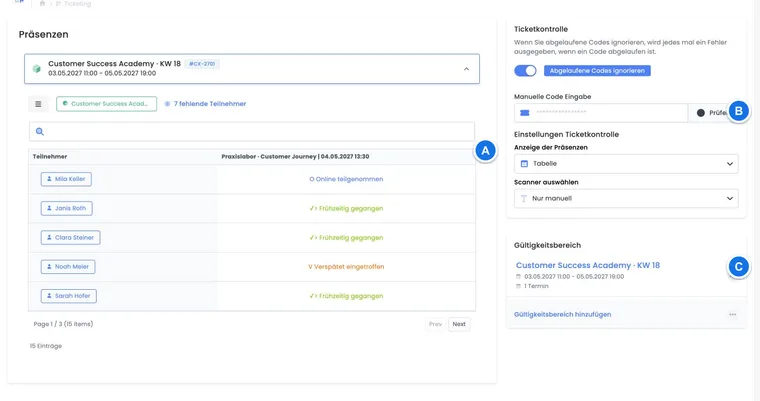
Select Manual, Scanner or Webcam input. This mode determines the input device. Offer, dates and attendance status to set are defined in the validity scope. For manual corrections, the attendance table and, depending on context, swipe view are available.
Hardware scanners usually send the code like keyboard input and must supply the barcode as one continuous input. Camera scans require browser camera access. If a code is already recognised locally as incorrectly formatted, it is not forwarded for checking at all. For mobile use, the Entry App for iOS and Android may be more suitable.
Before use, define which device is used, whether the view works reliably on mobile devices and who may decide when messages are unclear.
Example: Reception with a laptop and USB scanner
The reception team opens an offer’s ticketing, selects the appropriate validity scope and uses a USB scanner. Each scan immediately shows status and history. After scanning, the team checks samples from the attendance list.
Validity scopes and scan rules
When scanning, edoobox checks whether the code is valid and matches the selected offer, date or validity scope. This allows incorrect tickets, expired tickets or tickets for other offers to be identified.
A validity scope links an offer to selected dates and the attendance status upon scanning. At most 20 dates per scope and five scopes per scan are checked. The interface offers a second status for double scans; automatic switching is not consistently usable in this version. For exit, use the table or a checked separate process. Details: Check tickets at admission.
Valid: The ticket matches the selected scope and can be accepted.
Attendance not changed: The requested status may already be set. Check the specific participation and your re-entry rule; this message does not automatically block re-entry.
Wrong scope: The ticket belongs to another offer, date or section.
Invalid or unknown: The barcode cannot be assigned to a valid booking.
Waiting list: The booking is not definitive. The team must decide whether to rebook on site or refuse entry.
Document on site how the team responds to each message. This prevents arguments at the entrance.
Example: Scan daily blocks and correct attendance
Check two daily blocks separately
Two validity scopes are created for a congress: morning and afternoon. Both refer to the same offer, but different dates. On scanning, edoobox recognises which block the barcode is valid for and sets the appropriate attendance status.
Correct status during admission
A ticket is successfully scanned, but the person should be marked as excused rather than present. The date is opened in the attendance list and the status changed in the table cell or by swiping.
Barcode check and status feedback
Always check the status message immediately after a scan. A green status does not automatically mean every organisational issue is resolved; outstanding payment, an incorrect date or manual exceptions may need additional checking. Successful scans appear in the history; the browser caches up to 50 recent scans for later reopening. The current list may be longer.
A personal barcode can be presented repeatedly. A repeat scan with the target status already set may return Attendance not changed; this is not a freely configurable blocking or warning rule. If several matching participations exist for the same person, edoobox may reject assignment without changing attendance. Check booking number and specific participation in the table.
Typical status notices distinguish ‘Code not found’, ‘Incorrect format’, ‘User not found’, ‘No attendance definition’, ‘Partially successful’, ‘Completely invalid’, ‘Successful’ and ‘Waiting list’. Feedback is therefore more precise than simply valid or invalid.
Attendance lists in ticketing
Depending on configuration, a scan can also affect attendance. After admission, check whether the attendance list shows expected people and statuses. For multi-day offers or offers with several dates, it must be clear whether a scan counts for the entire offer or just one specific date.
Attendance can be edited in a table or on mobile devices using a swipe view. In the table view, dates appear as columns. In the swipe view, predefined statuses can be set more quickly.
If lesson booking is active, attendance status may be set only for dates actually booked by the person. If assignment is missing, the team should check the booking instead of simply forcing a status.
Attendance view in the offer
The offer’s attendance view provides the substantive check after scanning. Admins see which people are present, absent or still pending. Use this view after larger events to check failed scans, substitute participants or manual corrections.
Depending on permissions and offer context, the attendance view can also start printouts, attendance lists, participant lists, new bookings, attendance settings and combined certificate files. Attendance may later be relevant to attendance confirmations and certificates. Incorrect attendance can therefore produce incorrect evidence.
Further details are provided under Record attendance and send attendance confirmation emails and certificates and Attendance list settings.
Dinaco connections, sections and permissions
If Dinaco or another access system is involved, connections, sections and permissions must suit the offer. Check which areas open, which tickets are authorised and how errors are reported.
A Dinaco connection typically contains an event reference, status and synchronisation period. Sections describe areas or checkpoints; permissions connect these areas to offers or ticket entitlements. Areas or tickets are then synchronised.
Do not confuse Dinaco synchronisation with internal ticketing: the internal admission scan checks directly against edoobox and can set attendance. Dinaco prepares external checkpoints, scanners or turnstiles. Operation is described under Admission control with handheld scanners or turnstiles and Dinaco integration.
Example: Synchronise areas after assigning offers
After creating a Dinaco section, the desired offers are assigned as permissions. The administration then starts area synchronisation. The access system receives the updated section and permission data.
Operating rules and limits
Test scanner, camera, login, sound and internet connection before opening the doors.
Keep validity scopes small and unambiguous: at most 20 dates per validity scope and five validity scopes per session.
Define a controlled process for repeat scans and check the known limitation with the second attendance status.
Define who may decide on replacement tickets, waiting list cases and outstanding payments.
Have a manual process ready if the internet or device fails.
After the event, check attendance list, failed scans, waiting list cases and certificate prerequisites.
Release rooms with Comydo based on the booking
After activation in the Plugin Manager, the Comydo connection is available under Global settings → Integrations → Access systems. It links door scanners to confirmed edoobox participations and a permitted time window for each session. Room access can also record attendance.
The setup is performed via connection, access, scanner, and access rule. Check the assignment of the actually participating person: A non-participating contact person does not receive blanket access as a result. You can find the complete guide with test check and log under Set up Comydo access system.
Related guides
- Access control with tickets (admission scan)
- Access Control with Hand Scanner or Turnstile
- Barcode: Ticket and barcode settings
- Entry App for iOS and Android
- Presence list settings
- Record attendance and send attendance confirmation emails and certificates
- API integrations: PDF, Dinaco, Microsoft Graph, templates and files