
Secure File Manager
The Secure File Manager enables confidential file exchange between edoobox Support and your administration. It is suitable, for example, for recorded training sessions, exports, support files or other confidential documents.
Do not use it for public offer materials. External offer files or public files are more suitable for those.
Access and permissions
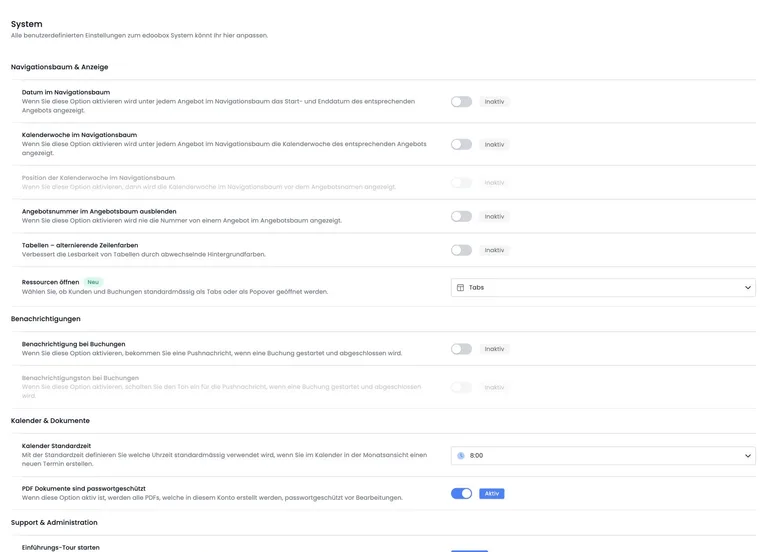
Access requires the appropriate settings permission. Superadmins and appropriately authorised admins can open the Secure File Manager. It is located under System in the global settings.
Before uploading, check whether the file is genuinely intended for this protected exchange and who may view it later.
Important usage notes
Files are stored in secure file storage, for example AWS.
After opening a file, the generated download link is valid only briefly, typically 10 minutes.
Upload links are also time-limited; plan for approximately 30 minutes of validity.
Deleted files cannot be restored in this interface. Check the filename before confirming.
Confidential data: upload only files required for the specific support or administrative purpose. Do not share login credentials, passwords or unnecessary personal data.
Which file storage is appropriate?
| File type | Typical use case |
|---|---|
| Secure File Manager | Confidential exchange between Support and administration. |
| User file | A file in a person’s participant data field. |
| Offer file | Internal or external documents attached directly to the offer. |
| Public file | A publicly deliverable file or asset. |
Files uploaded to participant data fields belong to that participant’s profile. Offer files are attached directly to an offer and can be used internally or externally depending on the setting.
No general password-protected download: the Secure File Manager does not provide a self-configured file link with a freely chosen password for arbitrary external recipients here. Short validity of a generated link is different from a download password you assign. Use this interface for its intended Support/administration exchange.
Provide course materials through external offer files and the participant area. Consider the limits of direct external file URLs. A PDF watermark or editing protection does not add password protection to the download. For another confidential recipient group, use an approved exchange route intended for that purpose.
Exchange a support file securely
Example: Hand over a confidential export
Support needs an export for analysis. Administration uploads the file to the Secure File Manager and informs Support. The download link is generated only when opened and remains valid briefly.
Exchange a file step by step
- Open the global settings and the System area.
- Under Secure File Manager, select Open. The file interface opens in a new window or tab.
- Under Add file, select the required file and wait for the upload to finish.
- Check the entry’s filename and date. Open it with Open file and check the contents.
- Provide the filename in the relevant support case. Reopening the file generates a new download address if the old one has expired.
- When the file is no longer needed, specifically select Delete file and confirm deletion.
If no window opens, check the browser’s popup notice. If access is denied, have the settings permission checked. Do not upload keys or passwords as support files.