
Language settings: Offer the booking process in multiple languages
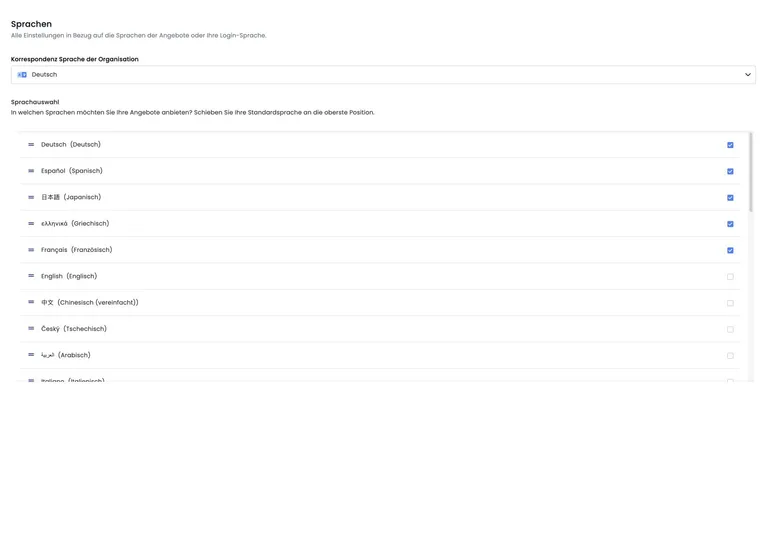
edoobox lets you offer the booking process in several languages. Participants select their preferred booking language, provided it is enabled in the account and visible texts are translated.

This is how participants switch between your enabled languages on the booking page. The example selection is account-specific.
- A
- Language selection during booking: participants choose one of the enabled languages here.
Only fully enable a new language once offers, categories, emails, forms and legal texts have been checked. This keeps the participant booking process clear throughout.
Enable and sort languages
Open the global language settings and enable the languages you want to offer during booking. The order of active languages determines how the selection appears for admins and participants.
German, English, French, Italian, Spanish and many other languages may be available. Your enabled languages should match your target audience and maintained translations.
Depending on the account, available languages may include German, English, French, Italian, Spanish, Dutch, Czech, Polish, Chinese, Arabic, Danish, Finnish, Japanese, Portuguese, Swedish, Slovak, Slovenian, Turkish, Hungarian, Romanian, Thai, Korean, Malay, Greek, Bernese German, Romansh, Indonesian or Vietnamese.
Active languages can be sorted. Their order affects how languages appear to admins and during booking. After changes to active languages or their order, recheck the offer tree and preview.
Translate texts
Wherever you enter custom texts in edoobox, maintain their translations too. Particularly important are category names, offer names, descriptions, price categories, participant data fields, buttons, email templates and legal texts.
If text is untranslated, it may remain empty during booking, appear in the default language or be confusing in the wrong place.
Checklist for a new language
Enable the new language in global settings.
If needed, temporarily hide language selection in the Design Manager while translating so participants do not switch to a partially translated language.
Translate category names and descriptions, offer names and descriptions, additional texts and price categories.
In the Design Manager, check participant data fields, buttons, text blocks, personal messages, filters, voucher sales and other visible widget texts.
Check email templates, PDF attachments, legal texts, additional questions, additional services and enquiry list names.
Complete a full test booking in the new language, checking the booking process, emails, PDFs, invoice, outbox and user profile.
Make language selection visible again once the entire workflow has been checked.
Multilingual test booking through to PDF and payment
Check the language with a complete booking and example data created specifically for it. A correctly translated start page does not yet confirm the later document or payment page.
- Open the link generated under Preview/Share in the required language, both directly and through the website integration actually used.
- Work through the category, offer, price selection, participant form, additional questions, legal texts and completion. For text remaining in another language, note the exact field and page; translate it in the responsible offer, design or template.
- Use your target audience’s characters in the intended test profile, for example accents such as
éandčor, where the corresponding languages are offered,日本語. Compare the saved profile details with the email and PDFs actually generated. Also check line breaks and longer translated texts. - For the intended payment method, check the full transition and return to booking completion. Payment provider texts are not maintained in the edoobox offer; check its available language and provider configuration separately.
- Open the booking confirmation, invoice and, if applicable, attendance confirmation as generated documents. If characters are missing only in the PDF, check the PDF template and font used; a correct browser display does not prove complete character rendering in the PDF.
Example: An international seminar can be booked in German and a second language. The team checks the same process, required fields, and document types in each language. If a character is saved correctly in the profile but appears as a box on the certificate, start by checking the PDF font. If an entire translation is missing, add the relevant template or offer text.
Check visibility in the offer tree
Check category and offer names in the admin and registration languages actually selected. A visible fallback text does not prove that a translation is complete. After registration languages are activated or reordered, the active offer tree reloads; then check the names and public display. Maintain the required texts in every language used.
Use case: German and English for an international seminar
A provider activates English alongside German. They then translate the category, offer, participant form, booking confirmation, invoice text, and terms and conditions. The language selector is shown to participants in the booking process only after an English test booking.
Translate subscriptions, passes, and voucher sales
If you offer participant subscriptions or passes, maintain their names, descriptions, and visible texts in every active booking language as well. Check the subscription catalog, price category booking conditions, redemption instructions, and participant account using a suitable example profile.
For voucher sales, also check the purchase page, value selection, and voucher email. A translated offer description is insufficient for these additional templates. The organization’s correspondence language is a separate global setting and does not replace the language of the person or booking process.