
Set up your new edoobox account
This guide takes a new edoobox account from basic data to a production-ready test booking. Reliable setup connects team permissions, organisation, email delivery, offers, forms, payments, taxes, languages and legal texts.
The order is deliberate: data that later appears in offers, emails, invoices or booking is configured first. Visible features depend on admin permissions, subscription and enabled account features.
Use the trial effectively: Test the entire workflow with demonstration data. Before launch, also check that the chosen subscription includes every required feature and quantity limit.
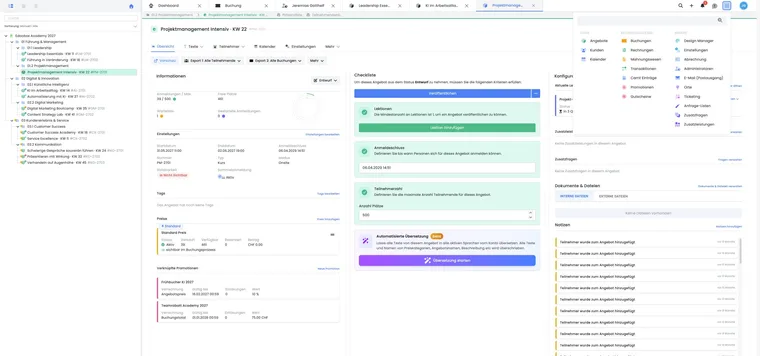
Recommended order
| Phase | What is prepared? | Why does it matter? |
|---|---|---|
| 1. Team | Admins, roles, deputies and two-factor authentication | Protects the account, accounting and configuration. |
| 2. Basic data | Organisation, addresses, locations and rooms | Supplies offers, sessions, emails and PDFs. |
| 3. Communication | Sending method, sender, templates and outbox | Ensures understandable, deliverable messages. |
| 4. Bookable offer | Categories, offers, sessions, prices and integration | Makes services bookable. |
| 5. Data collection | Personal data fields, additional questions, services and design | Collects only necessary information and guides users through booking. |
| 6. Completion | Payment, tax, languages and legal requirements | Prevents errors in payments, invoices and consent. |
| 7. Test | Complete test booking with follow-up processes | Checks the workflow from participant and admin perspectives. |
1. Set up admins, permissions and security
Use a separate admin account for each person. Grant only permissions needed for their task and arrange at least one capable deputy. This keeps changes traceable and the account accessible during absences.
Enable two-factor authentication and check who may change organisation data, billing, email templates and payment systems. Details are under Admins and their user permissions and Admin authentication.
2. Check organisation, addresses and venues
Check the company name, billing and contact details, and account country and format data. Then create venues and rooms with correct addresses, capacities and map positions.
This information may appear in offer details, confirmations, calendar files, invoices, attendance lists and internal views. Further information: Organisation and account information, Venues and Date, time and number formats.
3. Prepare email delivery and templates
Choose the sending method and visible sender and reply addresses. Depending on the account, supported setups include Microsoft 365, SMTP or Mailjet. After setup, perform a delivery test and check the outbox.
- Email settings
- Connect a Microsoft account for email delivery
- Set up SMTP email server
- Set up Mailjet
Then check required email and PDF templates in every active language. Check subjects, placeholders, attachments, signatures and reply addresses. Starting points are Edit email templates, Placeholders for emails and PDFs and custom PDF attachments and templates.
4. Prepare categories, offers and integration
First plan a clear category structure. Then create offers with names, sessions, registration deadlines, maximum participant counts, prices, texts, locations and instructors. New categories and offers can be created through the plus menu or directly in offer-tree context; sufficient admin permissions are required.
Check each offer through Preview-Share before publicly embedding it. Depending on the website, use a link, iFrame, WordPress plugin or API. Details: Create categories and offers, An offer in 7 steps and Integrating edoobox.
5. Define personal data, questions and booking design
Collect only data needed for delivery, communication, billing or legal obligations. Lasting personal details belong in participant data fields; offer-specific details belong in additional questions. Maintain optional bookable services as additional services.
Then design and test the offer overview, offer details, participant form, summary, payment and completion in the Design Manager. Check the main pages on desktop and smartphone.
6. Configure payment, VAT, languages and legal requirements
Activate only payment methods you intend to offer and test their success and failure cases. The Payment systems for participant payments overview leads to individual integrations.
Check currency, VAT numbers and tax rates before using prices in production. Activate only languages with fully maintained booking processes, offer texts and templates. Also save required terms and conditions, privacy information, withdrawal notices or participation terms.
Further information: VAT settings, Language settings, Legal texts and Legal settings.
7. Perform a complete test booking
Open the demonstration offer through the same link or integration future participants will use.
Make a booking with a person clearly identifiable as a test.
Check the confirmation email, outbox, Booking.pdf, invoice, ticket and Termin.ics wherever used in the workflow.
In administration, check the profile, booking, invoice, transaction and linked resources.
Depending on the process, also test payment, requests, waiting lists, cancellation and refunds.
Use cases
Example: small course provider using invoices
A provider with one location sets up two admins, one room, SMTP delivery and invoice payments. They create a test offer, adjust the booking confirmation and invoice and perform a complete test booking. The course is published only once the email, PDF and booking details are correct.
Example: organisation with several locations
An organisation separates offers by location, records venues and rooms and grants location-specific admin permissions. It checks senders, texts, sessions and integration for each location. Responsibilities and information remain clear even for similarly named offers.
Example: go live with online payment
A team integrates an online payment system and tests successful and cancelled payments. It then checks bookings, invoices, transactions, confirmations, cancellation and refunds. Website integration is enabled only when all follow-up processes are traceable.
Launch checklist
Deputies, permissions and two-factor authentication are arranged.
Organisation, venues, sender and reply addresses are correct.
All email and PDF templates in use have been tested.
Offers, prices, forms and website integration work on desktop and smartphone.
Payments, taxes, languages and legal texts match the actual process.
A complete test booking with relevant follow-up processes is finished.
Set up advanced workflows after the first test offer
Extend the verified booking workflow to suit your organisation:
- Plugin Manager: check available extensions and terms.
- Participant subscriptions: set up plans and passes and test membership prices both with and without eligibility.
- Passkeys and two-factor authentication: secure personal admin accounts.
- Automations: first check the event, conditions and actions using test data.
- Export Manager: prepare recurring reports as a custom CSV definition.
Check account enablement and the required plugin before configuring the detailed feature. Renewing a plan, renewing a plugin and paying for your edoobox account are separate workflows.