
Cancel or reschedule booking
Cancellation ends a booking. When you transfer a booking, edoobox creates a new booking in the target offer and internally cancels the previous record. Before either action, check the financial status, participants and dates; after a transfer, review both the old and the new booking.
Cancel or rebook?
| Situation | Appropriate action |
|---|---|
| Participation is cancelled entirely. | Cancel |
| The person should attend a different available offer. | Rebook |
| The person is also attending a follow-on course; their existing participation should be retained. | Create a new booking using the existing profile; for groups, check the follow-on course import. |
| Only a date or an additional detail changes. | Edit the relevant item first; do not cancel the entire booking prematurely. |
Check before the action
Booking, offer and contact person;
active participants and group booking;
invoice, payment, refund and outstanding balance;
waiting list, additional services, questions and promotions;
communication to the affected person.
Cancel a booking with or without a cancellation fee
- Open the booking details and read the group stored for this booking under Cancellation conditions → All rules. Check the offer start, withdrawal period and any exception already documented.
- Compare the booking total, outstanding or paid invoice, and original payment. For a group booking, Cancel affects all participation that is still active.
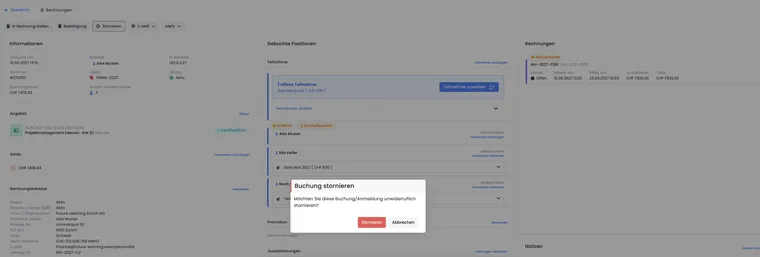
- Select Cancel. Read the booking total, final fee amount, invoice type and intended refund method in the dialogue.
- Select Cancel using attached rules, No cancellation fee or Custom cancellation amount. For a custom amount, enter zero or more. Record the reason and any agreed deviation in the Description field.
- When Withdrawal active applies, edoobox sets the fee to zero; even a custom amount does not override this technical check. First check any stored exclusion in the booking details before applying a different rule.
- Confirm Cancel once. Then open or refresh the booking and check the actual cancellation status, removed participation, available places, fee object, invoice, transactions and outbox.
A waiver remains traceable as a transaction without a cancellation fee. The fee selection is an administrative decision; it changes neither the global template nor, retrospectively, the version of the legal texts accepted by the person. You can find the evidence in the legal texts section of the booking details.
The group may provide for an online refund, voucher code or positive participant balance. An invoice paid manually or managed externally may require a task or financial review. Without stored rules, an outstanding invoice may block cancellation. A waiting list or enquiry booking that is still pending receives no cancellation fee and no automatic refund under these rules.
Fee calculation is explained under Cancellation rules and fees. Handling pending admin approval, a fee correction or a failed refund is described under Review cancellation requests and fees.
Change a booked lesson with free date selection
If the person remains in the same offer and should only attend a different date offered there, edit the date selection of the existing booking. This requires a booking with free date selection and a lesson booking section available to your account. More → Rebook is used to move to a different offer.
- Open the booking details and check the currently booked dates, active people, price and invoice.
- Under Booked items → Dates, select Manage selection. The label ‘Dates’ may reflect the terminology used in your account.
- Compare the current date and desired replacement, including available places. Each click on a date changes its selection and is saved individually. Wait for the current action to finish before changing the next date.
- Add the appropriate replacement date and remove the date no longer needed. If a date is full, edoobox asks whether you deliberately want to overbook it. Confirm this only after checking organisational capacity; an admin warning does not constitute an additional commitment of room or instructor capacity.
- Check the final selection: For a group booking, this date selection applies to the booking’s active participants. Therefore check the entire group and the participant count for each date. This action does not change a date for just one person within that group.
- Check the recalculated booking amount and any notice about updating the invoice. Then review and send the appropriate updated confirmation and any required date documents; changing the selection alone does not prove that an email has been sent.
Example: A person has booked three individually selectable course dates. The second date should be replaced by a later session within the same offer. The administration checks its capacity, adds the replacement and then removes the old date. The final check still shows three dates, the correct price calculation and a correspondingly updated confirmation. This does not require cancellation of the entire booking.
If Manage selection is missing, check free date selection, the availability of lesson booking and the booking’s cancellation status. If only one person in a group booking differs or the replacement belongs to another offer, first clarify the appropriate separate booking process. Changing a date’s start and end in the calendar would affect the date itself and therefore other bookings assigned to it.
Who can change a lesson and which deadline applies
The subsequent date selection described here is handled by your administration team. Free date selection during registration does not create a corresponding self-service rebooking dialogue in the participant account. The customer view of the calendar is also part of the administration. Therefore communicate whom participants should contact to request a lesson change and the deadline by which your team can accept it organisationally.
An agreed limit such as ‘changes until the day before the relevant lesson’ is not automatically a stored cancellation rule. The cancellation conditions relate to the offer start. They therefore do not create a separate deadline or fee for each individual lesson. Check and document the specific request before making the administrative change. A public cancellation or cancellation request may affect the entire booking; do not use this action as a substitute for the desired change to a single date.
Rebook a booking
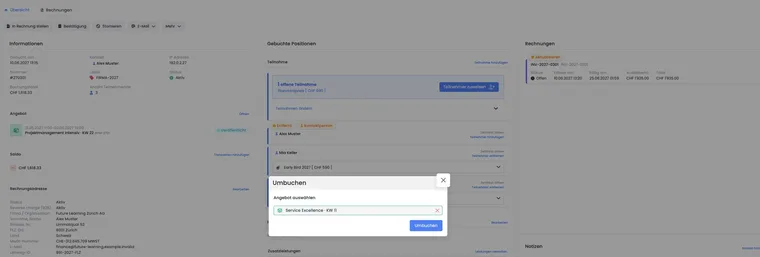
- Open the booking and select More → Rebook. You need the corresponding editing permissions.
- Select another destination offer in the offer tree and click Next. The previous offer cannot be used as the destination again.
- Assign an active destination price category to each previous price category. Read the quantity, previous price and available places. A suggestion based on the same name or standard price does not replace this check.
- Check the amount for each assignment. Use Apply price to retain the previous amount; alternatively, use or enter the appropriate destination price. Amounts must be at least zero and may have no more than two decimal places. If several source categories point to the same destination category, their destination amounts must match.
- Check Additional services and Additional questions: The preview indicates will be transferred or will not be transferred. Use Add to offer to add a missing group to the destination if your profile allows it. This also changes the destination offer. For a sub-offer, no separate additional service groups are transferred.
- Check any existing promotion. If it is invalid for the destination, it will not be transferred. Extend scope adds the destination offer to the promotion and therefore has an effect beyond this individual booking. Use this action only if the discount should actually apply there.
- Confirm Rebook only after completing all price assignments. On success, edoobox opens the new booking.
- Then check the source and destination bookings, active people, dates, subscription usage, new total price, invoices and payments. Send the confirmation only after checking the destination details.
If the button remains disabled, a valid destination price category or correct amount is usually missing. If an error occurs, the dialogue remains open; the display alone does not prove that rebooking succeeded. First check the actual booking status. An invoice managed externally may require manual financial review. If there are only open allocations with no named participants yet, price assignment may be restricted; clarify the displayed message before creating a replacement booking.
If direct rebooking is not possible, do not automatically cancel. Clarify the destination and financial consequences before changing the old transaction. A new replacement booking may create additional occupied places and amounts due.
Cancellation conditions when rebooking: Rebooking creates the destination booking and cancels the previous transaction internally. Stored cancellation rules may also trigger fees or a refund. The rebooking dialogue does not provide a separate No cancellation fee option for this. Clarify any agreed free rebooking in advance and also check the old booking’s fee object afterwards. Do not remove the stored conditions without checking them; checking costs and evidence is part of the overall transfer.
A separately agreed fee solely for rebooking requires a separate decision. The current rebooking interface has no separate tiered rules for this charge. The process for checking an incurred cancellation fee and charging separately is described under Charge a rebooking fee separately.
Post-check
Has only the intended booking been cancelled or moved?
Are the participants, dates and price category correct?
Are the invoice and payment still correct?
Was the correct confirmation sent?
Do the reminder time and previous sending history match the destination offer? Check the outbox and, if necessary, coordinate manual sending as described under Reminder email after rebooking. Do not rely on automatic catch-up sending when the scheduled sending time has already passed.
Are notes and internal responsibilities clear and traceable?
Example: Move to a later course
A participant cannot attend the course in March 2027. The administration checks for an available place in the June offer, opens Rebook and then checks dates, price, invoice and confirmation.
Example: Cancellation with a paid invoice
Before cancelling, the team clarifies the invoice already paid and the refund method. Only then does it confirm cancellation and check the transaction, receipt and outbox.
After postponing the offer start, also compare the participant’s cancellation page with the current admin fee preview. The public cancellation process may use the start time stored when booking to select rules, whereas the admin preview considers the current offer start. If they differ, clarify and document which rule applies before approving.
Check usage for subscription bookings
Cancelling a course and cancelling a participant subscription are separate processes. For a subscription price, check the affected usage and the destination price category’s conditions after cancellation or rebooking. An available place at the destination alone is insufficient if the new price requires a different subscription. Further reading: Use subscriptions and Cancel subscriptions.
Administrative price assignment may provide options different from public self-service booking. Check and justify any deliberately approved special price in the booking history. An admin selecting a subscription price does not prove that the person holds a valid subscription or that the public subscription check would still be satisfied.