
Group registrations with unnamed participants
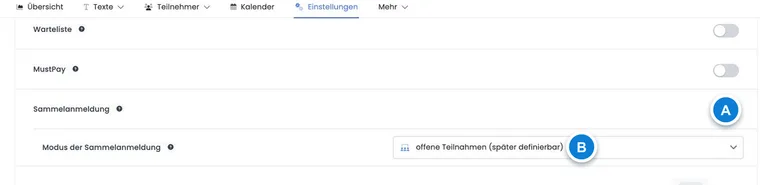
With open attendances, a contact first books a specific number of places and price categories without naming all participants. The places are already part of the booking and are assigned to individual people later.
This mode is ideal for companies, associations or groups wanting to reserve a binding allocation when their final name list will only be known later.
What is already fixed and what remains open
Defined at booking completion | Added later |
|---|---|
Contact, number of active places, price category per place, booking total and payment information | Names and personal details of individual participants |
An open place already counts against offer capacity and the booking total. It is not merely a non-binding note.
Interpret missing names or email addresses correctly
Open attendances are intended for booking a place before a specific person is known. Use them if the name list will follow later. Do not enter invented personal email addresses merely to make provisional places appear like fully known people.
If participants are already known but simply lack their own email addresses, plan the named collective registration, visible required fields and sending to the contact appropriately. Later place registration remains bound to its configured participant form and is not a general route for bypassing its validation. Participant import describes the separate import of existing personal data.
Enable open attendance
Under Collective registration: Global settings, set the maximum per booking to at least 1.
Open the offer’s Settings and enable Collective registration.
Select Open attendances (defined later).
Check the price categories, maximum participant count and participant form.
In the public booking process, available offer places and the remaining global booking limit determine the quantity; the lower value applies. The offer mode determines whether participants are named immediately or later. Administrators can add both named and unnamed participations to an existing group booking. For a full offer, an explicit overbooking confirmation may be offered; the global booking limit remains binding.
How the contact books open places
For open attendances, edoobox displays the Price categories step even when only one price category exists. The contact selects the quantity per category there. Their contact details are then recorded and the booking completed; other people’s details are not required at this stage.
Here too, the contact can attend personally or merely take responsibility. Check the selection on the participant page to ensure the intended total is correct. Each active open place receives its price category and is included in the total price.
Assign places in the participant account
After completion, the booking appears in the participant account. The All bookings widget shows named people and unassigned places. With Assign place, the contact can prepare a name and email address. The following options are then available for that exact place:
copy the individual registration link,
open the registration page directly,
display the personal QR code.
The generated registration link is valid for 20 days and belongs to exactly one open place. After the first successful registration, the place is named and the link cannot be used for a second person.
What the invited person completes
The person opens their personal link and sees the participant form configured for the offer. Visible required fields, repeated-value checks and file fields are validated as for a normal registration. After successful completion, their profile replaces the open place within the same booking.
The price category and booking assignment are retained. The contact can then see in the participant account that the place is assigned.
Manage open places in V2 booking details
In the booking details, open attendances are grouped by price category. Admins can:
assign an open place directly to a person,
deactivate or reactivate a specific number or all open places,
add further named or unnamed participations within the global booking limit; for a full offer, an explicit overbooking confirmation may be offered. Reactivation requires available places.
For direct assignment, V2 displays the visible participant data fields; first name, last name and email are checked. After every change, edoobox reloads the price and offer statistics and indicates any required update to an existing invoice.
Assign place button in the Design Manager
Whether contacts can assign open places themselves is controlled in the Design Manager, under the All bookings widget’s Assign place setting. If the switch is disabled, the assignment button is not displayed for places still open.
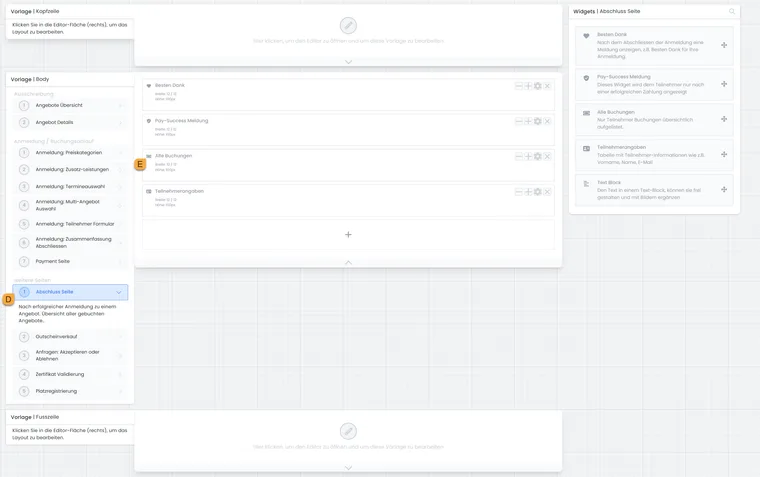
Open the completion page and edit the “All bookings” widget there.
- D
- Select the “Completion page” template.
- E
- Open the “All bookings” widget.
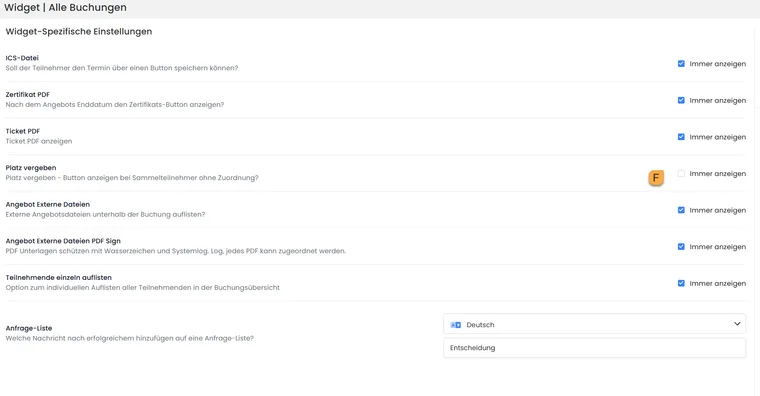
The “Assign place” switch controls whether the contact can assign open places themselves. In this example, its display is disabled.
- F
- Enable “Always display” if the “Assign place” button should be visible.
Only hide the feature if administration maintains all names itself or personal data is not needed at all. For self-organised company and association groups, the button should remain visible.
Emails, tickets, attendance lists and certificates
An open place does not yet have a personal identity. Personal emails, tickets, Wallet passes, attendance lists or certificates can therefore only be reliably assigned once the place is named. The contact and total price already exist independently of this.
Internally define a deadline by which every open place must be assigned. Before the offer starts, check the attendance and certificate data.
Operational follow-up checks
Compare open and named places with the group size ordered.
Distribute only one personal link per open place.
Allow for the 20-day validity and internal submission deadline.
Before the course starts, check names, email addresses, tickets and the attendance list.
After quantity changes, update the booking total and invoice.
Use cases
Example: A company books twelve places before providing a name list
An HR department books twelve places in two price categories. Six names are already known; for the remaining places, HR copies one personal link each and sends it internally. One week before the course starts, administration checks that all twelve places are named and the invoice is current.
Example: An association assigns places using QR codes on site
An association reserves eight places. At the preparation meeting, the contact opens a separate QR code for each remaining open place. Each member scans only their assigned code and enters their data. Codes already used are not passed on.
Example: Group size decreases after invoicing
A company has booked ten places but later needs only eight. An admin deactivates two open attendances in the booking details. edoobox recalculates the booking total and indicates that the invoice needs updating. The contact receives the new invoice only after correction.
Design the registration page for open places
The personal place link leads to a separate registration page. The Design Manager provides the Unnamed User / Place registration template for this. Place the intended form and navigation; a free-text block alone cannot assign the open place. Place registration in the Design Manager guides you through the widgets.
Field visibility must match the participant process. In a Bootstrap-5.3 design, additional fields can be displayed only for collective participants, while identity fields such as first name, last name and email remain for identification. Test the link once with a missing required field and once through successful completion. The existing place is named; no additional paid place should be created.