
Booking dashboard
The booking dashboard shows one specific booking process. It is not a person's profile: a booking has a contact, but may contain several named or still unassigned participations, dates, additional services, questions, invoices and fees.
Open a booking from the booking table, offer dashboard or participant profile. For every enquiry, start with the booking number, status and contact before changing individual participants or payments.
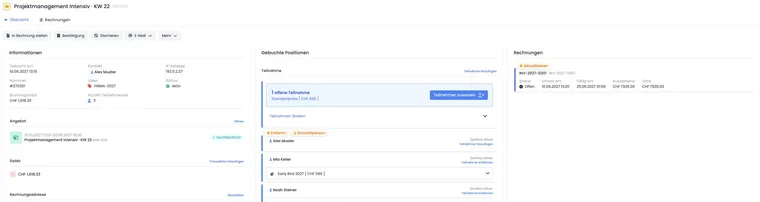
Distinguish booking, contact and participants
The contact owns the record and typically receives the confirmation or invoice. The participations, by contrast, determine who actually occupies a place. For an individual booking, they may be the same person; for corporate or group bookings, they often differ.
Correct data in the right place: Change a person's master data in the participant dashboard. Change the price, participation, date selection, questions or billing address in the booking record.
Check the information column and status
The information column shows creation date, contact, IP address, number, label, status, booking total and number of active participations. The status may combine several levels:
Active or cancelled;
Regular booking, waiting list or MustPay;
Status of a linked request list;
Status of the associated offer.
Therefore, do not read only a coloured icon. An accepted request may count as an active booking, while an open waiting list does not yet occupy a confirmed place.
Use the action bar appropriately for the record
For active regular bookings, available actions include Invoice, Confirmation, Cancel, write an email, booking confirmation, reminder, attendance confirmation, payment reminder, ticket, booking transfer, additional questions and services.
For a waiting list booking, a waiting list menu replaces normal confirmation. You can request participation or confirm the record as a normal booking. Actions that change data are blocked for cancelled bookings.
A manually triggered email uses the current booking context. Check the template and result in the outbox.
Check all booked items
The middle column summarizes what belongs to the booking:
Participations: Named people, active/inactive participation and price category.
Unassigned participations: For group registrations by number, places can be assigned to people later or temporarily deactivated.
Promotion: The code or discount used.
Date selection: Particularly when dates can be selected freely.
Additional services and answers: Booked services and additional questions.
Multi-offers: Selected sub-offers.
When adding or reactivating participation, edoobox considers available offer places and the global limit per group booking. Currently addable shows the remaining capacity. Disabled group registration in the offer or a reached group limit blocks further participations. Adding to a full offer may display an explicit overbooking confirmation; reactivation requires available capacity. Read the specific notice before confirming.
Identify subscriptions and passes in the booking
The booked items show an applied or deliberately removed membership benefit (subscription benefit). The subscription link opens the subscription template. Check personal validity, status and usage under Memberships in the participant profile. A pass used may also appear beside the participant. An access pass with a 0 percent discount may indicate access entitlement while the normal price remains due.
For an enquiry, check the person, pass used and subscription before checking the discount, invoice and payment. Booking details explains the exact follow-up process.
Check cancellation terms, fee and refund
The dashboard shows the cancellation terms attached to the booking, their associated rules, any applicable withdrawal period and the planned refund method. This information forms the basis for deciding before cancellation.
Depending on the booking, cancellation options include Cancel using attached rules, Without cancellation fee and Custom cancellation amount. Read the preview, currency, fee amount, invoice and refund before confirming. A valid withdrawal may limit the fee to zero. Record an exception in the description field.
Existing fees appear with their amount, status and outstanding amount in the information area. Open an entry for details. After cancellation, check booking status, fee, documents, balance and refund. An automatic refund setting does not replace checking the actual result with the payment provider.
Check invoices, balance and billing address together
The invoice box opens all invoices linked to the record. The balance belongs to the contact and may cover several currencies. It is therefore not always identical to the booking total.
An alternative billing address is saved directly on the record and may contain company, contact, address, country, VAT number, email, routing ID and order number. Before creating a new invoice, check that the address is active and Reverse Charge is set correctly.
The overview also shows which legal texts were accepted during booking. Missing historical confirmations cannot be replaced by subsequently changing today's legal text.
Check before cancellation or transfer
Check the contact, active participants and selected dates.
Check the conditions communicated and any possible withdrawal.
Clarify the invoice, payment, refund and outstanding balance.
Decide whether a booking transfer better meets the customer's request.
After the action, check booking status, invoice and outbox again.
Practical example: Corporate booking with unassigned participations
A contact books five places but initially names only three employees. The dashboard shows three named and two unassigned participations. Once the names are known, the administration assigns the unassigned places and checks that the price category, additional questions and booking confirmation are correct for everyone involved.
Practical example: A person on the waiting list receives a place
A cancellation frees a place. The administration opens the waiting list booking, checks the offer and contact, first sends a request and confirms the record as a normal booking only after receiving a response. They then check the booking confirmation, invoice and participant count in the offer dashboard.
Practical example: A paid booking before cancellation
Before cancellation, an admin clarifies the paid invoice and refund method. After confirming, they check booking status, transaction, cancellation invoice, balance and outbox. A financial correction is not assumed from cancellation status alone.
View certificate executions
If an automation rule has replaced the standard certificate template, the booking summary displays a Certificate · Executions list. It contains the email or PDF template used, rule, affected person and execution time. Open the execution using Show details.
The list contains matching successful template replacement executions. Its timestamp proves execution of the automation, not email delivery by itself. Check delivery and attachments in the outbox. An absent list does not prove that no certificate has ever been created: it appears only for matching executions, with the feature enabled and sufficient permissions. After correcting attendance, make a deliberate decision about resending.