
Zapier: create your first Zap
Zapier connects edoobox to CRM, newsletters, spreadsheets, cloud storage or internal notifications without custom software development. A Zap consists of an edoobox trigger and one or more actions in other apps.
Zapier is a third party. Define purpose, transferred fields, authoritative dataset, error handling and deletion periods beforehand. A successful technical connection is not yet an approved data protection process.
Prerequisites
Zapier account and access to the required destination app.
Demo offer and booking with realistic status variants.
An API key created specifically in edoobox with Zapier permissions.
A defined unique key field for duplicates, such as booking or invoice ID.
Legal basis for all transferred personal data.
1. Create a Zapier key in edoobox
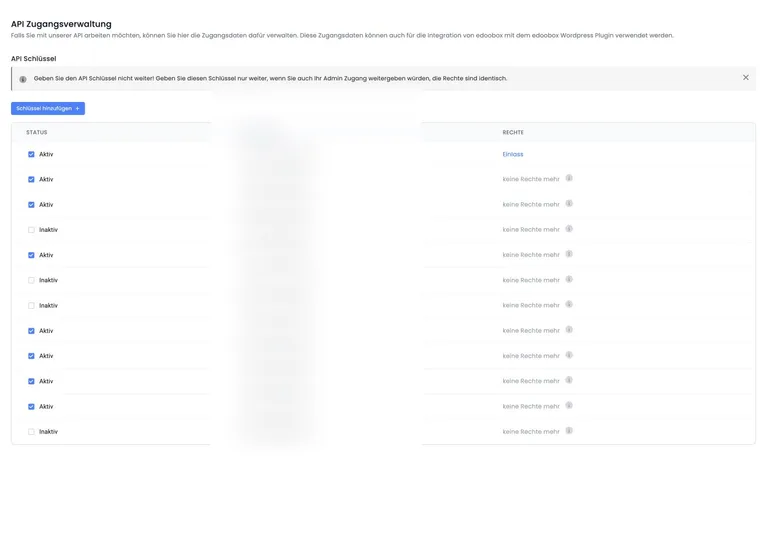
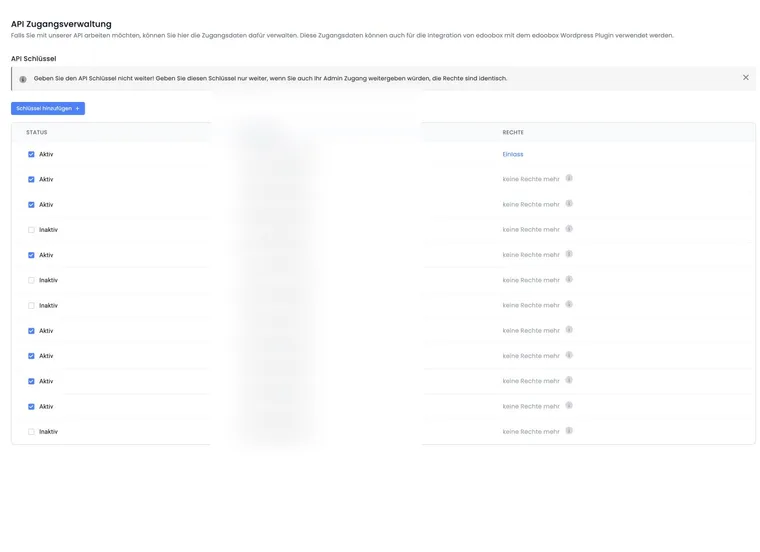
Open Settings > API access management.
Add an active key and select the prepared Zapier permissions.
Save the secret key, visible only once, in a password manager.
Use separate test and production keys if your processes require it.
Immediately disable and replace the key if the secret key was disclosed. Share it neither in screenshots nor support messages.
2. Connect edoobox in Zapier
Add the edoobox app in the Zap editor and connect the account using public and secret keys. Exact app and trigger names may change in Zapier. For new automations, use the current available app version and check fields with an actual demo event.
3. Select a trigger according to the business event
Select according to the record that should be created in the destination system, rather than merely the most similar name:
| Goal | edoobox event to check | Additional condition |
|---|---|---|
| CRM contact or newsletter | Participant or booking | Consent, email, booking status and duplicates |
| Accounting process | Invoice | Invoice number, currency, cancellation and PDF availability |
| Operational course notification | Booking | Waiting list, MustPay, cancellation and offer |
| Calendar or LMS | Date, offer or booking | Time zone, changes, deletion and reruns |
Not every record or change is available as a trigger in every Zapier app version. The Zapier editor is authoritative for the current list. If the event is absent, check API and webhooks instead of repurposing an unsuitable trigger.
Understand instant and polling
Zapier determines per app and trigger whether a trigger is instant or polling. This cannot be freely switched in the Zap. Instant triggers receive new data through webhooks; polling triggers request new entries at an interval depending on the Zapier plan.
A polling Zap may therefore start after a delay. An instant Zap also requires monitoring of its actual runs. Filter or Path steps are evaluated after the trigger. Check the History to see which branch ran and which action was skipped before creating a supposedly missing record again.
4. Load meaningful test data
After selecting the trigger, generate a new demo event in edoobox.
Load the test record in Zapier and check every available field.
Test at least normal booking, waiting list or MustPay, plus cancellation if relevant to the process.
Map only fields whose meaning and format are clear.
Test records may contain fewer or different fields than later live runs. Use fallbacks for optional values and check missing mandatory fields in the destination system.
5. Filter consent, tags and offer logic
For newsletter or segmentation processes, ‘new booking’ is insufficient consent. Use an explicit additional question, custom participant data field or traceable UserTag with a value, provided the field is available in the tested payload.
Use OfferTags to separate processes by offer type, such as Format=Webinar or Bereich=Weiterbildung. If a required tag is absent from the Zapier test record, use an explicit data field or API query; do not build a filter on an assumed value.
6. Protect against duplicates and status changes
Save or search in the destination system using a stable edoobox resource ID.
Use ‘Find, then create/update’ instead of blindly creating a new contact on every run.
Treat waiting list, MustPay, definitive booking and cancellation as different states.
Plan what happens on rerun, timeout or a partially successful action chain.
A new invoice differs from incoming payment; model the actual business process.
7. Activate and monitor
Test every action individually, then the entire Zap. Activate only after checking field mapping, filters, duplicate protection, data protection and error path. After launch, check initial live runs in Zapier History.
Document owner, API key, trigger, destination app, filters and shutdown process. If the responsible person leaves, the Zap must not fail unnoticed through a personal account.
Use cases
Example: Newsletter only with consent and segment
An additional question writes ‘Yes’ to a unique consent field. The Zap checks it and the OfferTag Bereich=Weiterbildung. Only matching people are searched in the newsletter system and, if absent, added with the ‘Continuing education’ segment.
Example: Update a CRM booking without duplicates
The Zap first searches by edoobox booking ID. For a new booking, it creates the process; on rerun, it updates status, offer and amount. Waiting list and MustPay do not create a falsely ‘definitively booked’ stage.
Example: Store an invoice in a controlled way
A new invoice is searched by invoice number in a cloud folder and spreadsheet. The Zap creates only missing documents and stores amount, currency and booking reference. Cancellation invoices are processed as a separate document type rather than overwriting the original invoice.
Distinguish current invoice and change triggers
The current edoobox app list at Zapier distinguishes, for example, New Invoice Created as an instant trigger from New Invoice (Polling). Later changes have a separate Invoice Updated trigger. Check this specific selection in the editor; polling may supply fewer additional fields.
Related guides
Choose native functions before the Zap
For internal tag/data field changes, notes and email/PDF template selection, first check Automations in edoobox. For Bexio accounting, a native Bexio connection provides invoice mode, mappings and payment reconciliation.
If Bexio is connected natively, an additional invoice Zap must not create the same documents in Bexio a second time. Before activation, define which process owns the document and which reference prevents duplicates.
Prepared Zapier permissions include read access to subscription definitions, periods, redemptions and user subscriptions. This does not mean the installed Zapier app offers a trigger or write action for every such record. Check actual selection and test record in the Zapier editor.
Official trigger help
The official Zapier trigger help describes the fixed distinction between instant and polling and plan-dependent polling intervals. Existing older data does not automatically trigger a newly enabled Zap.