
Label export
The Label export is a structured booking export from the analytics dashboard. It does not create finished labels or name badges. The file is a data source for spreadsheets, mail merge, label software or an external process.
The selected period refers to the booking date, not the offer's start and end. This distinction is crucial: a booking created today for a course in three months belongs to today's booking period.
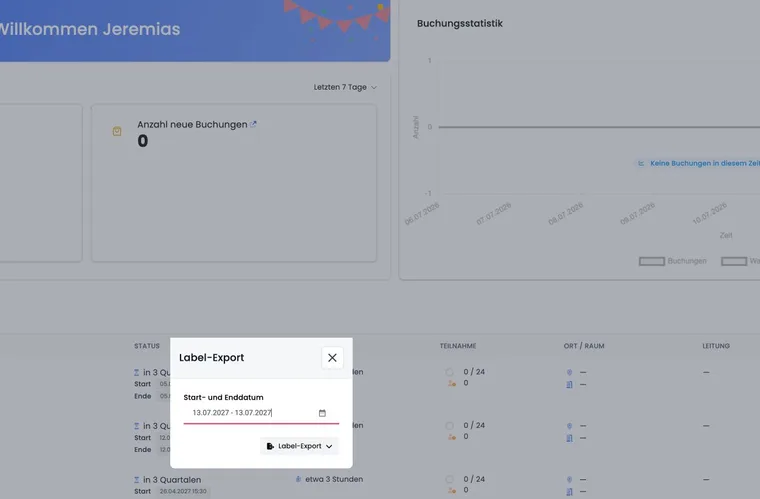
Open Label export
Open Dashboard → Analytics.
Find the Booking statistics card.
Open its export menu and select Label export.
Set the start and end dates. The end date must follow the start date.
Choose XLSX, ODS or CSV.
The dialog defaults to today. It does not adopt selected rows or filters from a booking or participant table.
Understand the period and scope
The export contains bookings created between the start and end of the period. A maximum of 5000 bookings is processed per export. If a period contains more entries, split it into smaller sections and run several exports.
Waiting-list and cancelled bookings are not automatically excluded. They appear with separate flags in the file. Bookings without offers and deleted participant profiles are not included in the same export.
Which columns are included
The export starts with fixed booking and offer fields:
Booking date
Label
Offer name and number
Offer start and end
Total amount and currency
Booking number
Waiting-list and cancelled flags
These are followed by participant fields set to show in your registration form configuration, in the order defined there. Changing visible form fields can therefore also change the column structure of later Label exports.
What “Label” means in this export
The Label column contains the booking label or internal reference saved with the booking. It is not a graphical label layout. An empty booking label accordingly produces an empty cell.
For print-ready address labels, filter and clean the exported file in suitable mail-merge or label software. Check page size, field mapping and line breaks there.
Check the file before further processing
Compare the data row count with the expected booking volume.
Deliberately filter waiting-list and cancelled bookings.
Check offer name, number and session.
Clean up missing address or profile data before mailing.
For multiple files, avoid overlaps at period boundaries.
Securely delete or archive exports containing personal data after their intended use.
Example: analyse bookings by campaign label
An organisation assigns booking labels such as “Partner-A” and “Partner-B”. It exports the booking month as XLSX and then filters the Label column. Waiting-list and cancelled rows are analysed separately using their own flags.
Example: create address labels externally
For mailing course materials, the appropriate booking period is exported. The administrator filters cancelled bookings, checks names and addresses and passes only necessary columns to a label template. Label export itself provides data, not the print layout.
Example: split a large period into sections
A year contains more than 5000 bookings. The team therefore exports each month separately and records exact start and end boundaries. It then merges the files and checks booking numbers for overlaps.