
Payment reconciliation with a CAMT file
With CAMT file import, you reconcile bank account movements with outstanding edoobox invoices. If edoobox recognises invoice number or reference, payment is credited to the appropriate customer account and the invoice marked paid on full payment.
CAMT is particularly helpful when many invoices are paid by bank transfer. Nevertheless, follow-up checking remains important because bank references, partial payments or unclear payment purposes cannot always be assigned automatically.
Prepare the import
Export a CAMT file in XML format from your bank and save it locally. Supported formats are camt.053.001.02, camt.053.001.03, camt.053.001.04 and camt.053.001.08. The current upload does not accept camt.052. Each file must be smaller than 10 MB.
In edoobox, open CAMT in accounting or under Accounting > Participant CAMT entries and upload the file. A file can only usefully be imported once; duplicates are recognised and should not be processed again.
Tip: Archive CAMT files after successful import or move them into a completed folder. A separate bank account for edoobox bookings greatly simplifies reconciliation.
Upload, progress and duplicates
Select a CAMT file or drag and drop it into the upload area. Several unique XML files can be selected together. After selection, edoobox processes each file and separately shows progress, successful files, failed files and duplicates.
Duplicate entries show reference, amount and currency so you can compare them with the bank file. Reimport failed files only after clarifying the error message. Details of loading states are provided under Progress, loading bars and processing status.
Example: Import several CAMT files safely
Upload your bank’s XML files together and wait until the progress bar has processed all files. Then check failed uploads and duplicate entries before reimporting a file.
File accepted, but no new items
‘Successful uploads’ counts processed files. It does not establish that new bank items were saved or invoices paid. A valid bank statement can finish without new importable receipts.
- Wait for the file result and read both errors and duplicate entries. Already imported movements are not created again even if the filename differs.
- Open the CAMT table without an assignment filter and with a sufficiently broad bank posting date range. Search for a known item by amount or reference. If the row exists but is unassigned, continue with pending assignments.
- If the movement is missing, check the bank export: supported camt.053 version, correct account and period, and incoming payments actually included. Outgoing and zero amounts are not adopted as new positive receipts.
- For combined credits, the export must contain usable individual transaction details. If these details are entirely absent, the combined total alone creates no CAMT row. With several details, an amount must be readable for each; a missing amount is skipped. Only when exactly one detail exists can the bank item’s total amount serve as a fallback.
- If needed, request a supported bank statement with individual transaction details and payment references from the bank. If the file still produces no new items, have edoobox clarify the specific export structure. Transfer bank files only through the agreed protected support route.
Do not change XML references or amounts to force an import. Uploading the same file again does not add missing details. Record a receipt manually only after checking the actual import state to avoid duplicate payment.
Assign payments automatically
edoobox looks for matches in invoice number, reference number or reference texts from the CAMT file. On full payment, the invoice is marked paid and disappears from outstanding invoices. For partial payment, the amount is credited to the participant account.
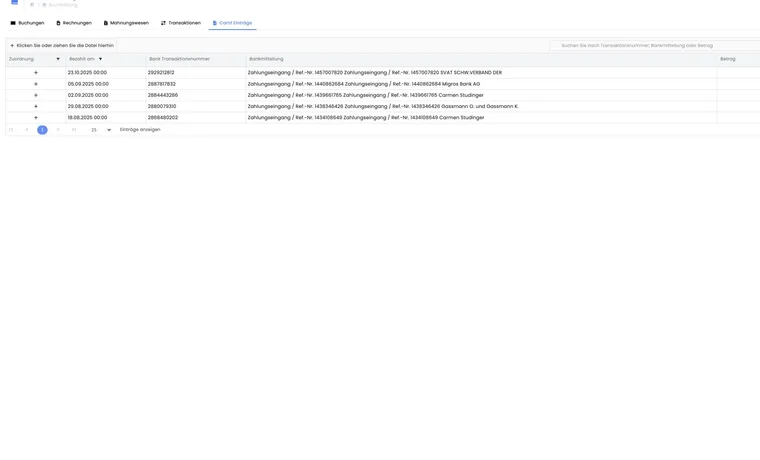
Successfully assigned payments show an invoice icon in the Assignment column. A plus sign instead opens the assignment dialog for an unassigned entry. Still check a sample, especially when there are many similar amounts or combined payments.
Several invoice numbers in one transfer: Automatic recognition may take one invoice number from the message and link the entire receipt to that invoice. It does not split the amount based on several stated numbers. Therefore also check combined transfers among already assigned entries and review remaining invoices. The process for combined payments and incorrect assignments describes the limits.
CAMT table, filters and search
The CAMT table shows assignment, paid date, bank transaction number, bank message and amount, among other things. Positive amounts appear green, negative red and zero grey. By default, the table sorts posting date descending.
Search considers payment information, additional information and payment references. Numeric search can also find an exact amount. The assignment filter separates all, assigned and unassigned entries. A date filter can additionally restrict posting date.
Assigned rows show an invoice icon; clicking opens the linked invoice. Unassigned rows show an action for manual assignment.
Check unrecognised payments
Payments that cannot be assigned automatically remain unassigned. Use the assignment filter to find these entries; the amount colour indicates its sign, not its assignment status. Common causes are a missing invoice number, incorrect payment reference, combined payment, partial payment, different currency or manual bank entry.
Use search and filters for assigned or unassigned CAMT entries. Numeric search can also search by amount.
Example: Find an unassigned payment
Upload your bank’s CAMT XML file and set Assignment to unassigned. Search by payment reference or amount. This finds payments that could not automatically be assigned to an invoice or booking.
Manual invoice assignment and deletion
Use Link invoice to manually assign a bank movement to an appropriate invoice. edoobox suggests up to five non-cancelled invoices matching amount and currency. You can also search for an invoice, for example by invoice number, customer name, amount or description.
Upon assignment, the CAMT row is marked manually assigned and the table refreshed. If a bank movement does not belong to edoobox, it can be deleted. Delete only entries clearly not intended for later assignment, because edoobox then stops searching for matching invoices.
Rules and limits
Negative payments are not imported or reconciled as normal incoming payments.
A CAMT file should not be imported repeatedly.
Manual balance entries and technical refunds are not automatically handled through CAMT like normal invoice receipts.
For manual corrections, use Record and check participant transactions manually.
Follow-up check after import
After import, check outstanding invoices, CAMT entries, participant account and outbox. For important invoices, additionally open the user profile or invoice itself. Continue handling pending assignments under Payment reconciliation: Review pending CAMT assignments.
Example: Weekly payment reconciliation
Every Monday, accounting exports the CAMT file for the previous week. After upload, most payments are assigned. Two remaining unassigned entries are linked to invoices manually, and an unrelated incoming payment is deleted after review. The team then checks outstanding invoices.
Additional practical information
Benefit and limitation: Handle bank movements systematically rather than individually
CAMT import is particularly useful when many people pay by transfer. Instead of recording each payment individually from a bank statement, import bank movements together and then check invoice assignment.
Its benefit depends on understandable payment references and follow-up review. Import transfers a file; it does not prove a permanent live bank connection. Therefore plan who supplies new files, checks import and handles unclear entries.
Practical question: What does a successful file import not establish?
A successfully processed file may still contain payments not yet assigned to a unique invoice. Therefore after import check the pending assignment filter and compare known receipts with invoices.
Separate file errors, recognised duplicates and substantively pending assignments. Reuploading does not resolve an unclear payment reference. For these cases, use Review pending CAMT assignments. Check remaining outstanding receivables only after this follow-up work.
Distinguish file errors from unassigned payments
For invalid XML, download the unchanged XML file again from your bank; a renamed PDF or CSV is not a CAMT file. For unsupported format, select a supported camt.053 bank statement. Export an oversized file for a shorter period.
Successful import means the file was processed. Handle unassigned entries afterwards in the CAMT table. Automatic posting considers a matching reference, currency and incoming payment of at least one currency unit. Check smaller, unclear or foreign-currency amounts separately.
Duplicate checking also operates on individual bank items. Two differently named files may therefore contain the same movements already imported. Compare reported reference, date and amount instead of just filename.