
User overview
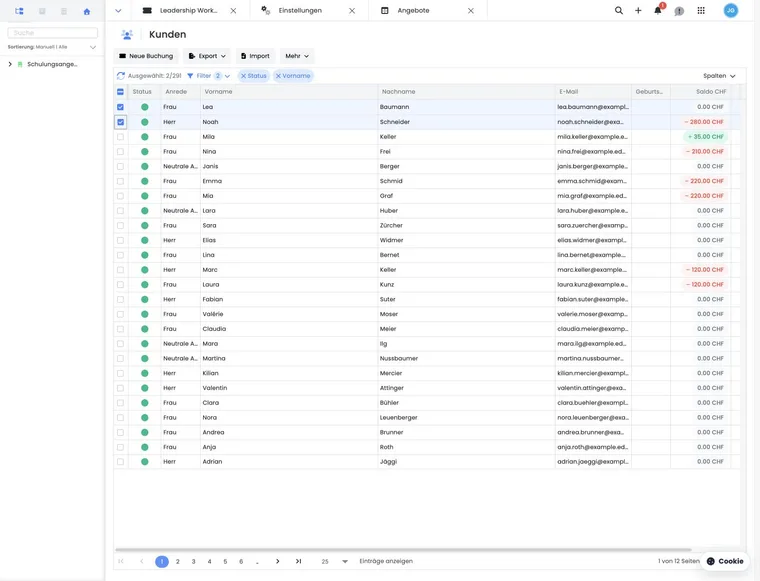
The user overview is the global table view for customers and participants. In the interface, it is often referred to as the customer or participant view. You use it to search for and filter persons, select multiple rows, export data, or open the appropriate user profile.
The table loads the persons matching the search, filters, and current page. For large datasets, narrow down the scope first and check the number of hits before selecting or exporting persons.
Access and basic structure
The user overview is only visible with sufficient admin permissions. If permissions are missing, edoobox displays a corresponding notice.
At the top of the view are actions such as New booking, Export, Import, Tasks, and other actions. Below these are Synchronize, selection counter, filters, active filter chips, and column selection.
The table supports paging, sorting, fixed columns, column widths, column order, and server-side lazy loading. If you have a very large number of records, work specifically with filters rather than long manual search lists.
Columns and personal table view
By default, the table shows status, salutation, first name, last name and email. You can also display street, postal code, city, country, company, language, phone number, ID, tags, custom data fields and balance columns for each currency.
Use the column selection to control visibility, order, and width. edoobox stores the personal table configuration per admin. If no personal configuration exists yet, the default view is loaded.
Custom participant data fields only appear as a column if they are visible in the data structure. Custom text and date fields can additionally appear as filters in the filter panel. More information is available under Participant data fields and Account settings.
Use case: Filter and export a custom customer view
Prepare a custom customer list
An admin displays status, first name, last name, email, company, country, and an individual data field. They then rearrange the columns and adjust the widths. When opened next time, the same view is available again.
Export a filtered customer selection
Set filters for active status, German language, and a custom data field. Then select the hits and export them as an Excel file. Before doing so, display the company and phone number columns to ensure they are included in the export.
Searching, filtering, and understanding active filters
The free-text search searches typical contact data such as first name, last name, email, and company. Additionally, filters are available for status, first name, last name, email, postal code, city, street, company, country, language, phone number, visible text and date fields, and tags.
The Country filter uses the same country values as the user profile, import, and billing address. This keeps search, table view, and export consistent. Active filters appear as chips. Remove individual filters if the table shows too few results.
Find the basics on table filters under Table filters; the Outbox search is a separate email view. If you work specifically with tags, Using the tag filter widget is helpful.
Use case: Find customers with incomplete contact data
Display email, phone number, country, and company. Then filter by country or language and additionally use the free search if you know a name or organization. Search custom text fields by text; for date fields, select a period.
Selecting rows, exporting, and importing
For CSV-, Excel, or PDF export, rows must be selected. Without a selection, edoobox displays an error message. CSV and Excel use the visible exportable columns; the PDF export uses a landscape layout.
Date fields and tags are formatted for readability for export and bulk actions. Check before exporting whether all required columns are visible, as otherwise important fields may be missing from the file.
Use Import to start the participant import. Prepare import files carefully and check columns, required fields, countries, language, and possible duplicates. Details are available under Importing participant data.
Opening user profile, bookings, and tasks
Clicking on a table row opens the respective user profile. Clicks on the selection column are for multiple selection, keeping row opening and bulk actions separate.
In the user profile, you manage a person's personal details, bookings, invoices, emails, notes, transactions, tags, balance, barcode, and status. Use New booking to open the booking dialog. In offer-related tables, the offer may already be pre-selected.
Selected users can be used for tasks. If the header selection is active, the task may apply to all hits of the current selection, not just the currently visible rows, depending on the action. Tasks are described in Tasks, pending items, and recurring tasks.
Offer-specific actions
If the table is opened in the context of an offer, additional actions may be visible, such as attendance list, participant list, certificates, waitlist actions, or inquiry actions. In this context, the offer or participants are often already pre-filtered.
For offer-specific actions, edoobox considers selected rows and can use all hits if the header selection is active. If a waitlist or inquiry action requires more free seats, a dialog may first offer to increase the maximum number of participants for the offer. The inquiry is only sent to the selected bookings once enough seats are available.
If you work from an offer view, always check whether the table shows all persons or only the persons of this offer. Booking details are described in Booking detail.
Use case: Send inquiries to selected waitlist bookings
Open the user overview in the offer context, filter for the desired persons, and mark the rows. If the offer is fully booked, increase the maximum number of participants in the dialog first. Once enough free seats are available, send the inquiry to the selected bookings and synchronize the table.
Tags, data fields, and duplicates
Tags and data fields help in segmenting and finding persons. Use consistent tag names and maintain data fields so that filters and exports are meaningful later.
In the More menu, you can open the global participant data fields depending on your permission profile. There, for suitable fields, you can determine whether their value is considered for duplicate search. Under Settings → Duplicate search, authorized admins find the Open duplicates and Settings sections. Open Review for a suggestion to compare persons and impacts in the assistant. Ignore permanently excludes exactly this pair of persons after confirmation.
Search by name and email address before a new entry and additionally compare bookings, invoices, contact fields, and tags for similar profiles. Further tips are available under Avoiding duplicates and checking participant data.
Table logic for large datasets
The user overview only loads the fields relevant to the current table. Visible columns, filters, search, sorting, and page changes therefore determine which data is requested. A refresh reloads tags, columns, data fields, and users.
The free search is built as a broad search across typical contact fields, while specific filters narrow down the scope more precisely. Offer and price category contexts add their own filters. If a result is unexpectedly missing, first remove active filter chips and then check the visible columns.
The header selection distinguishes between visible selected rows and actions for all hits of the current selection. This is particularly important for tasks, exports, certificate bulk files, or offer-specific actions.
Filtering persons by subscription or pass
- Open Filters and select one or more existing subscription templates under the subscription filter.
- Activate Active subscriptions only if needed to limit the selection to currently valid assignments.
- Select Apply and check the filter chips and the number of hits.
- Open a person and check validity and periods in the subscription section before evaluating an individual case.
The filter appears when the subscription plugin is active and you have read permission for participant subscriptions. Without selecting a template, you can also use the active option to search for people with an active subscription. Use the Plugin Manager for setup; Manage participant subscriptions explains subscription management.