
DINACO integration
The DINACO integration links selected edoobox offers with an external DINACO event. It is intended for events where tickets are transferred to defined access areas and checked at entry or exit points.
A robust setup consists of four levels: Authentication, Event connection, Areas with offer assignment, and controlled synchronization. Plan this structure together with the person responsible for DINACO and test it before live admission.
Prepare prerequisites
You need a DINACO Client ID and DINACO Client Secret. Obtain these credentials from the responsible DINACO contact.
The event’s external system ID must be known exactly. Spelling and the complete character sequence must match DINACO.
Define a realistic synchronization period including preparation and post-processing time. edoobox uses the timezone of your account for this.
Clarify access areas, maximum number of people, multiple access, and entry/exit mode before technical configuration.
Connect DINACO account
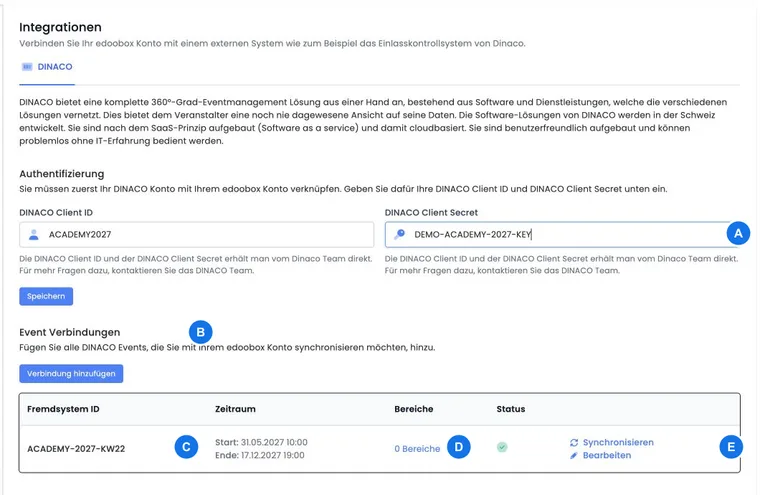
Open Settings → Integrations → DINACO.
Enter the DINACO Client ID and DINACO Client Secret and save. The secret will not be displayed openly in the field later.
Treat both values as credentials. Do not display them in screenshots, support notes, or publicly accessible documents.
Create event connection
An event connection contains the External system ID, the start and end of the synchronization period, and the status Active. Check these details especially carefully: After creation, the connection in V2 can only be activated, deactivated, or deleted; the external system ID and period are not edited afterwards.
Select Add connection and enter the exact event ID.
Set the start and end times. If the end is before the start, the interface adjusts the range accordingly.
Activate and save the connection. Afterwards, check the event ID, period, status, and number of areas in the overview.
Configure areas and assign offers
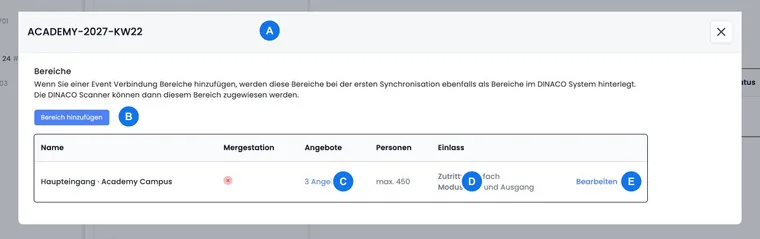
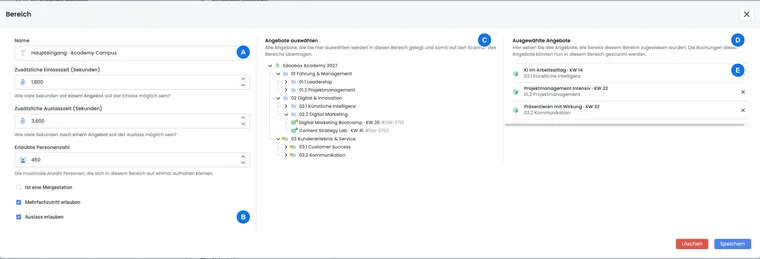
An area represents a DINACO access area. For each area, you can define the following rules:
| Setting | Meaning |
|---|---|
| Name | Internal name of the area. |
| Additional entry and exit time | Time buffer in seconds around the actual access logic. |
| Allowed number of people | Maximum number of people in the area. |
| Merge station | Marks the area as a merge station. |
| Multiple access | Allows a ticket to enter the area multiple times. |
| Allow exit | Switches from pure entry mode to entry and exit mode. |
Save the area first. Then you can select the edoobox offers in the offer tree whose tickets are transferred to this area. Categories themselves are not added as permissions; the individual offers are decisive.
Synchronize areas and tickets
Manual synchronization offers two separate actions: Synchronize areas and Synchronize tickets. It is only enabled within the configured event period. The dialog shows the last synchronization if data exists and requires confirmation before starting.
Synchronize the areas first if the structure or offer assignment is new.
Then synchronize the tickets. Repeat the process only deliberately after relevant booking changes, as manual synchronization affects data in the external system.
Check status, last synchronization and sample records in DINACO. Test codes that are valid, invalid, already used and issued for the wrong area.
Secure operations on the event day
Designate a responsible person for synchronization errors and unclear access reports.
Keep a current participant or attendance list as a controlled alternative process.
Do not change the event ID, areas, or offer assignments at short notice without retesting.
For regular edoobox admission without DINACO, use the guide for Access Control with Tickets.
Use cases
Practical example: A trade fair with two access zones
A trade fair uses the areas “Main Entrance” and “Workshop Zone.” All trade fair tickets are assigned to the Main Entrance, while workshop offers are additionally assigned to the Workshop Zone. Multiple entry is allowed at the Main Entrance, while the Workshop Zone operates with a limited number of people. The team first synchronizes areas and then tickets.
Practical example: An evening event with entry and exit
For an evening event, an event connection is created with a lead time in the afternoon and a tail time until after midnight. The area allows exit and re-entry. Before the doors open, the team checks a complete entry/exit cycle and verifies that the last ticket synchronization is within the expected period.
Additional practical information
Decision aid: When do you need an external admission system?
DINACO is useful if your entry process works with an external event and defined entry or exit areas. The connection transfers the required offer and ticket assignment to this context. Therefore, plan the actual control points first and the technical areas only afterwards.
For direct ticket checking in edoobox, the internal Admission Scan is available. The choice depends on which system on site should execute the decision. Both paths require a clear assignment of person, booking, and authorized offer.
Operational note: A saved assignment requires a controlled test
Check the event reference, period, area, and the specifically assigned offers together. After the planned synchronization, test entry with a suitable ticket and a ticket that should not be authorized for this area.
After programme changes, check the affected area’s offer assignments again. Agree with the entrance team which state was tested and who decides when discrepancies arise. A working connection alone does not confirm that each area admits the intended eligible people.
Detecting an inactive or time-closed connection
If synchronization actions are grayed out, first check the start and end of the event connection as well as the account time zone. The manual action is only available within this time window. Additionally, check the Active status and the saved event ID.
If the external system ID or original period is incorrect, the existing connection cannot simply be edited. Agree on a correct new connection with the person responsible for DINACO, transfer the required areas deliberately, and check the effects on the access system before deleting the old connection.