
Template: header and footer
The illustrations show an earlier version of the interface. Use the steps in this guide for the available features and options.
Design Manager provides a central template each for header and footer. These sections recur on other templates and suit navigation, static notices, voucher sales, tracking or cookie notices.
Because header and footer are visible across several pages, place only content useful throughout booking there.
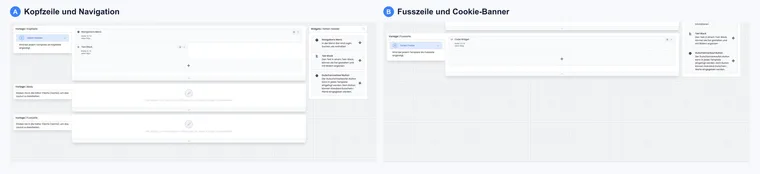
Understand header and footer
The header sits above the respective booking template. The footer sits below it. Both templates are maintained separately and retain their last selection per section.
Do not use these sections for long offer descriptions. Such content belongs in the category, offer or appropriate body template.
One template for all pages
Within a design, there is one shared header and footer. Pages actually loading this design use them. A category design and account default design may have different headers and footers. Therefore check both offer pages and account/completion page; a change in a category design does not automatically update every other design.
Use shared sections for navigation, logo, contact, language or voucher sales. Offer-specific notices belong in the offer description or appropriate body template.
Navigation menu
In the navigation menu, control how participants move through booking. Typical options include:
Navigation position, such as fixed at the top.
Show or hide the All offers button.
Show the Home button during booking.
Show search, usually in offer overview and details.
Show the Login button if the participant account is active.
Show language selection if several booking languages are active.
If embedding individual categories or offers on a website without wanting a return to the full offer overview, hide the All offers button.
Navigation menu options
| Option | Effect | When is it sensible? |
|---|---|---|
| All offers | Leads from offer details back to the offer overview. | Leave active if participants may switch between offers. Disable when individual categories or offers are embedded separately. |
| Home | Returns to the offer detail page during booking. | Helpful if participants should review offer details again before completion. |
| Search field | Shows search in offer overview and details. | Enable for larger offer catalogues; often omit on tightly focused individual pages. |
| Login | Opens participant account access. | Enable if participants should retrieve bookings, invoices, tickets or files themselves. |
| Language selection | Allows switching between active correspondence languages. | Useful only if offers, templates and legal texts are actually maintained multilingually. |
Lead back from the booking page to your course website
The built-in Home button navigates back within edoobox booking. You can show or hide it; an arbitrary external Home address is not provided there. The All offers button leads to the edoobox offer overview.
- Open the design actually assigned and its header.
- In the navigation menu, hide back navigation unneeded for your embedded individual section.
- Add a Text block and write, for example, ‘Back to the course overview on our website’.
- Select the text, choose Insert link and enter the complete address, such as
https://example.org/kurse/. Choose the window target offered in the link dialogue to suit your entry route. - Maintain every active language, save widget and layout, and check the link from overview, details and registration.
- Check direct edoobox access and the actual iframe/WordPress embed. The link should open the intended website without creating a second course website inside an undersized embedded area.
The text block is fixed content in this design. For different course websites by section, you need the appropriate design assignment. Returning does not end or confirm an ongoing booking; label it clearly.
Text block in header or footer
A text block suits a logo, brief contact information, company address, notice banner or seasonal notices. Maintain text in every active language.
Visibility settings determine whether text appears always or only in certain embedding cases. Check mobile display so header and booking form do not lose too much space.
Voucher sales button
The voucher sales button can be placed in header or footer. The advantage is that voucher sales remain visible on all relevant pages.
Use this position only if vouchers are actually a recurring offer. Too many permanent buttons can distract from actual booking completion. Details are provided under Template: Completion page and voucher sales and Sold vouchers / Gift vouchers.
Text block and iframe visibility
Use a text block to maintain logo, company address, contact line, short notices or images in every active language. Check mobile display particularly carefully, as headers and footers quickly become too tall on small screens.
Depending on widget settings, a text block can be visible always or only when booking opens directly outside your website. This helps if logo and address are already visible on your website but should additionally appear in a direct edoobox link.
Code widget
The Code widget is offered in the footer in the current selection and permits custom HTML, CSS or script code. Name the component according to its purpose. Use it only if you understand the code’s impact on appearance, security, data protection and loading time.
When working with custom JavaScript or jQuery, wait until the page loads and test the change in every relevant template. Code hiding a widget by ID may stop matching after design changes or accidentally affect another element.
Cookie banner
The cookie banner obtains consent for tracking or external services. Position it visibly without covering key booking actions. Define understandable text and check banner behaviour upon consent and refusal. If tracking cookies should not be set after refusal, also test booking without consent.
For tracking, also read Cookie banner and Google Tag Manager / Google Analytics.
Example: Course portal header
An organisation shows logo, navigation, search and language selection in the header. It places the voucher sales button in the footer so it remains visible without competing with the registration button during booking.
Example: Multilingual navigation with a participant account
The header shows logo, offer overview, language selection and login. The team checks every link in German and English and states before and after login. On mobile, the menu remains operable without overlapping the booking form.
Example: Tracking only after consent
An analytics code is tested together with the cookie banner. Optional tracking must not load before consent; after consent, it works without slowing booking completion. Refusal and subsequent changes to selection are also checked.
Add subscription navigation and withdrawal access
With the subscription plugin active, the Navigation menu can show an additional subscription entry. Set visibility, colour and label per language. Empty custom text falls back to the organisation language, then to the product name. The link leads to the public subscription catalogue. Setup: Subscription catalogue and customer area.
For Bootstrap 5.3, a withdrawal action in navigation and the Exercise withdrawal button widget are additionally available. They lead to the intended withdrawal form on the login page. Label and colour are chosen in the design; substantive withdrawal settings belong in Registration settings, cancellation and withdrawal.
Give custom code widgets a meaningful name. Also check header and footer on the new subscription pages: a permanently visible link should lead to the appropriate catalogue and active language.
Show the shopping cart in navigation
In the header, open Navigation menu and enable Show shopping cart in navigation. The visible entry requires a cart route configured in the design and a suitable booking session. A navigation switch changes neither pricing rules nor, by itself, the primary completion action.
Align it with Booking view in design settings and Offer shopping cart in the completion button. The shopping cart guide explains classic and primary variants. Check the link before and after login and on mobile. If another header loads, check category or account default design.