
Embed videos in descriptions
Videos can usefully supplement an offer or category description: they show a course process, introduce an instructor or explain preparation. Essential booking information must nevertheless remain available as text.
The edoobox V2 description editor has its own media tool. Among other things, it can save embedded iframe content and video, audio and source elements. It therefore suits both external video platforms and directly accessible media files.
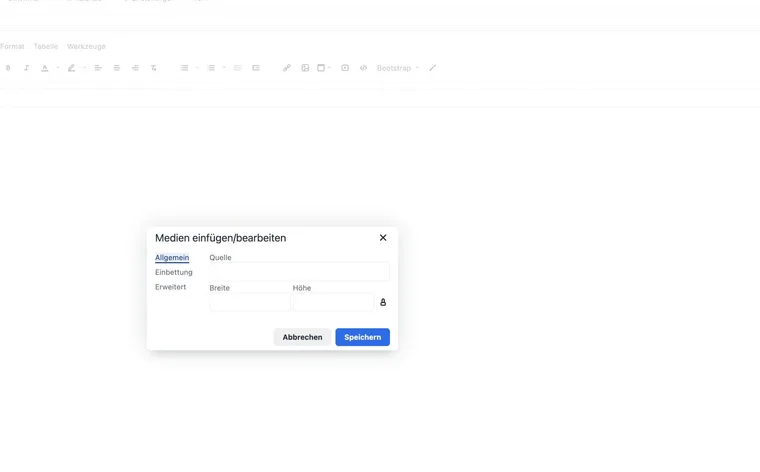
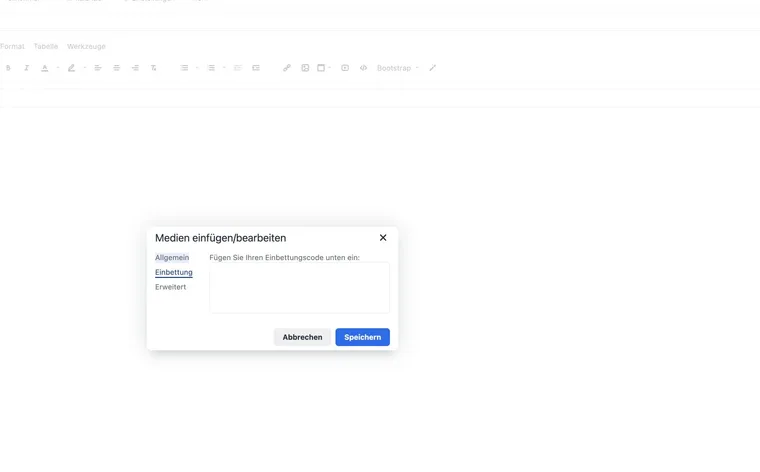
Insert a video into an offer or category description
Open the offer and select Texts → Description. For a category, open the Description tab directly. In a multilingual account, first select the correct language.
Place the cursor where desired and open the media dialogue using the media icon or Insert → Media.
Enter the media URL or use embedding code supplied by the video platform. Check source, width and height; a very large fixed width quickly leads to cropped content on mobile devices.
Save the description text and open the public preview. Test playback, sound, full screen and subsequent booking on desktop and smartphone.
Choose a direct file or video platform
| Variant | Suitable for | What to watch out for? |
|---|---|---|
| External video platform | Longer videos, streaming and different quality levels | Check data protection, cookie policy, availability and embeddable URL. |
| Direct media file | Short, optimised files under your own control | Test browser-compatible format, file size, bandwidth and mobile playback. |
| Normal link | When external content should load only after a deliberate action | Label the link clearly and have it open in a new tab. |
A large video file increases offer page loading time. Compress short direct videos and generally use a suitable video platform for longer content.
Video in a Design Manager text block
A text block in Design Manager also uses the rich text editor. In the widget, first select the language, insert the media and use Show in iframe to decide whether the text block should be visible publicly.
A video in the design affects multiple pages. Therefore check category views, booking steps and narrow viewports as well as an offer.
Data protection and accessibility
External embeds can establish a connection to a third party as soon as they load. Coordinate embedding with your data protection and cookie policy.
Also provide key points, dates and prerequisites as text. A video must not be the sole information source.
Where possible, use subtitles and an understandable label. Avoid autoplay with sound.
After changes to the design or video platform, recheck whether embedding code still works.
Use cases
Example: One-minute course preview
An instructor introduces learning goals and the room in a short video. The administration embeds it after the introduction and repeats learning goals, prerequisites and date underneath as text. The offer thus remains understandable without playback.
Example: Privacy-conscious link instead of direct embedding
An organisation does not want to load the external video service immediately. It therefore uses a preview image with a clearly labelled link to the video page. The public booking page remains fast, and participants decide whether to open the third party.