
Alternative billing address
The illustrations show an earlier version of the interface. Use the steps in this guide for the available features and options.
An alternative billing address separates the participant from the invoice recipient. This is useful when a company, authority, insurer, association or another person should receive the invoice. Participant data remains unchanged; the additional address is used for the invoice, QR payment section and, depending on the selected format, the electronic invoice.
The input is controlled in the Design Manager via the Billing address widget. You specify separately in the Invoice settings where the invoice email is sent.
How the form, booking, and invoice interact
The widget collects the additional billing data during the booking process.
edoobox stores the address with the relevant booking, not as a replacement for the participant profile.
When creating an invoice, edoobox uses the active billing address. If none is active, similar invoice placeholders are filled with participant data.
The invoice setting Alternative billing address determines whether the customer, the billing email address or both receive Rechnung.pdf.
Important: The routing ID and order number have no equivalent in the standard participant profile. Without an active billing address, these two values remain empty.
Set up the widget in the booking form
Open the Design Manager, select your custom design assigned to the offer category, then select Registration: Participant form in the body.
Insert the Invoice address widget at a logically visible location.
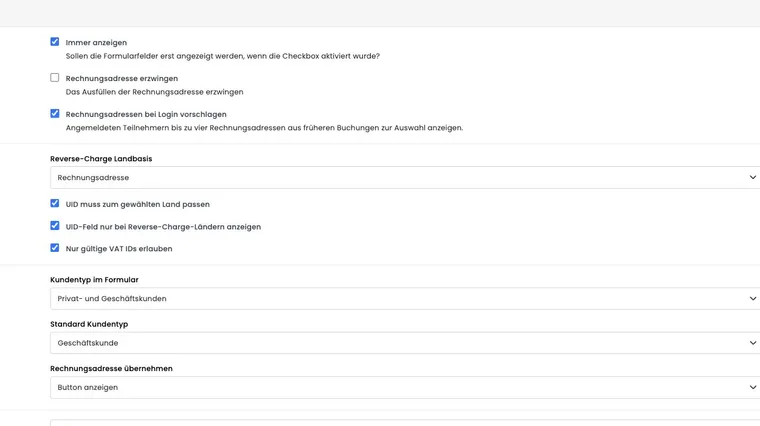
Choose whether the fields are always displayed or shown only after the billing address is selected.
Enable Enforce invoice address only if every booking strictly requires a separate invoice recipient.
For each field, configure its visibility, whether it is required, and its label. For the VAT number, also configure the desired validation.
Use copied data and previous addresses appropriately
Use Copy billing address to choose how existing personal data is copied into the billing address:
| Option | Behavior | Suitable for |
|---|---|---|
| Manual | The fields are deliberately filled in separately. | The billing recipient usually differs from the participant. |
| Show button | The person making the booking can copy the personal data if they wish. | Mixed private and corporate clientele. |
| Copy automatically | The billing address is pre-filled from existing data. | Mostly identical addresses with occasional adjustments. |
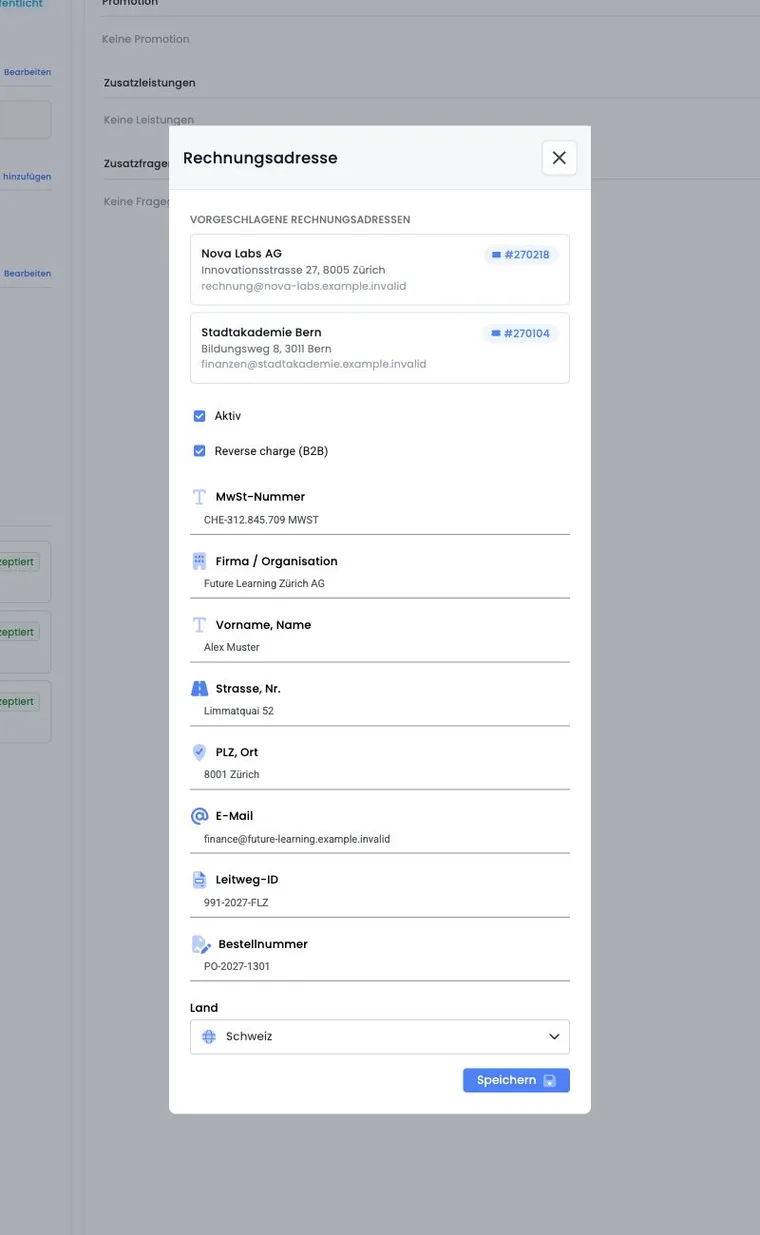
Enable Suggest billing addresses at login if logged-in persons frequently use the same company or government addresses. edoobox can then display up to four billing addresses from previous bookings for selection. Booking numbers on the suggestions help identify the origin.
Review this convenience feature together with Login and profile recognition. Without logging in, previous addresses cannot be reliably associated with a person.
Customer type, country and Reverse Charge
The widget can hide the customer type or allow only private customers, only business customers or both types. When allowing both, also set the default. For private customers, edoobox hides company and VAT fields depending on the configuration; a B2C case does not activate Reverse Charge.
For international B2B bookings, choose whether the billing country or the participant’s country determines Reverse Charge and dynamic VAT. You can also require the VAT number’s country code to match the selected country, show the VAT field only in Reverse Charge countries, or allow only valid VAT IDs.
Tax configuration is explained in GeoDynamic VAT and Reverse Charge (B2B).
Billing address fields and placeholders
The following values are available particularly in Invoice: Email, Rechnung.pdf and Stornorechnung.pdf when the relevant template provides them:
| Field | Placeholder | Note |
|---|---|---|
| VAT number | ##InvoiceAddressVAT## | Can be verified for B2B; left blank without a billing address. |
| Company / Organization | ##InvoiceAddressCompany## | Otherwise, it falls back to the company of the participating person. |
| First name, Last name | ##InvoiceAddressName## | Otherwise, it falls back to the first and last name. |
| Street, No. | ##InvoiceAddressStreet## | Enter completely for QR and e-invoices. |
| Postal code, city | ##InvoiceAddressCity## | Output as a shared value. |
| Country | ##InvoiceAddressCountry## | May affect VAT and Reverse Charge. |
##InvoiceAddressEmail## | The invoice settings control the delivery to this address. | |
| Routing ID | ##InvoiceAddressBuyerReference## | Relevant for certain public authorities and e-invoices. |
| Order number | ##InvoiceAddressOrderReference## | Also passed as order reference to e-invoice data. |
You can find the full template-dependent reference under All placeholders for emails and PDFs.
Distinguish between name, title, salutation, and paying person
| Entry | Where it comes from | How to use it |
|---|---|---|
| Invoice recipient | Active billing address of the booking; otherwise the corresponding profile data. | Use in the address block InvoiceAddressCompany, InvoiceAddressName and the other billing address fields. |
| Personal salutation | The participant data and salutation placeholders used in the template. | Do not combine unchecked with the name of a different billing contact person. |
| Person who actually pays | Bank or payment provider receipt, for example the cardholder or the transferring organization. | Reconcile with the payment; the cash flow does not automatically change the invoice recipient. |
The billing address widget has a combined First name, last name field. It has no separate structured field for the gender, personal salutation or academic title of an alternative invoice recipient. If a title is needed in the address block, enter the full name, including the title, in this field; ##InvoiceAddressName## outputs this value. Do not invent an additional title placeholder.
Placeholders such as ##Title1## and ##Title2## do not derive their personal salutation from the differing invoice address. You can still address the participating person, even if the invoice email is sent to the accounting department. For such a message, a fixed neutral greeting such as Good day is suitable; you list the invoice recipient in your own invoice address block.
- Open the active invoice address of the booking and check the company, full name form, and email.
- Use a billing address block with the appropriate
InvoiceAddress...placeholders in Rechnung.pdf. - Check the greeting and the dispatch settings separately in Invoice: Email.
- Compare a demo case with a different participant, billing contact person, and paying organization. Check the PDF address block, greeting, and actual recipients.
Do not change the participant profile to the accounting department's name just to influence the invoice salutation. The personal data is also used for participation documents, login, and other communication.
Edit the address of an existing booking
In the booking editor, you can activate or deactivate the billing address and change the VAT number, company, name, street, postal code/city, email, country, routing ID and order number. The V2 interface also suggests suitable previous addresses when available.
After a change: Check the tax status, invoice recipient, and existing PDF. Documents already created do not automatically become a professionally reviewed corrected invoice solely due to an address change. Update or correct the invoice through the designated invoicing process.
Clarify the discrepancy between the profile, booking, and document
A participant profile corrected later does not overwrite an active, differing billing address of the existing booking. The invoice may therefore continue to show the company or country that is stored as the invoice recipient for this booking.
- Open the participant profile and verify the current personal data.
- Open the associated booking and check whether the differing billing address is active. Compare the company, country, contact, billing email, routing ID, and order number.
- Open the actually issued invoice and compare the PDF as well as the structured recipient data for e-invoices.
- Correct the factually incorrect master data and the relevant booking address at the appropriate location. Coordinate any country or recipient changes with your accounting department.
- For an already created document, use the intended invoice correction process and check the new document, payment, and dispatch.
For an invoice with multiple booking items, the invoice data determine the recipient of the shared document; do not treat such an invoice as an independent invoice per person. Check the billing address before consolidating.
Test matrix before publication
Private booking without a differing address: placeholders correctly fall back to personal data.
Company booking with a different email: The PDF and email are sent to the correct recipients according to the selected delivery option.
B2B booking with country and VAT number: field validation, dynamic VAT and Reverse Charge status are consistent.
Public authority: the routing ID and order number appear in the relevant invoice or electronic invoice.
Registered recurring person: Up to four traceable address suggestions are offered.
Application example: Employer pays for continuing education
The employee remains registered as a participant with her personal email address. As the billing address, she selects her company and enters the accounting email address. The billing setting Customer and billing email sends the booking confirmation to the employee and the invoice additionally to accounting.
Example: an authority requires a routing ID and order number
For business customers, the widget displays country, routing ID and order number as required fields. Rechnung.pdf contains the corresponding InvoiceAddress... placeholders. Before sending, generate a test invoice and check the structured electronic invoice against the client’s requirements.
Application example: Recurring business customer adopts a previous address
A logged-in person has already booked for two branches. edoobox shows both previous billing addresses with their booking numbers. They copy the appropriate address, change only the order number and thereby avoid entering incorrect data again.
After configuring the fields, first save the widget and then any pending layout changes. Then open the public preview with a new person and with a logged-in person. When checking a suggested address, also verify the order number: a previous invoice recipient may still apply, but an order reference often belongs to the new booking.
If you enforce a billing address, the process must remain fully completable even when the customer type is hidden. Check required fields, country, VAT number and the actual invoice recipient in a test invoice.
Check the separate billing email and subject
A billing address alone does not determine who receives the message. Under Settings → Payment systems → Invoice → Alternative billing address, check the choice of Customer, Customer and billing email or Billing email. The detailed recipient table also explains the PDF attachment to the booking confirmation.
To change the subject of the separate invoice email, edit the email component in the correct language under Settings → Email → Templates → Payments & Invoices → Invoice email. Attachment: Rechnung.pdf controls the document; its filename is not the email subject. Insert only placeholders offered by this email template.
Check a new demo booking with two different internal addresses: the booking confirmation, separate invoice email, subject and attachments must match the selected option. Without a valid separate billing email address, delivery exclusively to that address is not guaranteed; check the actual recipient in the outbox.