
Dashboards, charts, and key metrics
Dashboards, charts and metrics show aggregated edoobox data about bookings, participants, offers, categories, emails and languages. They help with orientation but do not replace detailed checks in tables.
Metrics show the state of the data loaded for the selected period. If the period, offer, category or permissions do not match, a chart may show less data than a table.
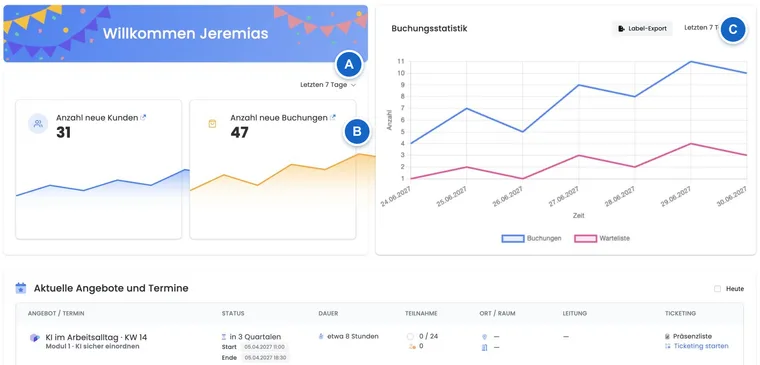
Open the dashboard and trace a value
- Open Dashboard in the side navigation.
- Choose the required period using the selector above the statistics cards and wait for the loading indicator to finish.
- Open the associated table through the new customers or new bookings card. Check its filters separately; the card link does not replace this check.
- If the dashboard shows Some data could not be loaded, use Reload. If the error persists, note the period and affected area for a support report.
Use the Analytics dashboard
The Analytics dashboard shows key metrics such as new participants, new bookings, booking statistics and upcoming dates. The period filter typically defaults to the last seven days and reloads visible cards when changed.
Larger charts may deliberately load later to keep the interface responsive. Wait briefly if the chart area has only just become visible.
Practical example: Change the period
To check new bookings from the last 30 days, change the period in the dropdown. edoobox then updates new bookings, new participants and booking statistics for that period.
View the latest bookings rather than freely arranging the dashboard
The Analytics dashboard has predefined cards and upcoming dates. You can change the period; freely selecting homepage cards or switching upcoming dates to a list of the latest bookings is not supported in this view.
- Open the Number of new bookings card to switch to the booking table.
- Check the table filters and sort by booking date, newest first.
- Configure the required columns and a saved table view for your daily checks.
A saved table view does not replace a freely configurable homepage. The table is the working area for individual new bookings; the dashboard card provides the aggregated value for the period.
Charts in offers and categories
Charts in the offer dashboard, category dashboard and category details show bookings, waiting lists or other reports for the current area.
Open the report in the relevant offer or category. A category aggregates different offers from an individual offer's dashboard; therefore, always compare the same area and period.
Interpret metrics correctly
Period: Almost every metric depends on the selected period.
Status: Cancelled, waiting or confirmed bookings may be counted differently depending on the report.
Context: An offer shows different numbers from a category or the entire account.
Permissions: Admin permissions affect which data is visible.
Loading time: Large data series sometimes load later.
Test data: A booking intended as a test is not excluded from metrics merely by its label. Status, date and the relevant query logic determine whether it is counted. Clean up test data systematically and reconcile the booking, invoice and participant transactions. Cancellation is not a general deletion switch for every historical statistic.
Empty or delayed charts
A line chart showing no bookings does not automatically mean that no data exists. Often the cause is the period, wrong offer, a category without bookings or data that has not yet loaded.
Change the period, check the context and open the appropriate table if necessary. There you can filter status, period and offer more precisely.
What data can be analysed
Depending on the view, time series show new bookings, new participants, emails sent, booking status, waiting list, top offers or top languages. Some compact charts use default periods; others adopt the period from the dashboard.
Missing offer data may be loaded afterwards for top offers. A chart may therefore briefly appear incomplete before all names and values are displayed.
Trace a waiting list value back to its record
The «Waiting list» time series counts records marked as waiting list entries by their booking date within the selected period. Depending on the view, offer or category further restricts the scope. This value does not prove that exactly that many people are on a particular course's waiting list today.
- Note the period and context of the unexpected statistic.
- Open the appropriate booking table, check date and status filters and compare the affected bookings.
- If necessary, use Label export in booking statistics; Tables and export options describes the process.
- On the individual record, check offer, booking type and current status. If the number and business context still differ, report the period and affected record for investigation.
The statistical waiting list query does not additionally exclude every booking type and cancellation status. An unexpected voucher record in this statistic must therefore first be investigated using its own record. It does not prove an intended course waiting list booking and should not be «fixed» by inventing a course entry.
Reconcile with tables
If a number is surprising, open the appropriate table and set similar filters. For bookings, use Manage bookings. For participants, use User overview. For exports and columns, see Tables and export options.
Practical example: A card and table show different values
A card shows fewer bookings than the table. First check the dashboard's period filter. The table may use its own filters, status rules or paginated lists and therefore show more entries.