
Stripe – Integrate credit cards
Stripe V3 connects edoobox to your Stripe account through Stripe Connect. For a booking, edoobox creates a Stripe PaymentIntent. Based on the account, currency, and enabled Payment Methods, Stripe decides which suitable payment methods are offered and whether additional authentication is needed.
Prerequisites
A verified Stripe account for the organization receiving payments.
Access to the edoobox payment systems and Stripe account.
Agreed currencies, payment methods, payout processes, and refund processes.
An internal test offer for success, cancellation, and additional authentication.
Activate Stripe Connect and V3
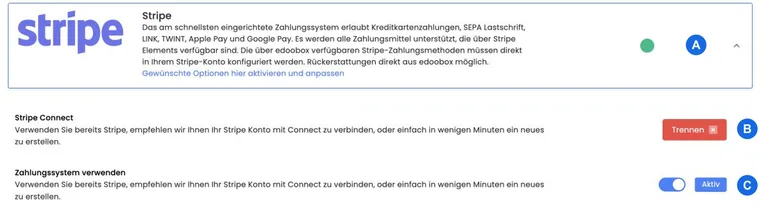
Open Settings → Payment systems → Stripe.
Click Connect and complete authorization at Stripe.
After your return, edoobox shows success or a specific Connect error.
Activate Use payment system. edoobox blocks this step without a Connect connection.
For an old Stripe integration, edoobox requests a switch to Stripe Version 3 and confirmation of fees during activation.
After switching to V3, the old separate Allow credit cards and Enable SEPA direct debit switches are no longer visible. This is intentional: V3 uses Payment Methods automatically permitted by Stripe.
Payment methods, currency, and Stripe Dashboard
edoobox enables automatic payment methods when creating a PaymentIntent. SEPA direct debit is excluded for non-EUR payments. Which other methods actually appear depends on your Stripe account, country, currency, and activation in the Stripe Dashboard.
Change Payment Methods in the Stripe Dashboard, then check the actual edoobox booking process. A method enabled in the Stripe account need not be available for every transaction.
PaymentIntent and additional authentication
A PaymentIntent may report an additional action, processing, success, or failure, among other states. With requires_action, the payer must complete an action such as 3-D-Secure. Only succeeded confirms successful payment; SEPA may temporarily show processing.
For details, see Strong Customer Authentication and Stripe SEPA Direct Debit.
Refund from the original transaction
The current V2 supports full and partial Stripe refunds. Open the original transaction and enter the amount and reason. edoobox prevents amounts above the remaining refundable balance.
After a successful Stripe response, edoobox creates a negative account movement and refund entry. Then check Stripe, the participant account, invoice or cancellation invoice, and any provider fees.
Disconnect Stripe
The current V2 has a red Disconnect button in the Stripe area. After confirmation, edoobox deauthorizes the Connect connection and disables Stripe.
Check offers first: Disconnect Stripe only when no published offer or ongoing payment process still depends on it. Pending provider cases and refunds must remain documented.
Test matrix before production use
Successful Connect authorization and a controlled Connect cancellation.
Successful card payment with the correct currency and booking confirmation.
3-D-Secure or
requires_actionand a successful return.Cancelled payment: no booking incorrectly treated as paid.
Partial refund and remaining refundable amount.
Non-EUR offer without SEPA and EUR offer with methods enabled for the account.
Use case: Upgrade an old Stripe connection to V3
V2 shows the Use latest version notice. Admins confirm V3 and the fees, then check Payment Methods in the Stripe Dashboard and test EUR and CHF offers. The old CC/SEPA switches are no longer expected.
Use case: A card requires 3-D-Secure
Stripe reports requires_action. The payer confirms payment with their bank and returns. The team treats the booking as paid only once Stripe shows succeeded and edoobox shows the matching transaction.
Use case: Partial refund after a course change
Part of a Stripe payment is refunded. Admins check the amount still available, submit the refund from the original transaction, and then check the negative account movement, provider status, and invoice correction.
Check the current connection and payment purpose
The saved company card in billing settings and your Stripe Connect connection for participant payments are separate setups. Connecting your merchant account does not activate automatic charges to participant cards. For automatic payments to edoobox, see Automatic payment with a saved credit card; for new participant subscriptions, see Participant subscriptions: renewal and cancellation.
Authorized superadmins can download edoobox fees for recorded Stripe payments monthly: Export transaction fees as CSV.