
Create and edit invoices and cancellation invoices
Invoices in edoobox can be created automatically or manually. You can record incoming payments, resend invoices, update them after booking changes and create a cancellation invoice if necessary.
Take particular care with invoices: changes affect accounting, participant communication, payment status, refunds and the outbox. If cancellation conditions, withdrawal rights or refunds apply to a booking, also follow Cancellation and withdrawal.
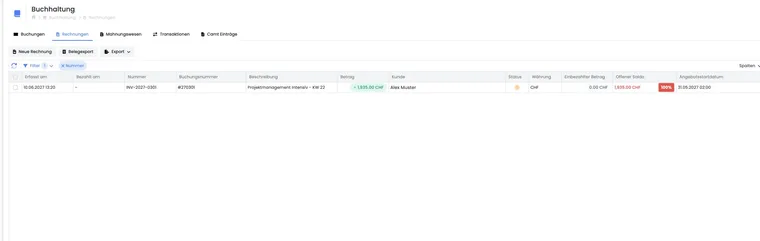
Create invoice
Invoices can be generated automatically or manually. They are based on the participant’s billable transactions. Before every invoice, check the amount, currency, booking context, billing address and due date.
Global invoice settings, bank details and offline payment rules are described under Invoices for offline payment and bank transfers.
Create an invoice automatically
With automatic invoice creation, edoobox creates a new invoice for a participant booking and can email it with the booking confirmation. Whether this happens depends on your invoice settings, templates, payment methods and offer rules.
Automatic invoices are particularly useful for standardised booking processes. However, before going live, test that Rechnung.pdf, the due date, tax, QR reference and email template are output correctly.
Create an invoice manually
You can manually create an invoice from the user profile, booking context or global invoice table. This requires billable transactions that have not yet been assigned to an invoice.
Open the required user profile or global invoice table.
Select New invoice.
Select the person and then the outstanding negative transactions.
Check the amount, description, currency and booking context.
Create the invoice and check the PDF.
If starting from the global invoice table, first select the affected person and then the billable transactions. Select only items in the same currency and check that the transactions really belong together.
Transactions as the basis
Invoices are based on transactions. Negative transactions typically represent outstanding amounts or charges. Manual transactions can later serve as the basis for an invoice, provided they are correctly assigned to the person and booking context.
A manually recorded payment without an invoice link affects the person’s overall balance but does not automatically settle a specific invoice. See Manually record and check participant transactions for details.
To make manual transactions payable online, include the ##InvoicePayURL## placeholder in the invoice email or Rechnung.pdf. An invoice created from a manual transaction can then be paid through the payment link.
Send an invoice
An invoice can be emailed as a PDF. Before sending, check the recipient address, amount, due date, Rechnung.pdf, attachments and template. The Rechnung.pdf template controls PDF output.
If postal sending is active, the invoice can be sent by post. edoobox then sends it to the participant in a neutral envelope; the costs are charged to your edoobox account. Also see Send invoices by post.
Record incoming payments
Payments can be recorded through an enabled payment system, by bank transfer with payment reconciliation, or manually. Incoming payments can be entered against the invoice with their dates and amounts.
The payment dialog is prefilled with the outstanding invoice amount. After saving, edoobox updates the invoice status, documents and transactions. If more than the outstanding amount is paid, the excess may appear as credit in the participant account.
After every payment, check the remaining invoice balance and linked transactions. For bank files, use CAMT file payment reconciliation. For an accidentally entered or fictitious receipt, follow the correction process for test and erroneous entries; another free-standing transaction does not reset the invoice receipt.
Update an invoice after a booking change
If a price category, additional service, module or booking scope changes, edoobox does not automatically create a new invoice for every change. This is deliberate, allowing multiple adjustments to be fully checked first.
If the invoice and booking total no longer match, edoobox displays an update notice. Updating cancels the old invoice and creates a new one. The cancellation invoice retains the reference to the original invoice number, often with a cancellation alias.
Example: Update an invoice
Invoice SPS85 is updated after a booking change. edoobox creates cancellation invoice SPS85 S and then a new invoice, SPS86. This preserves a traceable record of which invoice was cancelled and which is now valid.
Detail actions: Payment, QR validation and refunds
Depending on status, the invoice details offer actions such as recording payment, QR validation, refunding, sending, updating or cancelling.
QR validation checks the invoice and shows either a success indicator or specific required-field violations. For errors, check the billing address, country, amount, currency, QR reference, tax number and payment details. See QR invoices and Automated QR reference for details.
Example: Check an invoice and record payment
Open the invoice from the invoice table or user profile. Check the status, outstanding balance and QR invoice validation. Then record the incoming payment with its date and amount. If a payment is to be refunded, first check the refundable amount.
Create a cancellation invoice
If a booking is fully cancelled or an invoice must be substantively cancelled, first check the saved cancellation conditions, documented withdrawal status, payments already made and required refunds. Cancelling a document and cancelling attendance are separate actions.
With saved cancellation rules, start cancellation from the booking and read the fee preview. The process may itself cancel the existing edoobox invoice and generate a new fee document. In this mode, do not routinely cancel the invoice manually beforehand. A fee invoice may also be created when automatic creation of new ordinary invoices is disabled but the cancellation case cancels an existing booking invoice.
- After cancelling the booking, open the linked invoices.
- Identify the original invoice, cancellation invoice and any new fee document using their numbers and booking context.
- Compare the cancellation fee, payment already retained for it and outstanding balance. A fee covered by the original payment should not be paid in full again.
- Then check the refund actually executed or the outstanding bank task. A cancelled document alone does not move money.
- Check the outbox before resending a document.
In the existing admin workflow without saved rules, outstanding invoices can block booking cancellation. Process the specific invoice displayed and only try cancellation again after checking. For waiting-list or enquiry bookings, the new cancellation rules generate neither a fee nor an automatic refund.
If an invoice is managed externally, clarify corrections and payment status in the responsible accounting system. Follow any requested manual review and check the actual status after updating. A success message or new PDF does not replace this check. For Bexio, read Change and cancel Bexio invoices.
The cancellation invoice template is maintained in the system templates. Check the text, logo, invoice details and legal notices. Cancellation rules and fees describes the calculation, and Review cancellation requests and fees explains subsequent case handling.
Invoice a cancelled invoice again
The current interface provides no action to undo cancellation of an invoice document. Among other things, Record payment and Update are blocked on a cancelled invoice. Downloading the PDF again does not make the old invoice valid again.
- Open the original invoice and cancellation document. Check whether only the invoice was cancelled or attendance was cancelled too.
- Check existing payments, credit, refunds and replacement invoices already present. An invoice with a new number must not create a duplicate receivable.
- If the service should still be charged and active, still-billable charges exist, select New invoice in the participant profile or invoice table. Follow the manual invoicing workflow and select only the appropriate items.
- If the item is missing from the selection, check the booking status and transaction context: the service may already be cancelled, paid or otherwise invoiced. Do not enter a second charge as a precaution. First clarify which attendance and receivable should actually exist.
- Check the new invoice number, recipient, scope of services, due date and payment status. Retain the original document, cancellation document and new invoice for traceable allocation.
A new invoice does not guarantee correct allocation of payments already received. Check their assignment before sending, do not request an amount already received again, and clarify uncertainties with accounting. With external invoice management, use the connected accounting system’s correction process.
Example: Document cancelled, attendance remains active
An unpaid invoice was cancelled accidentally. The booking remains active. Administration checks whether the original course charge is billable again under New invoice and generates a new document from it. It sends only the new valid invoice and checks the outstanding amount.
Refund a payment
For refunds, edoobox distinguishes documented refunds from technical refunds through payment providers. For bank transfers, document the refund in edoobox but execute the actual transfer through your bank.
For payments through Stripe, PayPal Checkout or Worldline/Saferpay, refunds may be supported directly or partially depending on payment status and provider. edoobox limits refunds to the refundable amount and prevents refunding more than was paid. More information is under Check refunds and transaction fees.
Invoice table, filters and document export
The global invoice table loads data from the server. It offers New invoice, document export, CSV, Excel and PDF export, synchronisation, selection counts, filters, active filter chips and column selection.
Standard columns include creation date, invoice number, booking number, customer, description, amount, currency, amount paid, outstanding balance, offer start date and status. Payable by, paid on, cancelled on, customer ID and ID can be displayed optionally. Column order, width and visibility are saved per admin.
Filters include status, customer, invoice number, booking number, description, amount, currency and various date ranges. For a date range, first select the date field, such as creation date, payment date, due date, cancellation date or offer start date.
CSV, Excel and PDF export selected rows; edoobox displays an error if none are selected. Document export is separate: select a period and download invoice documents as a PDF or XRechnung V3 as a ZIP. If an export job is already running, edoobox displays a corresponding notice.
Example: Export a month-end close
Open the invoice table, select the appropriate date field and set the date range for the month. Filter by status or currency if needed and select rows for CSV, Excel or PDF. For documents, open document export and choose the same period for PDF or XRechnung V3 ZIP.
In this view, PDF document export is prepared in the background and provided in the Secure File Manager. This also applies to small exports. Wait for the response and do not restart a job that is already running.
A combined PDF job includes at most 500 documents; the XRechnung ZIP export includes at most 1,000 records from the selected period. Split large periods and reconcile the document count, invoice numbers and cancellations with the invoice table. The XRechnung ZIP contains only processable documents with saved structured invoice data; externally managed invoices require an export from the system that manages them.
Check invoice management and due dates before correcting
In the invoice details, a document may be marked as managed by an external accounting system. The provider button then opens the corresponding document; local PDF and sending actions appear only if explicitly permitted. Check this responsibility first and do not maintain a second invoice for the same process in parallel. For Bexio: Configure the Bexio integration and Bexio synchronisation and errors.
Under Settings → Payment systems → Invoice, use Calculate a new due date when updating the invoice to specify whether the new invoice receives a recalculated payment period. The switch applies to updates with a new invoice number. After correction, check the due date and outstanding payment; a new PDF view alone does not change a deadline.
Invoices can now also arise from participant subscription receivables. In that case, check the associated subscription period before manually creating another invoice. More information is under Participant subscriptions: Renewal and cancellation.
For the current ZUGFeRD/XRechnung selection and the difference between table export and invoice document export, use Electronic invoices with ZUGFeRD and XRechnung.