
Payment systems for participant payments
Payment systems determine how participants can pay for their bookings. edoobox supports online payments, conventional invoices, QR invoices and other payment methods. You can find the settings under Settings > Payment systems.
Select only payment methods that you can manage operationally. Each additional method can make booking easier, but also requires its own arrangements for fees, payouts, refunds and accounting.
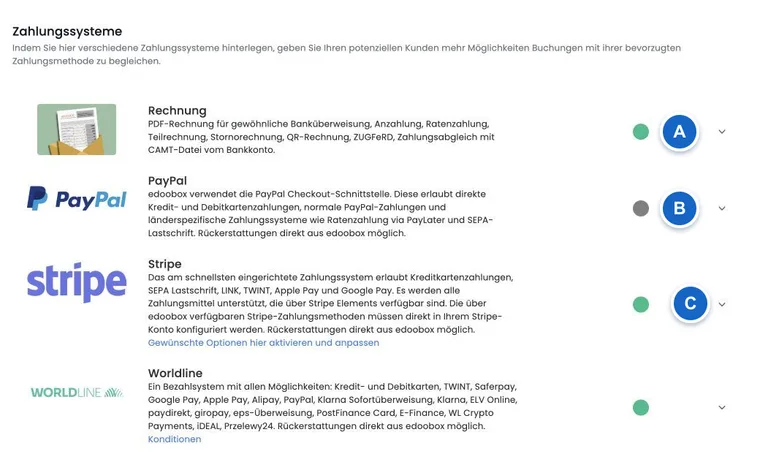
Available payment methods
| Payment method | Suitable for | Note |
|---|---|---|
| Invoice | Bank transfer, B2B, internal payment processes | Can be combined with QR invoices, payment reminders and payment reconciliation. |
| Stripe | Credit cards, debit cards and, depending on the configuration, SEPA Direct Debit | Well suited to direct online payment during booking; direct refunds may be possible depending on the status. |
| PayPal Checkout | PayPal, cards and other payment methods available depending on the country | Recommended instead of PayPal Legacy. |
| Worldline/Saferpay | Cards, TWINT, PostFinance, Apple Pay, Google Pay and other payment methods depending on the contract | Useful for larger payment volumes or existing Worldline contracts. |
| Sofort/Klarna | Instant bank transfer, depending on availability | Requires credentials from the provider portal. |
| BitPay | Cryptocurrency payments | Enable only if you deliberately want to offer cryptocurrency payments. |
Enable a payment system
Open the required payment method, enter the necessary credentials and then enable the switch for use in the booking process. For connected payment methods such as Stripe or PayPal Checkout, edoobox guides you through the provider's connection process.
Use a payment system actively in the booking process only after testing it. Check at least one test booking, the display of the payment method, the confirmation email, the payment receipt and the booking status.
The overview shows each provider's logo, description and status. A green status means active; a grey status means inactive. Some payment methods are displayed only if they are available for the account or environment.
Connect Stripe and PayPal Checkout
Stripe and PayPal Checkout use a Connect workflow. The Connect button opens authorization with the payment provider. After a successful return, edoobox displays a success message; if an error occurs, a notice is shown.
If a connection already exists, an action to disconnect is shown instead of Connect. An online payment system can only be enabled once it is connected. Enabling Stripe or PayPal Checkout may also display a fee confirmation that must be explicitly accepted.
Stripe V3 offers the automatic payment methods enabled for the respective transaction; SEPA is excluded for payments in currencies other than EUR. See Stripe – integrate credit cards and Stripe - SEPA Direct Debit for details. PayPal is described under PayPal Checkout.
Practical example: Enable Stripe Connect
Open Stripe, click Connect and complete authorization with Stripe. Then enable Use payment system and confirm the fee notice. With Stripe V3, check the enabled payment methods in the Stripe dashboard and in the actual booking process; the old individual card and SEPA switches are no longer displayed there.
Worldline/Saferpay, Klarna and BitPay with credentials
Worldline/Saferpay is configured using the customer ID, terminal ID, API key and Secret Key. The API key and Secret Key may appear masked when you reopen the settings. The activation switch remains disabled until all required fields have been completed.
Sofort/Klarna requires the Klarna Sofort key. BitPay requires the BitPay key. Validate the data before enabling the payment method, then test a booking. PayPal Legacy is obsolete; use PayPal Checkout wherever possible.
Practical example: Renew Saferpay credentials
Open Worldline/Saferpay, enter the customer ID and terminal ID, then add the API key and Secret Key. Save the details and enable Use payment system. To remove the credentials completely, use Reset. Disabling the payment system alone does not delete the saved credentials.
Which payment methods to combine
For many accounts, a combination of invoice and one online payment system is sufficient. Invoices cover corporate customers, manual payments and special cases. An online payment system reduces outstanding amounts because participants can pay directly during booking.
Avoid offering too many similar payment methods at the same time. If Stripe and Worldline/Saferpay cover the same card and wallet payments, base your decision on your contracts, fees, payout processes and desired payment methods.
Practical example: Invoice plus Stripe for corporate courses
A training provider offers invoicing to corporate customers and credit card payment to private individuals. Invoice remains enabled in edoobox, while Stripe is also connected and tested. The provider then checks whether the order of payment methods in the booking process is clear.
Invoice, QR invoice and XRechnung
Invoices form the basis for bank transfers and manual payment processes. Here you maintain bank details, beneficiary, IBAN, BIC, invoice number alias, next invoice number, due date, alternative billing address, automatic invoice delivery and manual invoice creation. Setup is described under Invoice for offline payment and bank transfer.
QR invoices and electronic invoices cannot be active simultaneously in this editor: enabling one disables the other. Before switching, check the required format and then inspect a newly created invoice. For Swiss payments, use QR invoices if needed. Automated QR references with SCOR or QRR are explained in Automated QR reference.
For QRR, the reference structure must be valid. A preview helps you check how fixed values, placeholders and the check digit are combined.
Payment status, refunds and outstanding amounts
When an online payment is completed successfully, edoobox updates the booking's payment status. For invoices and manually received payments, check the status through the invoice, transactions or Payment reconciliation using a Camt file.
Refunds depend on the payment system used. With some providers, refunds can be initiated directly from edoobox; with others, they must be processed through the provider portal or your accounting team. Before going live, therefore check how your team handles cancellations, booking transfers and repayments. Details: Check refunds and transaction fees.
Allow online payment for manual invoices
If you create invoices manually but still want to offer online payment, you can use the placeholder ##InvoicePayURL## in the invoice email or Rechnung.pdf. Participants then receive a payment link, provided a suitable online payment system is active.
Maintaining placeholders is described under All placeholders for emails and PDFs.
Additional practical information
Decision guide: Select a payment method to suit your booking workflow
Assess a payment method based on when the booking should be confirmed and who checks the payment. Immediate online completion and a bank transfer received later create different workflows. This particularly affects MustPay and Countdown.
For each active payment method, define how your team handles pending processes, corrections and refunds. Offer the method only once the confirmation text, invoice and internal checks are aligned with it. The choice in the payment form is only the visible starting point of this workflow.
Checklist: What does a complete payment test include?
Check normal completion as well as an abandoned or still pending process. Then compare the booking, invoice, transaction and outbox. These views answer different questions and together should show the expected result.
If you change payment methods later, test the public booking process again. Check which methods are actually offered and which payment notice appears. Review existing pending cases in the previous payment method separately so that your team can still trace them after the change.
Identify the right workflow for new payment features
| Task | Where to start |
|---|---|
| Use a participant's existing credit for their next booking | Automatically apply a positive participant balance. The switch is located above the payment systems; credit is applied in the same currency. |
| Automatically pay edoobox account costs with the company card | Automatic payment with a saved credit card. Manage these cards in your edoobox account's billing settings. |
| Bill a new period of a participant subscription | Participant subscriptions: renewal and cancellation. Renewal and invoicing do not by themselves mean that a card is charged automatically. |
| Select a machine-readable invoice format | Electronic invoices with ZUGFeRD and XRechnung. Select the profile required by the recipient. |
| Export edoobox fees for Stripe/PayPal payments | Export transaction fees as CSV; the download is available to authorized superadmins. |
Sofort/Klarna has a restriction: the entry appears only if a configuration already exists and the environment permits it. Treat it as an existing integration. With Stripe V3, Stripe's automatic payment methods control the selection; the old individual card/SEPA switches are hidden there.
Make a binding booking and pay on site later
If someone should receive a place and pay only at the event, the completion rule and payment information must align. Removing the payment widget does not change a MustPay rule.
- Check MustPay on the relevant offer. A workflow requiring immediate payment does not suit payment planned for later on site.
- In the global registration settings, check whether a Payment page is displayed after every completed booking. Align this account process with the intended offer.
- Define the document and checking workflow, for example an invoice with suitable payment information. A «Payment on site» notice in a template does not record a payment.
- Configure the visible payment methods appropriately in the assigned design and complete a full demo booking.
- Check that participation is actually confirmed and the outstanding amount remains traceable. Record the payment only after the money has actually been received, on the associated invoice.
A manually entered positive transaction without an invoice reference may change the person's balance without settling the intended invoice. Therefore, after the event, check the booking status, specific invoice and transactions together.