
User profile
The user profile is the central detail view of a person in edoobox. You open it from the user overview, from tables, bookings, invoices, or linked areas.
In the profile, you can view and edit personal details, status, the master participant designation, participant data fields, tags, balance, barcode, bookings, invoices, outbox, notes, and transactions. The visible actions depend on permissions, payment and barcode settings, data field configuration, and user rights.
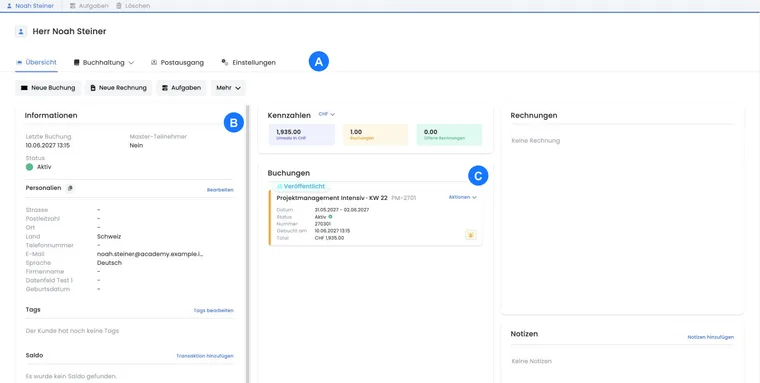
Overview and navigation
The default view is the overview. There are also separate areas for bookings, invoices, outbox, settings, and transactions. If the plugin is active and you have the appropriate permissions, an area for subscriptions and passes is added. When you open a profile, edoobox loads the person’s dashboard and automatically names the tab with their full name.
The overview is column-based. Depending on screen width, information, key figures, bookings, invoices, and notes are displayed side by side or one below the other. If a person cannot be loaded or has been deleted, edoobox displays a corresponding message.
Application example: Check inquiry about a person
Open the user profile from the user overview. First check status, last booking, and master participant. Subsequently, check bookings, open invoices, and notes. If several similar persons exist, compare the existing profiles before entering new data.
Quick actions in the profile
At the top of the overview, direct actions are available: new booking, new invoice, and tasks. Via More, you open the email dialog, participant data fields, or delete function depending on permissions.
New booking: starts a manual booking for this person.
New invoice: opens the dialog for adding an invoice. Selected transactions must be billable and use the same currency.
Tasks: opens the task manager with the person as recipient.
Mail to customer: opens the email dialog. If no email address is stored, edoobox displays a notice.
Delete: asks for confirmation before irreversible deletion and blocks if protective bookings exist.
Information, personal details, and tags
The information area shows the last booking, master participant designation, current status, and important personal details from the visible data fields. First name, last name, and gender are deliberately hidden in compact lists depending on the view because they are already visible elsewhere.
Personal details can be copied directly. Email addresses additionally receive a copy action. Files from data fields are displayed as files. Date fields are formatted as dates to prevent unwanted time components due to time zones.
Tags are displayed in the profile with color, icon, and optional value. If a tag resource is no longer available, edoobox marks it as an unknown resource. Via Edit tags, you open the tag selection for this person.
Balance, map, and barcode
The balance shows whether the person has a zero, positive, or negative balance in each currency. You can record a manual transaction using Add transaction. If invoices are enabled as a payment option, edoobox indicates this in the tooltip.
If address data and geocoding are available, the profile can display a map. The map prioritizes the person's address and is only displayed if it is allowed for this person.
The barcode area shows an existing barcode of the person. Depending on permissions, you can view, create new, reset, deactivate, view archived barcodes, or open the global barcode settings. A new barcode invalidates an existing barcode. Basics are found under Barcode: Ticket and barcode settings and Access control with tickets.
Key figures and bookings
The key figures summarize the person's revenue, active bookings, and open invoices. If multiple currencies are used, the displayed currency can be changed. edoobox first uses the selected currency, then organization or used account currencies from existing bookings.
The booking list shows bookings by booking date, newest first. Each booking card contains offer, offer number, offer status, date, booking status, booking number, booking time, and total. Promotion codes and group bookings are marked directly.
Via actions of a non-cancelled booking, you can add an invoice, rebook, retrieve confirmation as PDF, retrieve ticket PDF, or cancel the booking. When cancelling, edoobox loads booking data if necessary and opens the cancellation dialog with fee options. The separate bookings area opens the complete booking table filtered to this person.
Application example: Edit booking from the profile
Open the overview in the user profile and find the affected booking. Check status, date, and total. Open the ticket or confirmation via actions, add an invoice if necessary, or start rebooking or cancelling directly from the booking card.
Invoices and transactions
The invoice overview shows invoices by entry date, newest first. An invoice card shows number, name, status, entry date, due date, open amount, and total. If the booking total has changed and the invoice should be updated, edoobox marks this with a notice.
The invoices area opens the complete invoice table filtered to the person. The transactions area shows all transactions of this person. How to record and check manual participant transactions is explained in Manually record and check participant transactions.
Outbox, tasks, and notes
The outbox shows emails and sending events directly in the person’s context. This lets you quickly check whether a confirmation, invoice, reminder, or dunning notice was sent.
Tasks can be created directly from the user profile for this person. They are not executed immediately but in the intended execution window. Notes are loaded for the person; manual notes can be supplemented, system notes are traceable but not editable like normal notes.
Settings and data fields
In Settings, edit the person’s visible participant data fields, status and master participant setting. Changes are saved after a short delay. Allow saving to finish and reopen the profile to check the values before using the updated details for an invoice or a mailing.
The global data field structure determines which fields are visible and editable. Text, date, language, gender, country, and file fields use different inputs. For a new person, files can be uploaded to file fields only after the person has been created.
When manually entering, edoobox remembers last used default values such as language and country. If no valid country is set, the organization country from account settings can serve as a reference.
Distinguish between warning note, participant status, and booking block
The participant status is intended for internal purposes according to the profile notice. Do not use “Inactive” as a reliable block for all new bookings. An internal warning note alone does not prevent public registration.
- If a matter needs clarification, add a factual internal note to the correct profile and define who is allowed to review new bookings.
- If you need regulated access, use the intended booking conditions, internal offers, and possibly the SSO access. A tag marking only takes effect where a corresponding condition is evaluated.
- Check the specific process with registration, direct offer link, and group registration. Consider new profiles and manual admin bookings separately.
- If a specific person must be reliably excluded regardless of profile and booking path, clarify the supported technical enforcement with support before promising this block organizationally.
A profile notice is a help for your team. It does not provide a proven account-wide identity block over every possible new registration.
Duplicates and delete protection
Before new entry, check name, email, company, bookings, and other identification fields. With duplicate search enabled, the information area can display the number of found duplicates. Click on this notice or the duplicate check action to open the assistant.
Compare the persons and impacts there, consciously select the profile to keep, and clarify field conflicts before merging. The indicator is only loaded if duplicate search is enabled and your admin role allows access. The account-wide list is found under Settings → Duplicate search → Open duplicates. The complete procedure is explained in Check and merge duplicates.
When deleting, edoobox protects persons with blocking active or passive bookings. The message displays affected bookings that you can open for review. Clarify their context before attempting to delete again. A duplicate is merged via the assistant; manually deleting a similar profile is not a substitute for this.
The same email address does not automatically mean the same person: A contact person can book for multiple participants, and personal profiles may contain shared addresses. Therefore, the address is not a guaranteed globally unique person identifier. Compare the actual identity data and the booking role before merging profiles. To separate the contact person from the seats, use Group registration with participant data.
Review a person's subscriptions and passes
Open the Subscriptions section in the profile if a person has a membership, a time-limited subscription, or a multi-pass. Check the status, validity, origin, and entry date on the card. For subscriptions with periods, the period, amount, and payment status of the individual periods are additionally displayed.
Depending on the subscription and permissions, you can add an assignment, edit the validity, open a payment, or manage the automatic renewal. The displayed status and the paid period are crucial for usage. The individual steps are described in Manage participant subscriptions; to continue a subscription, read Renewal and cancellation.
Related guides
- User overview
- Participants
- Participant dashboard
- Participant data fields
- Manually enter and book participants
- Cancel/rebook participant booking
- Cancel/rebook group participant booking
- Invoice and cancellation invoice
- Email system in edoobox
- Create tasks and plan emails
- Notes and TODOs
- Avoid duplicates and check participant data