
Account settings
Account settings combine key information about your edoobox account. Maintain organisation, billing address, formats, barcode and ticket options, group registration, participant data fields, API access, tracking and global email settings here.
Changes to account settings may affect many areas. Always check important adjustments with a test offer or test booking.
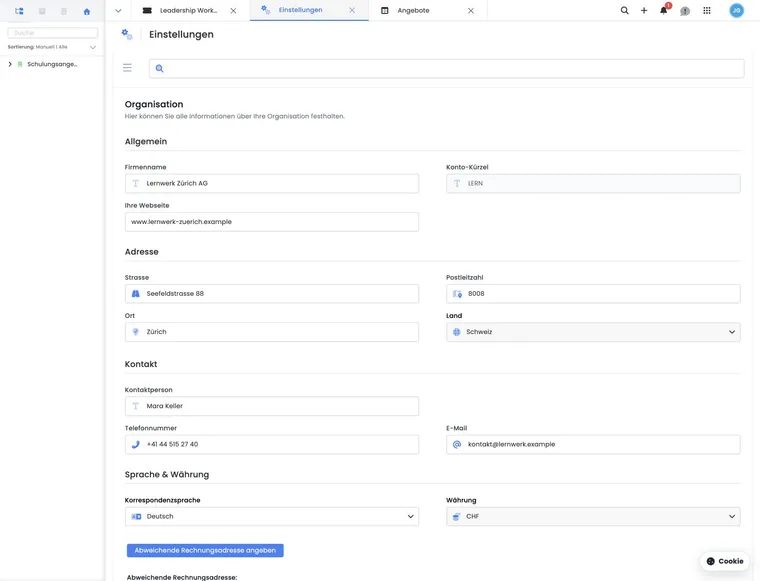
Organisation and billing address
In the organisation section, maintain company name, website, address, contact person, telephone, email, correspondence language and displayed organisation currency. Company name, street, postcode and town are typically mandatory.
The website can be saved without a protocol; edoobox automatically removes details such as http:// or https:// if needed. Organisation country is more than an address entry: it influences countries, currencies, new participants and default tax logic.
Specify alternative billing address opens the billing address dialog. Activate it only when all mandatory data is complete. If mandatory data is missing, edoobox may disable its status again.
Formats, time zone and language
The Formats section controls the account-wide date format, time format, calendar time grid, first weekday, time zone, PDF format and price format. These values affect calendars, tables, PDFs, the booking process and number displays.
When you change the time zone, edoobox shows a confirmation dialog with examples of the old and new times. Stored points in time are then displayed in the new time zone. Check existing appointments after the page reloads: if their original local times should remain, adjust the affected appointments explicitly. Changing the time zone alone does not notify participants of a rescheduled appointment.
Correspondence language and active booking-process languages use the language settings. Details are in Formats: date, time and number format and Language settings.
Barcodes, tickets and Mobile Wallet
In Barcode, select the barcode type for tickets. Changing the type does not automatically modify barcodes already created. Therefore check ticket PDFs and admission after changes.
If barcodes should be generated for participants, the appropriate ticket or email template must also be correct. For ticket PDFs, the Attachment: Ticket.pdf template is relevant.
If Mobile Wallet tickets are active, maintain additional defaults such as display name, background colour, text colour, offer image, fallback image URL and support URL. These form the account-wide basis for Wallet tickets.
Group registration and master participants
Under Group registration, set the maximum group participant count per booking. Match it to the offer, capacity and intended process. Excessively high values may unnecessarily complicate the form and subsequent management. Entry is limited to whole numbers; in practice, use only values that your form, capacity and internal checks can reliably handle.
Also choose a participant identification field, such as email. Require identification determines whether master participants can select only existing people. Depending on the account, master participant modes such as none, manual or all are available.
For a booking contact who does not participate, use the appropriate participant form mode. Open place registration without names and group registration with known people have different follow-up workflows. Detailed guides are Group registration with participant data and Group registration without participant data.
Participant data fields
The Participant data fields section opens the data structure editor. Sort fields, rename permitted fields, enable or disable visibility and select types such as Text, Date or File for custom fields.
Locked fields are protected and cannot be changed directly. For a data field to be requested during booking, it must also be linked in the participant form in the Design Manager.
For duplicate searches, note that Date and File fields are unsuitable as duplicate rules. If a custom field is set to Date or File, do not use it for automatic duplicate detection.
Support duplicate searches through data fields
For suitable participant data fields, specify whether they should be considered in duplicate searches. Use stable values such as membership or personnel numbers and avoid changing free text.
Under Settings → Duplicate search, find open candidates with scores, field comparisons and the merge wizard, along with detection rules. Check the effects before merging. The complete guide is under Avoid duplicates and check participant data.
API keys, Google Tag Manager and verification
API access management shows existing API keys, status and assigned permission. The Public Key can be copied; the Secret Key appears only once after creation and must be saved securely immediately. Select status and permission when creating access. If a suitable permission is missing, predefined permissions for typical uses such as read access, WordPress or Zapier can be prepared depending on the account.
Share API keys only if you would also share the corresponding admin access. Access follows the assigned permission. Details are under Manage API keys and access permissions.
Depending on account enablement, configure Google Analytics, Google Tag Manager and other available providers in tracking. The current workflow with events, consent and iFrames is described in Set up Tracking V2. For Google, save the Google Analytics measurement ID and Google Tag Manager container ID. The measurement ID should match G-... and the container ID GTM-.... Verification tags for Google or Facebook can also be managed. If edoobox can export a prepared GTM container, review the exported JSON file before importing into Google Tag Manager, then test consent, domain and booking completion. Read Google Tag Manager / Google Analytics.
Outbox and global messages
The account outbox shows account-wide messages and delivery statuses independently of an individual person. This helps check failed messages, global system emails or sending problems.
Relevant guides for the email system, sending methods and templates are Email system in edoobox, Email settings and Outbox: emails and failed messages.
Global notices and skipped messages
Some account notices can be skipped temporarily. edoobox remembers these skipped states so the same notice does not immediately reappear. Skipping does not mean the underlying matter is resolved.
If a notice becomes relevant again, deliberately check the affected setting rather than ignoring it permanently. This is particularly important for subscriptions, privacy, payments, email delivery or missing mandatory details.
Consider permissions and subscriptions
Not every admin may edit all account settings. Check permissions before treating a missing option as an error. API keys, subscriptions, privacy, email delivery and tracking should be accessible only to authorised people.
Some features also depend on the subscription. Custom participant data fields, certain login options, internal offers or advanced integrations may be restricted by plan. If a setting is unavailable, first check edoobox subscriptions and Subscription settings.
Test and document changes
Account settings often affect many offers and processes within the same account. Document major changes with their date, responsible person and reason. This is particularly important for time zones, barcodes, API keys, tracking, participant data fields and billing addresses.
After changes, perform at least one suitable test action: test booking, test email, ticket PDF, invoice PDF, API test or tracking check. This reveals effects before participants are affected.
Pre-launch checklist
Check organisation, address, contact email and correspondence language.
Complete the alternative billing address if needed.
Check time zone, date, time, price format and PDF format.
Test barcodes, ticket PDFs and Mobile Wallet.
Check group registration and participant identification.
Link participant data fields in the Design Manager.
Check identification fields for imports and duplicate searches.
Make API keys, tracking and the outbox accessible only to authorised admins.
Use cases
Example: correct the time zone before launch
During setup, an organisation notices the wrong time zone is saved. An authorised person compares the old and new session times shown in the confirmation, saves the change and reloads the view. They then check several existing sessions and a test booking.
Example: secure company registrations with duplicate searches
Group registrations allow at most 20 people and use email as the identification field. The organisation checks the actual rules and their weighting instead of assuming a general default weighting. Before merging profiles with memberships, it additionally checks transfer of their subscription data. A test booking shows whether existing people are recognised without incorrectly merging different employees.
Example: external reporting with limited API access
A BI system should read offer and booking data without changing anything. The administrator creates an API key with suitable read permissions, securely saves the Secret Key shown only once and performs a test request. Tracking and outbox settings remain separate.
Distinguish plugins, account subscriptions and participant subscriptions
Manage your edoobox software plan under Subscription. Activate enabled extensions in the Plugin Manager. Then set up memberships and passes for participants in the subscription manager.
For reusable reports, use the Export Manager. Suspending or deleting the entire edoobox account is described separately under Suspend or delete an account.
Related guides
- Settings globally in edoobox
- Set up my new edoobox account
- Organisation: company and account information
- Formats: Date, time, and number format
- Barcode: Ticket and barcode settings
- Participant data fields
- Avoid duplicates and check participant data
- Group registration with participant data
- Manage API keys and access rights
- Google Tag Manager / Google Analytics
- Email system in edoobox
- Layout settings
- Settings Subscription
- Settings: legal texts