
Send a booking confirmation manually
Online bookings normally trigger their confirmation automatically. Manual sending is intended for a controlled resend, for example after a booking transfer, an admin booking or failure to receive the original message.
This action generates the confirmation from the current booking state. Before sending, therefore check the date, participants, price, invoice, waiting list status and destination address. An old message is not simply forwarded unchanged.
Check before sending
The booking is not cancelled. The sending action is disabled for cancelled bookings.
The main contact and their saved email address are correct.
The date, offer, participants, additional services and booking status are current.
Any invoice to be attached genuinely belongs to this booking and shows the intended current state.
The appropriate language version of the email and PDF templates has been checked.
Send a booking confirmation from booking details
Open the required booking through Manage bookings or from the participant profile.
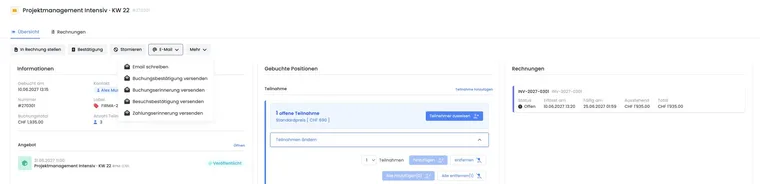
In the booking summary, open the Email action menu.
Select Send booking confirmation.
Check the recipient and address displayed in the dialog.
If required, select exactly one invoice and click Send.
Default recipient or alternative email address
By default, the message is sent to the main contact recorded in the booking. Enable Alternative email address if they should receive a confirmation once at another valid address.
One-time delivery: The alternative address changes neither the saved main contact nor their email address. Future messages use the booking data again unless you edit it separately.
This option is suitable, for example, for an assistant or internal checking address. Use it only if the recipient is permitted to receive the booking and personal data included.
Attach a specific invoice
The dialog loads the booking's invoices and shows the newest first. Alongside the name, you see status, date and amount. When sending, the selected invoice is regenerated as a PDF from its current state.
Select no more than one invoice per send. To send another invoice separately, repeat the process. This keeps it clear which document belongs to each message.
Which template and attachments are used
The booking status determines which system template is used:
Normal booking: Booking confirmation.
Waiting list booking: Waiting list confirmation.
Request list context: The designated request list confirmation, if the context is present.
Files stored in the respective template are also included. Depending on account and offer settings, the following attachments may additionally be generated:
Booking.pdf: If sending the booking PDF is enabled globally.
Ticket.pdf: If ticketing is configured accordingly; no ticket is generated for a waiting list booking.
Termine.ics: If ICS delivery is enabled, dates exist and this is not a waiting list booking.
Rechnung.pdf: If you selected an invoice in the dialog.
An action labelled Send booking confirmation therefore does not force a normal confirmation for a waiting list booking. The current status prevents accidentally sending a ticket or calendar attachment for a place that is not yet confirmed.
Check delivery in the outbox
After sending, open the outbox. Check the destination address, subject, delivery status and attachments. This makes it possible to trace which message was actually generated if a question arises.
If the content is incorrect, do not correct only the individual booking. Also check the email template used, placeholders and global settings so that the next automatic message is correct.
Practical example: Confirmation after a booking transfer
A participant moves to a later date. The administration checks the new booking, updates the invoice and ticket if necessary, then resends the confirmation. They check the outbox to ensure that only the new dates and correct attachment are included.
Practical example: A one-time copy to an assistant
The person making the booking asks for the confirmation to be sent once to their assistant. An alternative address is entered in the dialog. The saved main contact remains unchanged; before sending, permission for the assistant to receive the personal data is confirmed.
Practical example: Waiting list with later confirmation
A person is initially on the waiting list. Manual sending therefore uses the waiting list template and includes neither a ticket nor an ICS file. The normal booking confirmation with its enabled attachments is sent only after a place is confirmed and the status correctly changed.
If an invoice does not appear in the dialog
The dialog offers only invoices for which a local PDF may be used. With connected accounting, the invoice may be managed in the external system; it therefore does not necessarily appear as a selectable local attachment. Check invoice details and use the delivery method intended for that invoice.
Select one invoice for a message that can be reliably associated with its document. Check the result in the outbox even if the interface offers multiple selection boxes.
If sending fails or the message is missing
- Check the recipient address and, for an alternative address, its spelling.
- Open the outbox and find the message for the booking. If an error entry exists, resolve the delivery problem first.
- If only the invoice attachment is missing, check on the document whether a local PDF is permitted. For external documents, use their intended delivery method.
- Check the previous delivery status and, after correcting the issue, deliberately trigger the resend exactly once.