
Bootstrap 5.3
The illustrations show an earlier version of the interface. Use the steps in this guide for the available features and options.
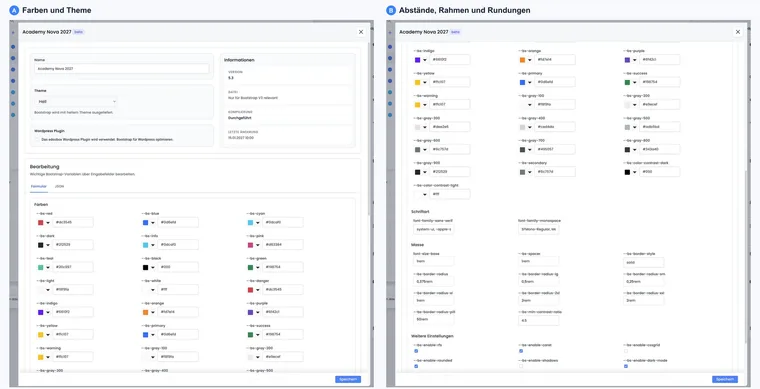
With a custom Bootstrap 5.3 style, you can adapt the appearance of the edoobox booking process to your corporate design. For example, control colours, spacing, rounded corners, fonts and selected Bootstrap options.
This feature is intended for people with HTML, CSS or Bootstrap knowledge. Simple changes such as the primary colour, button colour or font can often be made directly in form mode. For complex styles, a clear design specification or support from a knowledgeable person is worthwhile.
Requirements and scope
Open the Design Manager with editing access and work on your own design. A protected system design provides a starting point; create your own copy for changes.
You know which colours, fonts and spacing your booking process should use.
You test changes in the preview and on mobile devices before publishing.
For highly customized changes, check the CSS and Bootstrap rules before using the style in production.
The basics of designing the booking process are described under Design the booking process with the Design Manager. For editor details, see Design Manager: editor, layout, widgets and Bootstrap configuration.
Create or edit a Bootstrap style
In the Design Manager, open your own design and its design settings. Check the assigned Bootstrap style and version.
Under Bootstrap Styles, select your own style to edit or create a new one using Add. Give it a clear name and use version 5.3 for new features.
Select the starting mode Light or Dark. Decide whether to maintain variables in Form mode or separately for Light and Dark in JSON mode.
Save and wait for style processing to finish. Select the style in your own design and check the public preview.
Styles using an older Bootstrap version (up to version 5) can be selected in the current editor but cannot be changed there. A new custom style changes existing designs only when assigned to them. Enable WordPress optimization for the actual WordPress integration and check it separately there.
Adjust colours
The main colour values control primary buttons, links, success messages, warnings, errors, the background and global text colour. Ideally, use your official corporate design colours and check for sufficient contrast.
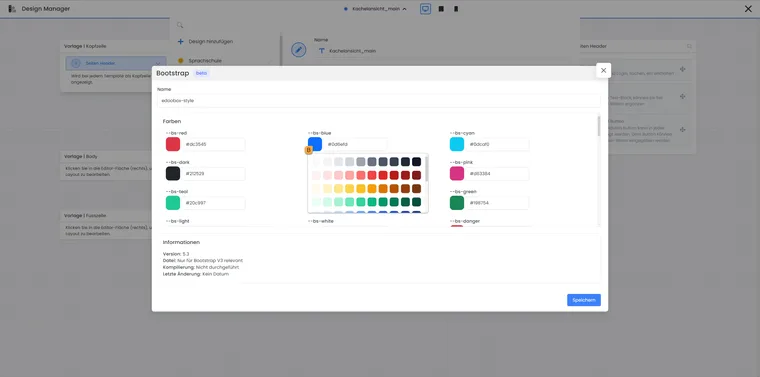
Colours can be selected using the colour field or entered as a hexadecimal value. The example shows colour selection for a Bootstrap 5.3 style.
- B
- Open the colour palette for the selected colour field
Typical values are --bs-primary for the primary colour and links, --bs-success for registration buttons, --bs-warning for waiting list notices, --bs-danger for errors or cancellation actions, --bs-white for light backgrounds and --bs-gray-900 for text.
Spacing, borders and rounded corners
Spacing and rounded corners influence whether the booking process looks compact, spacious, functional or consistent with your brand. Even small changes can be visible, for example on cards, buttons, form fields and messages.
Always check the effect in the offer overview, offer details, participant form and payment page. Excessive spacing can make mobile pages unnecessarily long; insufficient spacing makes them harder to use.
Other Bootstrap options
Some Bootstrap options enable or disable general behaviour such as rounded corners, shadows, gradients, motion, grid classes or validation icons. Change these values only if you can properly check their effect during booking.
Readability, clear focus states and restrained motion are important for accessibility. If you change animations, shadows or contrast, pay particular attention to form fields, error messages and buttons.
Common Bootstrap variables
The following keys are editor/JSON variables for creating styles. Enter them in JSON mode without --bs-. The activation switches are not CSS variables that you can simply write into a text block at runtime.
| Key | Effect |
|---|---|
enable-rfs | Responsive font sizes |
enable-rounded | Rounded corners |
enable-shadows | Shadows |
enable-gradients | Gradients |
enable-transitions | Transitions |
enable-validation-icons | Validation icons |
enable-reduced-motion | Respect reduced motion |
If JSON is invalid, first correct the syntax error shown. If style processing fails, use the previous working style, correct the change and save again. Then check form errors, buttons and long texts in both light and dark appearances.
Change the font
In the Font section, define which sans-serif font and which monospace font to use. A legible sans-serif font is sufficient for most booking processes.
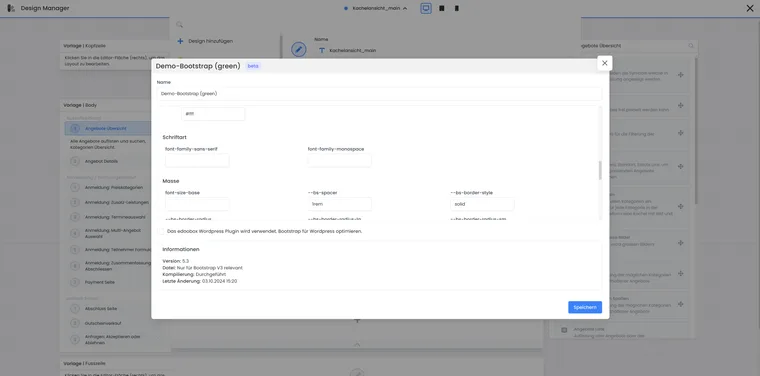
The two font fields distinguish between the general font family and the font for fixed-width characters. The preview must suit the website where it is embedded and the design used.
If you use an external font such as Google Fonts, you must also ensure that the font is loaded during booking. Add the appropriate CSS import only after clarifying data protection, performance and loading time.
Test the style before going live
Test at least these areas: offer overview, offer details, participant form, additional questions, shopping cart or payment page, error messages, waiting list and mobile view. Also check that text in buttons, badges and form fields is not cut off.
If the style is used for several languages, pay particular attention to longer German and English labels. A button that fits one language may be too narrow for another.
Practical example: Prepare a style for a corporate academy
A corporate academy adopts the primary colour, font and button rounding from its corporate design. The team then tests the offer overview, registration and payment page on a desktop computer and smartphone. The style is used for the public booking page only once contrast, readability and button widths are correct.
Compare your Bootstrap style on the main booking pages: offer overview, offer details, participant form, summary and Payment. Pay attention to contrast, focus states, error messages and mobile readability. A style that looks good in the editor may still feel distracting in long forms.
Plan the Bootstrap version and new widgets together
A Bootstrap style is selected within the design. The template alone does not upgrade an older design to Bootstrap 5.3. Check the version of the style actually assigned before looking for new widgets.
Offer image, Participant photo, Subscription selection in the booking summary and the new Withdrawal action require Bootstrap 5.3. The three waiting zone widgets are also displayed in the Bootstrap 5.3 booking design. The template and widget overview lists the appropriate locations.
In form mode, use the labelled settings. In JSON mode, use the available variable keys without the --bs- prefix, for example primary or enable-rounded. The visible --bs-… labels in the form are not instructions to insert every option as runtime CSS. Save the Light and Dark settings and check both appearances.