
Viral marketing: your participants promote you!
With viral marketing, participants can receive a voucher code after a successful booking to share or use for follow-on offers.
The feature connects promotion campaigns with email templates. Therefore first plan which offer should be promoted, who receives the code and how long the campaign is valid.
Typical uses
Acquire new customers through referrals after booking.
Promote follow-on offers to existing participants.
Send discount codes after course completion.
Motivate participants to recommend an offer within their own circles.
Prepare a promotion campaign
First create a promotion campaign with clear validity, discount value and target scope. Limit usage if the code should apply only once or only to certain offers.
Test the code during booking before sending it automatically. Check that discount, invoice and booking confirmation are correct.
Read the promotion summary
The new promotion summary brings the most important campaign metrics together on one page. You see status, filing status, period, value, application, previous uses, possible uses and number of generated codes. This makes it easier to see whether a campaign is active, correctly limited and still useful to use.
In Promotion, edoobox additionally shows the campaign placeholder, for example ##Promotion[123]##. Use this placeholder in appropriate email templates or PDFs if participants should receive the code automatically.
Check validity and restrictions
Validity scope: shows whether the code applies to the whole account, specific categories or individual offers. If there are many scopes, you can expand the full list.
Booking type: shows whether the promotion is restricted to certain booking types.
Domains: restricts codes to specific email domains if the campaign should apply only to people from an organisation.
Minimum booking value: prevents codes being used for bookings below the minimum value.
Customer tags: positive and negative tag conditions control which participants a code is valid for. Details are provided under Use tags as conditions.
Below the overview, you see the campaign’s code table. Check individual codes, redemptions and anomalies there before extending, disabling or communicating a campaign again.
Insert a code into an email template
- Open the prepared campaign and copy the placeholder offered in the promotion summary.
- Open the desired email template and insert the copied expression in the appropriate place. It has the form
##Promotion[öffentliche-Kampagnen-ID]##; use the actual ID from edoobox. - Alongside it, explain offer, validity, usage limit, target group and whether sharing the code is permitted.
- Maintain texts in every language used and send a preview to an internal test address.
- Check the substituted code, campaign assignment and code count before starting bulk communication.
The placeholder generates a new code from the campaign during rendering. It does not reference a permanently unchanged existing code per person. Another preview or resend may also generate an additional code. Copy an already issued code as fixed text only if that exact code should be shared.
Check success
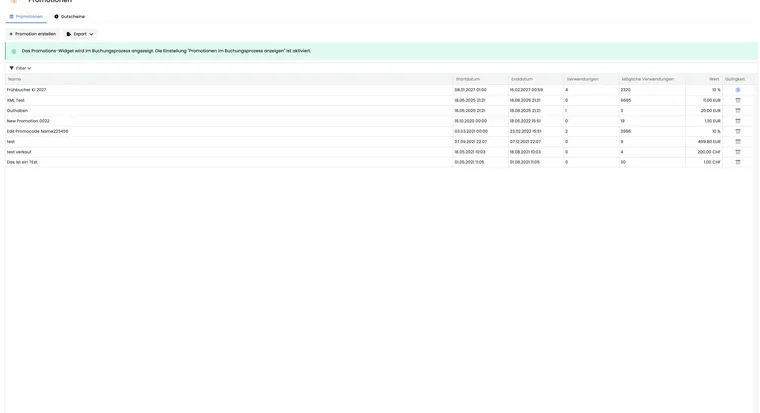
In the promotions overview and promotion summary, check how often codes were used. Look for unusually many redemptions, expired promotions and campaigns still active after the campaign ends.
Example: Referral after an introductory course
After the introductory course, participants receive a code for an advanced course. The organisation restricts the code to the ‘Advanced courses’ category, sets 30-day validity and checks redemptions in the promotions overview after sending.
Communicate redemption conditions and remaining value clearly
An automatically issued referral code is subject to its campaign’s conditions. State target offers, period, minimum value and usage limit, and check voucher output with an actual demo message. A preview alone does not replace checking the code in the outbox.
For a fixed value applied to the booking total, additionally determine how excess value is treated. The setting is described under Remaining values and credit balances. This process is not intended for percentage discounts or simple offer price reductions.
Check the conditions of a remaining value separately
Participant credit and a new code for the remaining value inherit the original code’s restrictions differently. Credit becomes a separate balance without the original offer restriction or expiry. A new code receives its own promotion with a minimum booking value of 0; customer tag conditions are not copied automatically. For restricted campaigns, check the restrictions actually created. For the complete process, see Vouchers: remaining values and credit.