
Invoice transmission to DATEV
If your accounting department uses DATEV, invoices from edoobox can be prepared for further processing. Depending on your organisation, this happens manually, by email to DATEV or through an automation.
Always clarify the desired workflow with your accounting department or accountant first so that the format, period and responsibilities are correct.
What edoobox actually provides
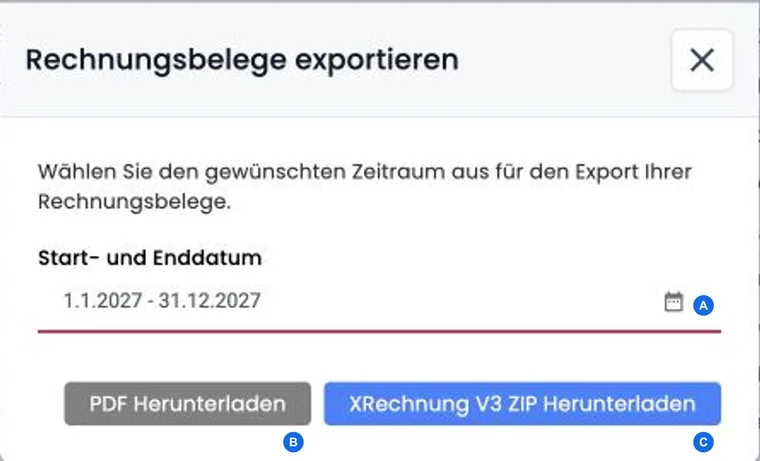
edoobox has no direct DATEV synchronisation on this page. In the invoice table, open Export invoice documents, select start and end dates and create a combined export:
- PDF: invoice documents for the period as a combined PDF. This view prepares them in the background; the result is provided in the Secure File Manager.
- XRechnung V3: matching electronic invoices as a ZIP file. Clarify with accounting whether this format is required and accepted for the specific DATEV process.
If no matching invoices exist for the period, or an export job is already running, edoobox displays a corresponding notice. Do not repeatedly start the same export; check the period and ongoing processing instead.
A combined PDF job includes at most 500 documents, and an XRechnung ZIP at most 1,000 records. For larger volumes, create smaller, clearly separated periods and reconcile the included invoice numbers. The ZIP requires saved structured invoice data; export externally managed documents from the responsible invoice manager.
Option 1: Manual export
Export the required invoices from edoobox and then upload them to DATEV Upload online or into the process requested by your accounting department.
This option gives considerable control because you determine the period, selection and timing yourself.
DATEV describes Upload online and Upload Mail as separate routes for handing over digital documents. Clarify with accounting which are enabled in your environment and which files are accepted, using the DATEV information on digital collaboration.
Option 2: Transfer by email
If your DATEV environment uses a receiving address for incoming invoices, invoices can be forwarded by email or automatically sent to that address.
First check the PDF and email structure DATEV expects.
Option 3: Automation through Zapier
With Zapier, new invoices from edoobox can be passed to further systems. This suits workflows that should run regularly without manual export.
Test the automation with a few demo invoices first and monitor the initial live runs.
Example: Hand the month-end close to accounting
At month end, an administrator filters the invoice table to the completed month, exports the invoices and hands the file to accounting. Accounting imports the documents into DATEV and reports whether the format and period are suitable.
Example: Transfer XRechnung for a defined period
An organisation needs electronic invoices for an institutional customer. It selects the agreed period in the invoice table, creates the XRechnung V3 ZIP and hands it to accounting. Before import, the count, invoice numbers and cancellation invoices are reconciled with the edoobox invoice table.
Check before handing over to DATEV
- Is the period complete and clearly delimited?
- Are the invoice number, invoice date, currency, VAT and recipient details correct?
- Are cancellation invoices and corrected documents included?
- Does accounting process a combined PDF, individual documents or XRechnung V3?
- How are duplicate imports identified and documented?
- Who checks after import that the document count and total match?
A Zapier New Invoice process responds to new invoices and does not replace this periodic completeness check. Coordinate corrections, cancellations and payment reconciliation separately.
Clarify the output format, invoice manager and DATEV acceptance
Table export as CSV, Excel or PDF contains table values. Document export, by contrast, generates invoice documents for the selected period. A table PDF is therefore not equivalent to a batch of tax invoice documents.
Electronic invoices with ZUGFeRD and XRechnung explains the current electronic profiles. Clarify with your DATEV administrator whether individual PDFs, embedded XML data or pure XML files are accepted. This guide does not confirm blanket import compatibility of a combined PDF or ZIP with every DATEV application.
If Bexio manages the invoices, that is a separate integration with its own responsibility and synchronisation: Configure the Bexio integration. A DATEV export is not automatically configured as a result.